Model Context Protocol
Generate AI imageswithout leaving your chat
Connect Pictulab to Claude, Cursor or any client that speaks the Model Context Protocol and generate images (including from references), organize them into projects and share them — all by talking to your AI. No SDK, no API keys: sign in once and start creating.
OAuth 2.1 · sign in with your Pictulab account

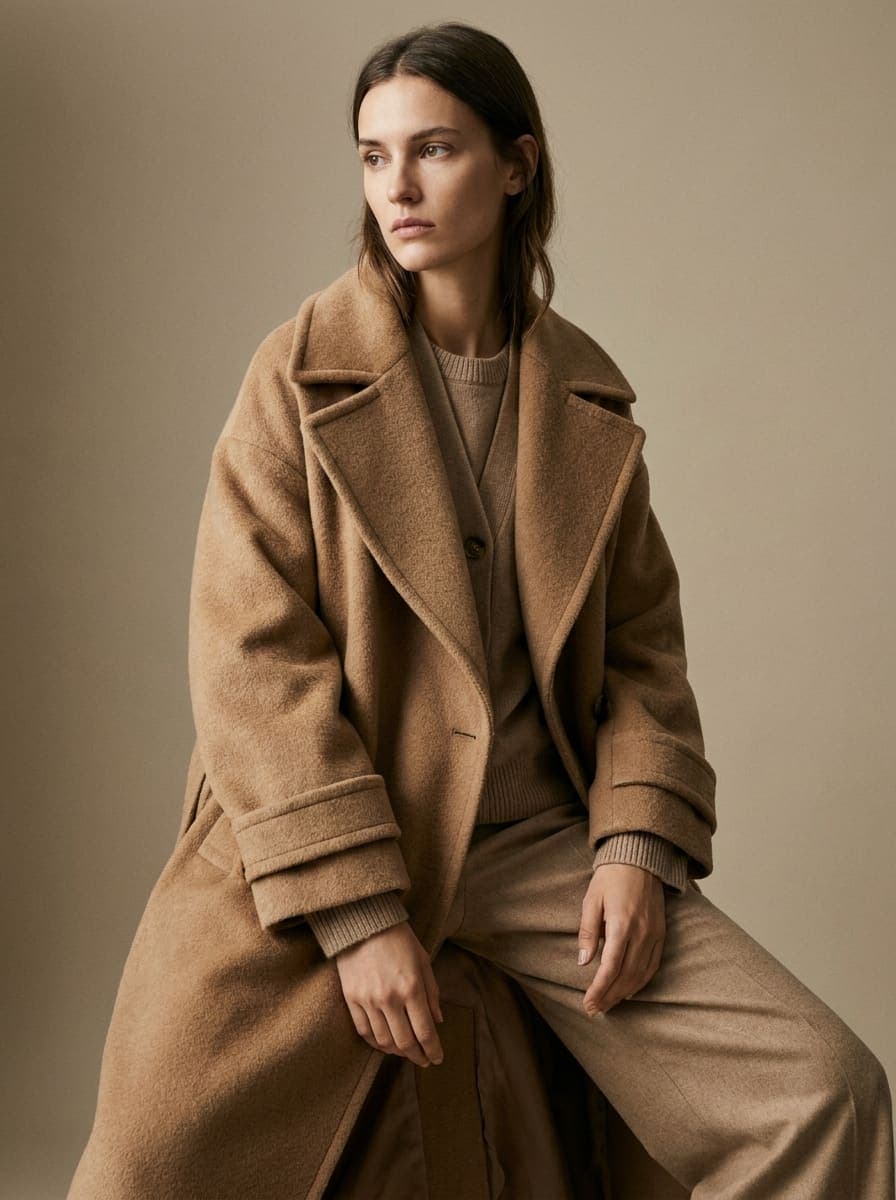
generate_image
vía Pictulab MCP
Works with
 Claude
 Cursor
 VS Code+ any MCP client
What your assistant can do
A dozen-plus tools the connector exposes to your AI. It uses them for you when you ask in plain language — no dashboard required.
Generate images
Create images from a prompt, including from reference images (image-to-image) and within each model's limits. It fetches them into the chat and can save them straight into a project.
generate_imageget_imageProjects & folders
Organize your work: create projects and folders, nest them and browse them — all from the conversation.
create_projectcreate_folderlist_projectslist_foldersImage library
Upload images to the cloud (from a URL or a file), list them with their links, move them between folders or delete them.
upload_imagelist_imagesmove_imagedelete_imageSharing
Create read-only public links for a project or folder, with or without downloads and with expiry; review or revoke them anytime.
create_share_linklist_sharesrevoke_shareModels & balance
Check the available models with their reference and editing limits, and your teams' token balance.
list_modelsget_token_balanceConnected in under a minute
Pick your client and follow the steps. Same server for all of them.
- 1Settings → Connectors → Add custom connector
- 2Paste the URL and connect — sign in with Pictulab
https://mcp.pictulab.com/mcpHow it works
From adding the connector to your first image in the chat, in four steps.
- 01
Add the connector
Paste the server URL or use the one-click button for Claude.
- 02
Sign in
OAuth with your Pictulab account. No API keys to paste.
- 03
Ask your AI
“Generate a product image on a white background.”
- 04
Get the result
The image renders in the background and appears in the chat.
FAQ
Frequently asked questions
Everything you need to know before connecting.
The Model Context Protocol is an open standard that lets assistants like Claude safely use external tools. With the Pictulab connector, your AI can generate images for you.
No. The connection uses OAuth 2.1: you sign in with your Pictulab account (Google or email) and that's it. No keys to paste or manage.
Generating images consumes your team tokens, just like in the app. Listing models or checking balance is free.
Auth is OAuth 2.1 with PKCE and the session is your own account's. Pictulab only acts on your behalf when you ask it from the chat.
Any client that supports remote MCP: Claude.ai, Claude Desktop, Cursor and VS Code, among others.
Start creating from your chat
Connect Pictulab to Claude and generate your first image in seconds.