To build a Christmas gift guide for your online store, you need five things: a short list of products that work as gifts, a consistent festive look, product photos styled to match it, a layout designed for people buying for someone else, and a timeline that gets it live before the big shopping rush starts.
You don't need a photo studio or an agency. This guide walks you through the whole process, from choosing which products make the cut to exporting images that won't slow your site down.
What a Christmas gift guide is and why your store needs one
A Christmas gift guide is a curated selection of your products presented as gift ideas. It can be a landing page on your site, a downloadable PDF, an email series or a run of social posts. Most stores end up using a mix.
Its job is to make shopping easier. At this time of year, a lot of people aren't looking for a specific product. They're looking for something to give someone. If you hand them a ready-made, well-organised selection, deciding becomes much easier.
It helps you too:
- It puts the spotlight on the products you most want to sell this season.
- It gives you content for email, social and ads for weeks.
- It strengthens your brand when every photo follows the same style.

When to start: your holiday timeline
The Christmas shopping season usually kicks off with Black Friday and Cyber Monday at the end of November and runs right up to the last shipping days before Christmas. It's a long stretch with several peaks, so you want your gift guide ready before it begins.
A sensible plan:
- October: choose your products, check stock levels and define your visual style.
- Early November: shoot or edit all your photos and write the copy.
- Before Black Friday: publish the gift guide on your site and set up your emails.
- December: push the guide on social and in your newsletter, and highlight shipping deadlines.
- After Christmas: switch the message to gift cards, returns and January sales.
One thing that often gets forgotten: check your carrier's last shipping dates for delivery before Christmas, and display them clearly in your gift guide. It saves you a lot of customer emails and complaints.
Step 1: Choose which products make the cut
A gift guide isn't your whole store with a bow on top. It's a curated pick. The clearer it is, the easier it is to buy from.
Useful criteria:
- You have enough stock or can restock in time.
- They work as gifts: they're easy to understand at a glance and don't depend on tricky sizing.
- They cover several price points, from stocking fillers to bigger presents.
- They can be bundled into gift sets, which tend to suit the season.
- You have good starting photos, or can get them without much hassle.
If you sell anything with sizes, include a reminder of your exchange policy. Gift buyers want to know the recipient can swap it.
Step 2: Define a festive visual style
Before you touch a single photo, decide what the gift guide should look like. If every image has a different style, the whole thing feels thrown together.
Pin down these points and write them down:
- Colour palette: classic reds and greens, gold and white, Scandi tones with light wood, or something more understated.
- Type of scene: plain background with a festive touch, flat lay on a table, or a cosy living room with a fireplace or tree.
- Lighting: warm, soft light usually works well for Christmas, but what really matters is keeping it the same across every shot.
- Props: fir branches, pine cones, kraft paper, ribbon, fairy lights. Pick a few and reuse them.
This style is what you'll describe to the AI for every image, so the more specific it is, the more consistent your results will be.
Step 3: Prepare your product photos
This is usually the most time-consuming part. The good news is you can start from the photos you already have.
Cut out the product
First, separate the product from its original background. Pictulab's background remover does this for free in your browser, and your images are never uploaded to a server.
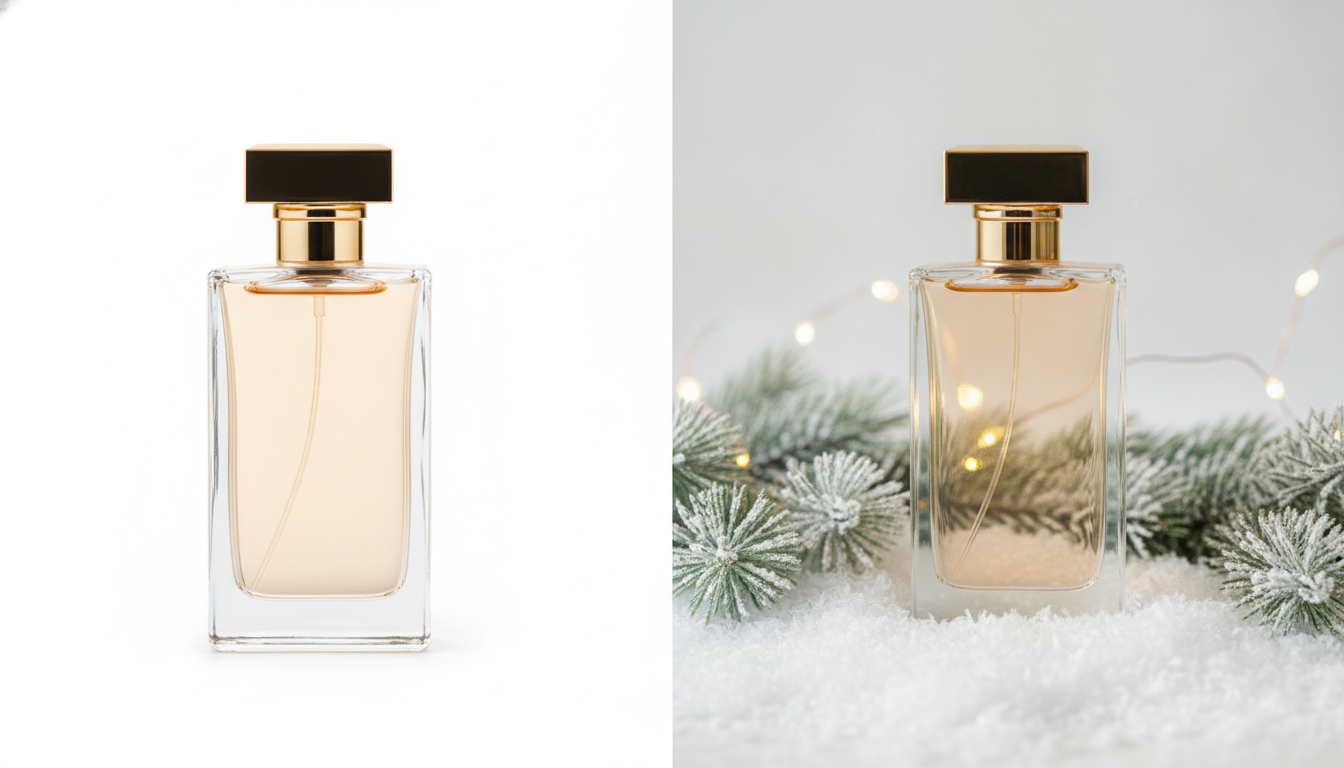
Once the product is cut out, you have two useful versions:
- On white or a plain background, for product pages and channels that require it.
- Ready to style, as the base for your Christmas scene.
Add a festive setting with AI
With the cut-out product, you can generate the Christmas setting you defined in Step 2 in Pictulab: a wooden table with fir branches, a living room with warm lights, snow, wrapping paper. Every generation shows its token cost before you run it, so you always know what each image costs.
Tips for believable results:
- Always describe the same base scene and only change small details, to keep things consistent.
- Watch the scale: a mug shouldn't look the size of a table.
- Check shadows and reflections, because that's what gives a composite away.
Don't change the product
The setting can be as festive as you like, but the product has to look exactly as it is: same colour, same apparent size, same details. If the photo promises something different from what arrives, you'll get returns and unhappy customers.
Step 4: Organise the guide around the gift buyer
The way you organise your store the rest of the year (by product category) isn't always the most useful at Christmas. Gift buyers think about the person, not your category tree.
Groupings that tend to work well:
- By recipient: for her, for him, for kids, for the person who has everything, Secret Santa.
- By price: stocking fillers, mid-range gifts, special presents.
- By occasion: Christmas Eve, last-minute gifts, gifts for hosts.
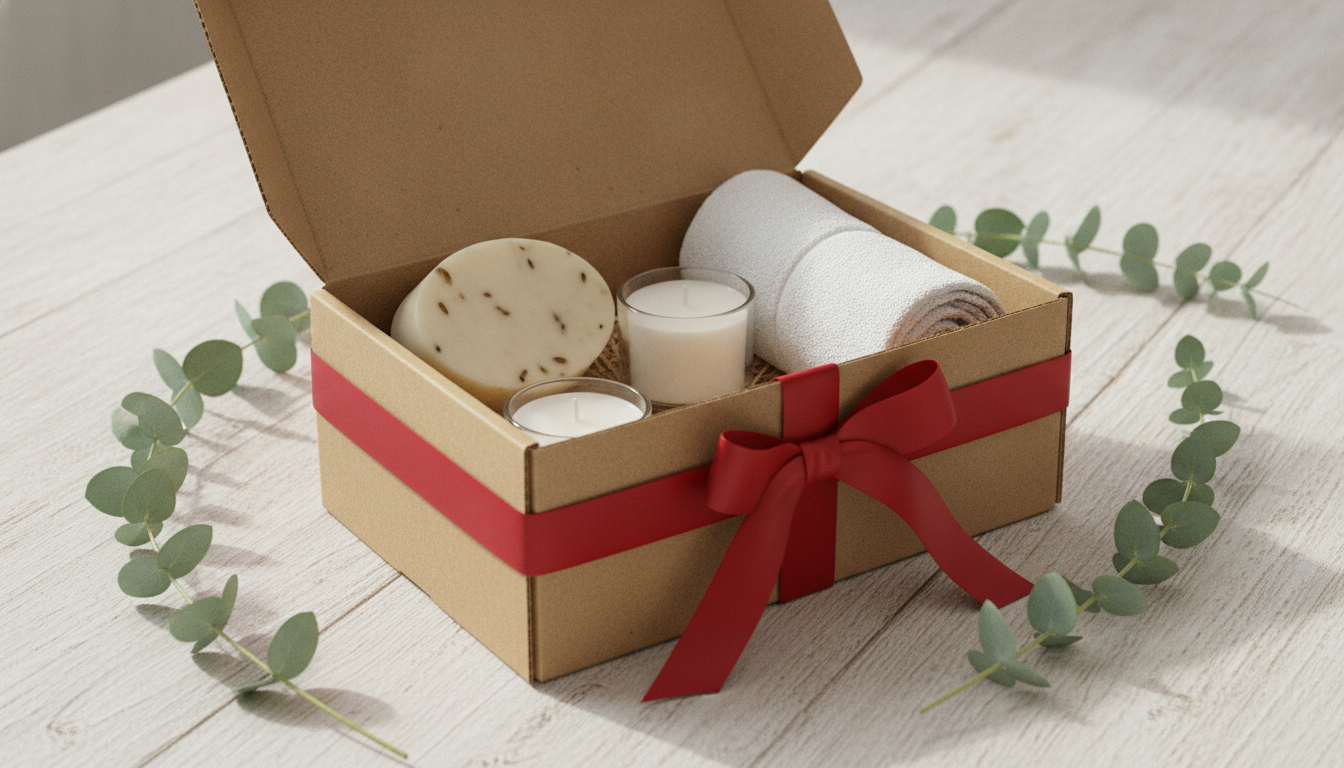
- Gift sets and bundles: ready-made combinations with their own photo.
You can combine two approaches, for example recipient as the main sections and price as a filter. What matters is that people find something in just a few clicks.
Step 5: Write short, useful copy
In a gift guide, the copy supports the photo rather than competing with it. For each product, you only need:
- A clear title that says what it is.
- One or two sentences on who it's for or why it makes a good gift.
- The price, clearly visible.
- Practical details: sizes, dimensions, whether it can be personalised or arrives gift-wrapped.
In the header or footer of the guide, cover the general information: shipping deadlines, gift wrapping options, returns and exchanges policy, and whether you offer gift receipts.
Step 6: Pick your formats and channels
The same gift guide can be adapted for several places. You'll need your images in different sizes and aspect ratios.
A page on your website
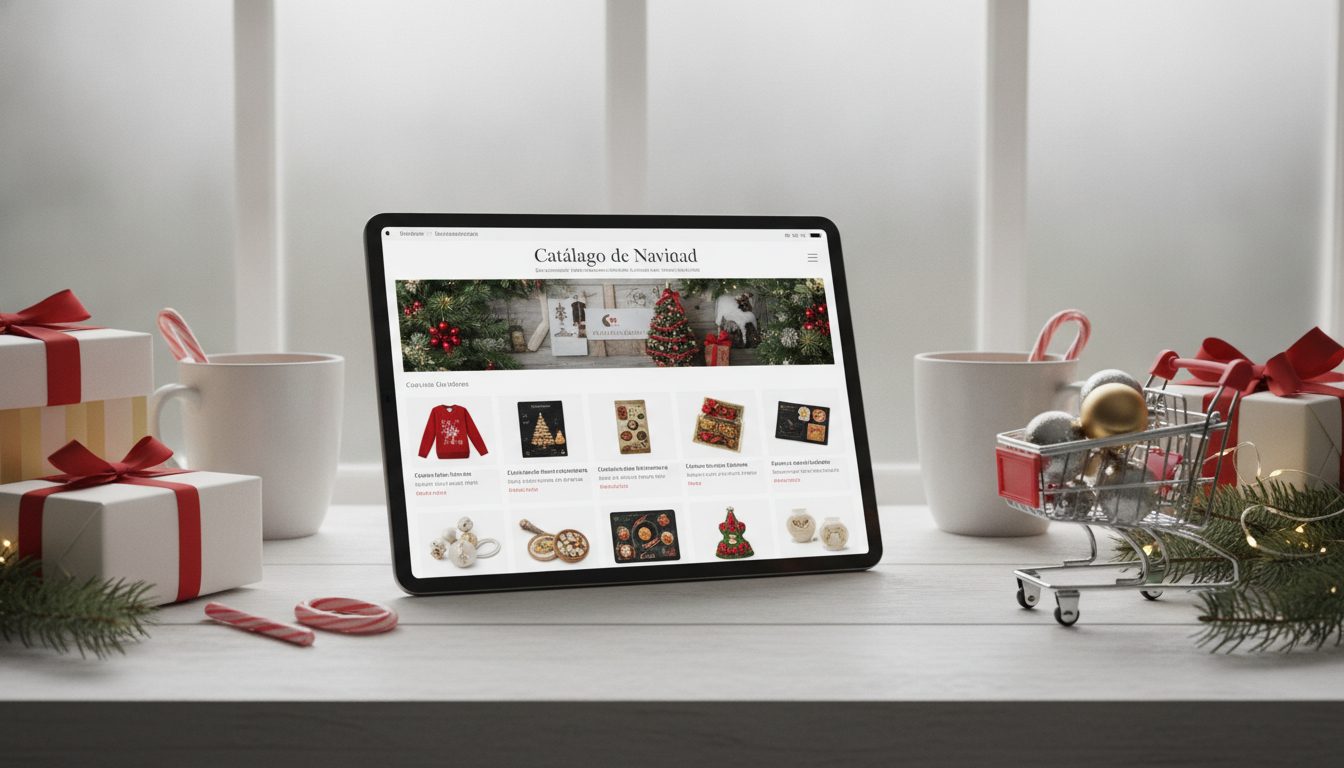
A Christmas page or collection on your store is the foundation: it's where people actually buy. Use the styled photos as the hero image for each section, and keep the plain-background shots on product pages if that's how the rest of your store looks.
Downloadable PDF
Handy if you also sell to retailers, businesses or for corporate gifting. Link each product so you don't lose the sale.
Email newsletter
Send the guide in instalments: one email per recipient group usually works better than sending everything at once.
Social media
Adapt your photos to vertical or square formats. Styled scenes usually suit social better than white-background shots.
Marketplaces
Many marketplaces require the main product image to have a white background. Check each one's rules and use your styled photos as secondary images where allowed.
Step 7: Optimise image size and format
A gift guide full of large images can make your page load slowly, especially on mobile. Before uploading anything:
- Compress your images with Pictulab's image compressor, which cuts file size without a visible drop in quality.
- Convert to the right format with the image converter, for example to WebP for the web if your platform supports it.
- Resize to the dimensions they'll actually be displayed at.
- Use descriptive file names and add alt text to every image.
Both tools are free and run in your browser, without uploading your photos to any server.
Common mistakes when building a Christmas gift guide
- Including too many products. If the guide is as long as your store, it stops doing its job.
- Mixing visual styles. Some shots with snow, others with a beach backdrop and others on white just look messy.
- Props that bury the product. Props are supporting cast; what you sell is the star.
- Not showing shipping dates. It's one of the most common questions at this time of year.
- Stopping on 25 December. After Christmas, people still shop with gift cards and for the January sales, so plan a follow-up message.
- Unoptimised images. A slow page on mobile makes plenty of people leave before they see anything.
How much it costs to prepare your photos with Pictulab
The web tools for removing backgrounds, compressing and converting are free.
AI-generated settings use tokens:
- Free plan: 100 welcome tokens, one time only, no card required.
- Conversion: 100 tokens = €1.
- Upfront cost: every generation shows its price before you run it.
If you're preparing a large gift guide, there are monthly plans (VAT included): Starter at €12, Pro at €36 and Business at €120. Pay annually and you get two months free.
Start free — 100 tokens on us, no card required.
You might also like:
- [ENLACE: how to shoot white-background product photos for your online store]
- [ENLACE: how to get your online store ready for Black Friday]
FAQs
How far ahead should I prepare my Christmas gift guide?
Ideally, have it live before Black Friday at the end of November. That means choosing products in October and preparing photos and copy in early November.
Can I use AI-styled photos on Amazon or other marketplaces?
It depends on each marketplace's rules. Many require a white background on the main image, so the usual approach is to use that as the main photo and add styled shots as secondary images where allowed. Always check the latest requirements.
Is a PDF or a web page better for a gift guide?
For direct sales, a web page is the foundation because that's where people buy. A PDF makes sense as an extra, for example for trade customers or corporate gifts, as long as every product is linked.
How many products should I include?
There's no fixed number. It depends on the size of your store, but the point is to curate: products you have in stock, that work as gifts and that cover several price points. If in doubt, include fewer.
How much does it cost to style photos with Pictulab?
Removing backgrounds, compressing and converting are free. AI settings are paid with tokens (100 tokens = €1), and each generation shows its cost before you run it. When you sign up, you get 100 free tokens to try it out, no card required.
Create visual content with AI for your business
Generate, edit and organize your images in one platform. Start free, no card required.
Get started free