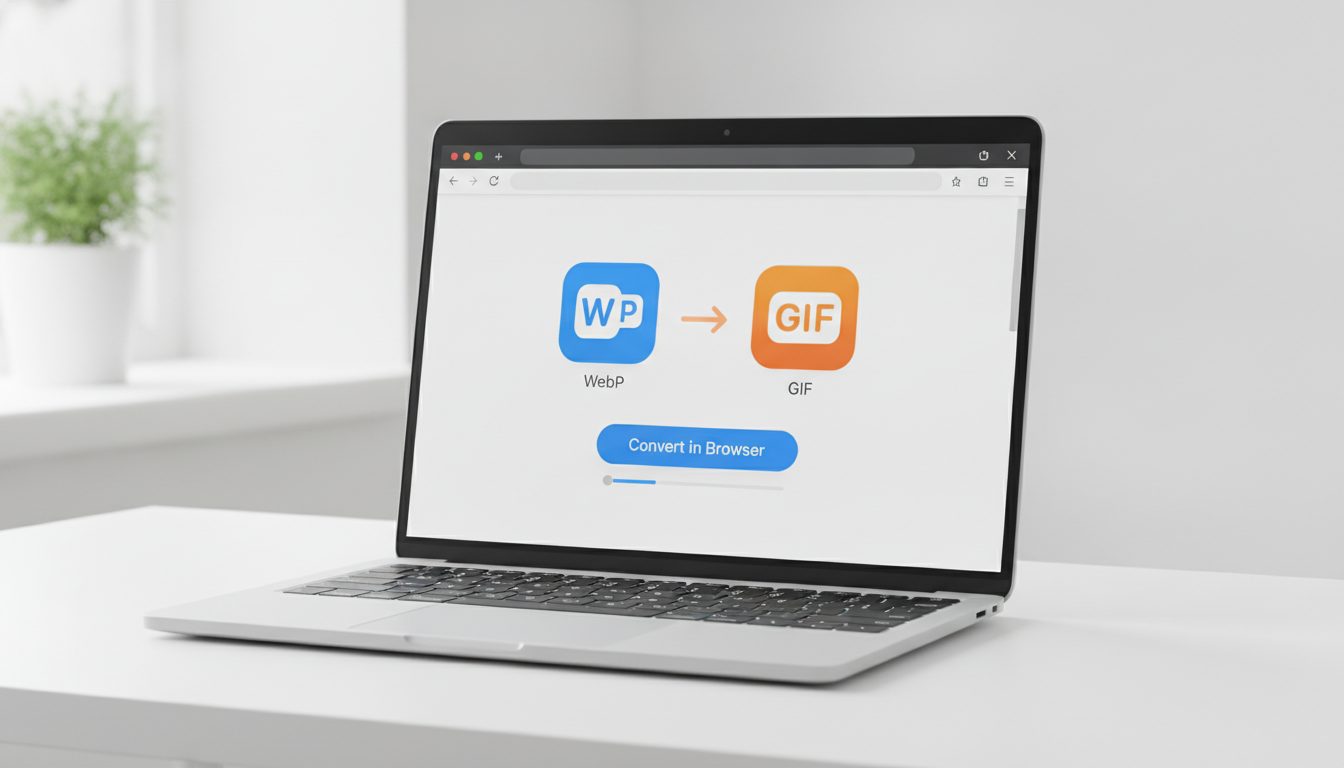
Looking for a quick WebP to GIF fix? Open an image converter, load your .webp file, pick GIF as the output format and download the result. With Pictulab's image converter it's free and runs right in your browser, so your images are never uploaded to a server.
That said, converting WebP to GIF isn't always a good idea. GIF is an old format with tight limits on color and transparency. Below you'll find how to convert, when it's actually worth doing, and how to keep your image from falling apart along the way.
How to convert WebP to GIF, step by step
The WebP to GIF process is pretty much the same in any tool:
- Open the converter. Go to /herramientas/convertir in any modern browser.
- Add your WebP file. Drag it into the window or select it from your computer.
- Choose GIF as the output format.
- Download the converted file and check how it looks before you use it.
Because the conversion happens in your browser, you're not waiting on upload speeds, and you don't have to wonder where your product photos end up. That's handy when you're working with images you haven't published yet.
WebP vs. GIF: what changes when you convert
It helps to understand what each format does before converting, because it explains almost every problem you're likely to run into.
WebP
- Supports both lossy and lossless compression.
- Handles millions of colors.
- Supports full transparency (alpha channel), including soft edges and semi-transparent shadows.
- Can be static or animated.
- Usually produces smaller files than JPG, PNG or GIF at similar quality.
GIF
- Each frame uses a palette of 256 colors at most.
- Transparency is all or nothing: a pixel is either fully transparent or fully opaque, with nothing in between.
- Supports animation and plays in virtually every app, browser and email client.
- Animated GIFs tend to be considerably larger than an equivalent animated WebP.
In short: going from WebP to GIF gets you compatibility, but you lose colors, smooth transparency and, quite often, small file sizes.
When converting WebP to GIF makes sense
There are clear cases where GIF is still the practical choice:
- Newsletters and emails. Some email clients don't display WebP images properly, while GIF shows up almost everywhere. If you want a small animation in an email, GIF is still the safest bet.
- Platforms that don't accept WebP. Some forums, older CMSs, marketplaces and internal tools only take the classic formats.
- Older editing or presentation software that can't open .webp files.
- Short, simple animations, like an icon, an animated logo or a loading spinner.
When you shouldn't convert to GIF
In other situations, GIF will cost you quality without giving you anything back:
- Static product photos. If all you need is compatibility, convert to JPG (photos without transparency) or PNG (when you need a transparent background). Both keep far more colors than GIF.
- Images for your online store. If your site supports WebP, leave them as WebP: they load faster and look just as good.
- Long animations or real-world footage. A GIF that runs several seconds with gradients and lots of colors can weigh several megabytes and show visible banding. A short MP4 video usually works better here.
How to keep your GIF looking good
The 256-color limit is behind most quality issues. These tips help:
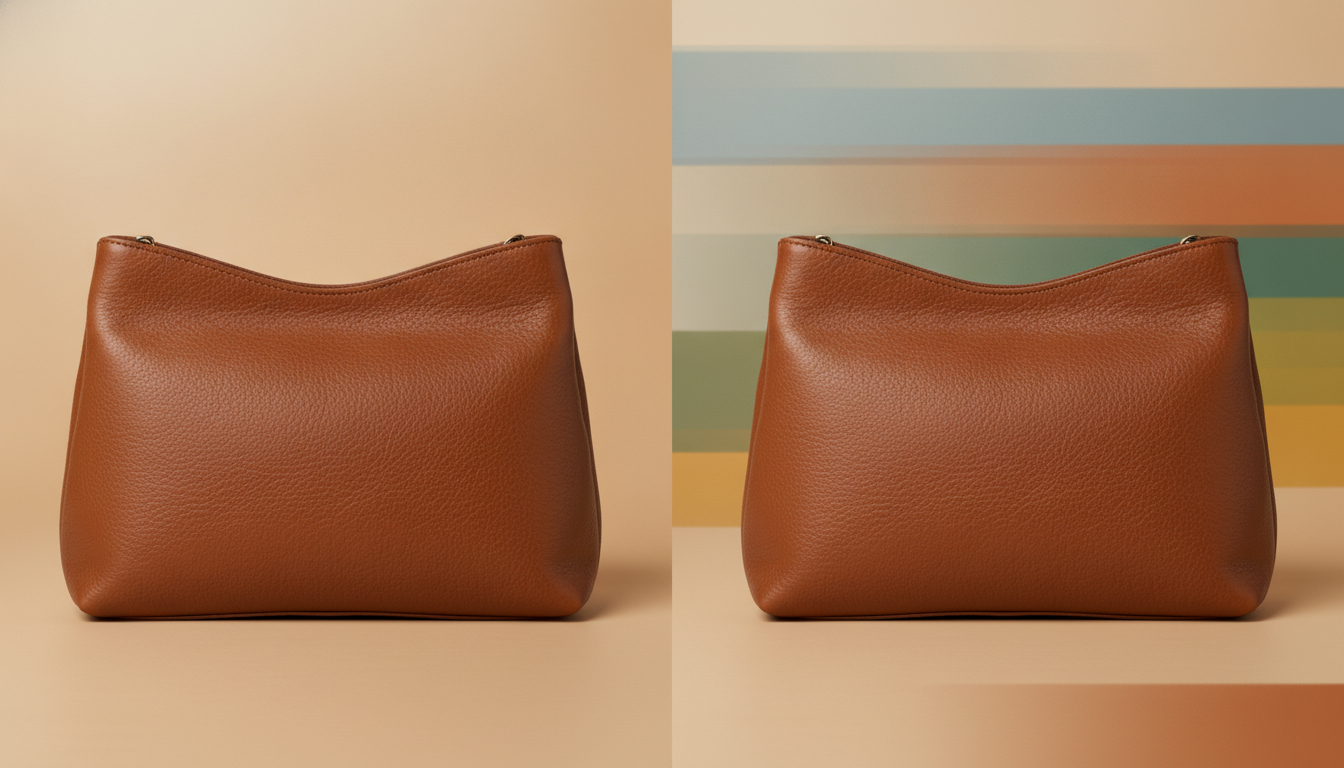
Watch out for gradients
Skies, soft shadows and gradient backgrounds are what GIF handles worst: you'll see stripes of color. If you're creating an image with GIF in mind, stick to flat backgrounds or a limited range of tones.
Check transparent edges
Since GIF has no semi-transparency, the soft edges of a cut-out product can end up jagged or with a white or gray halo. Two ways around it:
- Place the product on a solid background that matches wherever it'll be displayed (for example, white if it's going into an email with a white background).
- If you need to cut out the product first, use the free background remover, then decide which color to put it on.
Resize before converting
A 2000-pixel-wide GIF rarely makes sense. Scale it to how it'll actually be used (emails are typically shown at around 600 pixels wide) and the file will be much lighter. If it's still too big, run it through the image compressor, which also works in your browser.
If your WebP is animated
Before converting, check how many frames it has and how long it runs. More frames and more colors mean a heavier GIF. Trimming the length or lowering the frame rate saves the most weight.
Other ways to convert WebP to GIF
Pictulab isn't your only option. Depending on what you need, one of these might suit you better:
- Ezgif. A well-known site for working with GIFs. Its advantage over a simple converter is that it includes animation editing tools: trimming frames, changing speed or optimizing the palette. If you're doing a lot of work on an animated GIF, it gives you more control. The trade-off is that your files are uploaded to their servers.
- FFmpeg. A free, open-source command-line tool. It can batch-convert entire folders and lets you tweak every setting, which is very practical if you have hundreds of images. The downside is that you need to use commands, and there's a learning curve.
- GIMP and other editors. They open WebP and export to GIF, with control over the palette and dithering. Useful if you also want to edit the image.
Pictulab's converter is a good fit when you want something fast, with nothing to install and without your images ever leaving your computer.
Need to create the animation from scratch?
Sometimes the issue isn't the format: it's that you don't have a decent animation of your product in the first place. Pictulab also lets you create and edit images and video with AI for online stores. You can generate product scenes or short clips, then export them in whatever format you need. Every generation shows its token cost before you run it, so you always know what you're spending.
The free plan gives you 100 welcome tokens (one time only, no card required). If you use it regularly, there are monthly plans with VAT included: Starter at €12, Pro at €36 and Business at €120, with two months free when you pay annually.
Start free — 100 free tokens, no card required.

You might also like:
- [ENLACE: how to convert WebP to JPG or PNG without losing quality]
- [ENLACE: which image format to use for an online store]
FAQ
Can I convert WebP to GIF for free?
Yes. Pictulab's converter is free, and the web tools don't require you to sign up. Free alternatives include Ezgif, FFmpeg and GIMP.
Do you lose quality converting WebP to GIF?
Usually, yes, especially with photos. GIF only supports 256 colors per frame and has no semi-transparency, so gradients can show banding and cut-out edges can look jagged.
Why is my GIF bigger than the original WebP?
Because WebP compresses much more efficiently, especially for animations. To cut the file size, reduce the dimensions, shorten the animation or drop some frames, then run the file through a compressor.
Is it safe to convert images in the browser?
With Pictulab's web tools (convert, compress and background remover), images are processed in your browser and never uploaded to a server.
Which format should I use if I don't need animation?
JPG for photos without transparency, PNG for images with a transparent background. Both keep far more colors than GIF and are accepted by virtually every platform.
Create visual content with AI for your business
Generate, edit and organize your images in one platform. Start free, no card required.
Get started free