A BMP file is a bitmap image format created by Microsoft that stores every pixel as-is, usually with no compression. That means it keeps full quality but takes up a huge amount of space. For an online store, publishing a BMP is almost never a good idea. The practical move is to convert it to JPG, PNG or WebP before you upload it. You can do that for free with Pictulab's image converter, which runs in your browser without uploading your files to any server.
Below you'll learn exactly what a BMP file is, why it's so heavy, when it actually makes sense to use one and how to turn it into a web-friendly format in a few seconds.
What is a BMP file?
BMP is short for bitmap. The file extension is .bmp, and you'll sometimes see it as .dib (device independent bitmap). It has been a native Windows format since the earliest versions, which is why Paint opens and saves it without any fuss.
The way it works is very simple:
- The file starts with a header that records the width, height and color depth.
- Then come the pixels, one after another, row by row.
- It supports several color depths: 1, 4, 8, 16, 24 and 32 bits per pixel.
- It can use a very basic compression method (RLE) for 4-bit and 8-bit images, but most BMPs you'll run into are uncompressed.
That simplicity is both its biggest strength and its main drawback.
Why BMP files are so large
Because every pixel is stored uncompressed, file size depends almost entirely on resolution and color depth. The math is straightforward:
- A 1000 × 1000 pixel image at 24 bits takes 1000 × 1000 × 3 bytes, roughly 3 MB.
- A 2000 × 2000 pixel product photo at 24 bits takes roughly 12 MB.
It doesn't matter whether the photo is a plain white background or a detailed landscape: the BMP weighs the same. A JPG or WebP of that same photo takes advantage of repeated areas and usually ends up at a fraction of the size, with a quality loss that's hard to spot with the naked eye.
For an online store, this matters a lot. Every heavy image slows down your product page, eats more mobile data and makes the experience worse for someone who's about to buy.
BMP vs. JPG, PNG and WebP
BMP isn't a bad format. It's just built for different jobs. Here's how it stacks up against the formats you'll typically see on the web:
| Format | Compression | Transparency | Typical file size | Best for |
|---|---|---|---|---|
| BMP | Usually none | Only in some 32-bit variants, with patchy support | Very large | Internal editing, legacy software |
| JPG | Lossy | No | Small | Product and lifestyle photos |
| PNG | Lossless | Yes | Medium to large | Logos, graphics, cutouts with transparent backgrounds |
| WebP | Lossy or lossless | Yes | Small | General web use, good size-to-quality balance |
Where BMP wins or ties
To be fair, BMP does have some things going for it:
- No quality loss: since there's no compression, there are no artifacts. On this point it ties with PNG.
- Very fast, simple to read: there's nothing to decompress, so almost any program, even a very basic or very old one, can open it.
- Windows compatibility: every version of Windows opens it out of the box, no extra software needed.
Where it falls short
- It's much larger than any alternative, with no quality gain over PNG.
- Transparency exists in some versions, but many programs and browsers ignore it.
- It doesn't store metadata as thoroughly as JPG.
- It's not a common format for online stores or social media.
When it makes sense to use BMP
There are a few situations where BMP is a good fit:
- Legacy or industrial software that only accepts BMP, such as some label printing systems, embroidery machines or technical tools.
- Intermediate editing steps when you want to avoid any compression between one program and another (although PNG or TIFF do the same job at a smaller size).
- Very small icons and graphics for Windows desktop apps.
If you're publishing photos to a store, a catalog, a marketplace or social media, the answer is almost always the same: convert the BMP.
How to convert a BMP file to JPG, PNG or WebP
With Pictulab, right in your browser
- Open the image converter.
- Drag and drop one or more BMP files.
- Pick your output format: JPG for photos, PNG if you need maximum fidelity or transparency, WebP for the web.
- Download the result.
The tool is free and processes images in your own browser: your photos are never uploaded to a server. That's handy if you're working with product shots you're not ready to make public yet.
If you want to trim the file size further, run them through the image compressor, which also works locally and is free.
With Paint (Windows)
- Open the BMP in Paint.
- Go to File > Save as.
- Choose JPEG picture or PNG picture.
It's quick for a single file, but it gets tedious if you have dozens of photos.
With Preview (Mac)
- Open the BMP in Preview.
- Go to File > Export.
- Select the format and, if you choose JPG, adjust the quality with the slider.
Which format to choose when converting
A simple rule of thumb for online stores:
- Product photo with a background or scene: JPG or WebP.
- Product cutout with a transparent background: PNG or WebP.
- Logo, icon or flat-color graphic: PNG or WebP.
- Image you'll keep editing: PNG, so you don't stack up quality loss.
If your BMP is a product photo with a messy background, use the conversion as a chance to clean it up. With the background remover, also free and browser-based, you can isolate the product and export it as a PNG or WebP with transparency.
Beyond converting: improving your image with AI
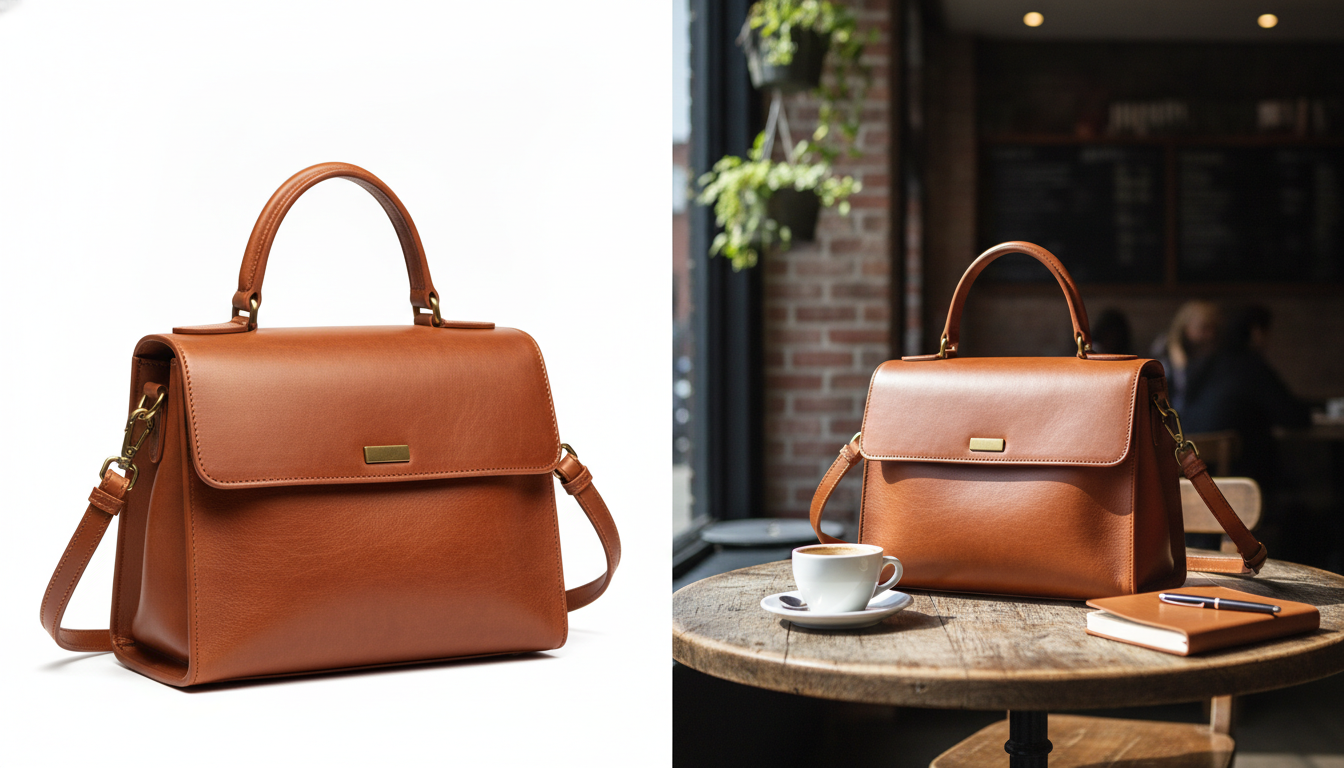
Once your photo is in a lightweight format, you can take it further with Pictulab's AI tools: generate lifestyle backgrounds for your product, create variations for social media or turn a single image into a short video. Every generation shows its token cost before you run it, so you always know what you're spending.
The free plan includes 100 welcome tokens, one time only, no credit card required (100 tokens = €1). If you need more, there are monthly plans with VAT included: Starter at €12, Pro at €36 and Business at €120, with two months free when you pay annually.
Start for free — 100 tokens on us, no credit card required.
Related articles
- [ENLACE: JPG vs. PNG vs. WebP for online stores]
- [ENLACE: How to reduce product image file size without losing quality]
FAQ
What does BMP stand for?
It stands for bitmap. It's a Microsoft image format that stores the information for each pixel, usually without compression.
Do you lose quality converting BMP to JPG?
Yes, a little, because JPG uses lossy compression. At a high quality setting the difference is barely noticeable. If you don't want to lose anything, convert to PNG or lossless WebP instead.
Can I upload BMP images to my online store?
It depends on the platform, but even if it's accepted, it's not a good idea: the file is large and slows down your page. Convert it to JPG, PNG or WebP before uploading.
Does the BMP format support transparency?
Some 32-bit variants include an alpha channel, but many programs and browsers don't handle it properly. If you need transparency, use PNG or WebP.
Is it safe to convert BMP files with Pictulab?
Pictulab's converter runs in your browser: images are processed on your own device and never uploaded to a server. It's also free.
Create visual content with AI for your business
Generate, edit and organize your images in one platform. Start free, no card required.
Get started free