Running late on your Cyber Monday product images? You don't need a new photoshoot. You need three things: the product photos you already have, a clean background with one consistent campaign scene, and every image exported in the size and file weight each channel expects. With AI tools and a clear workflow, a small online store can get the whole campaign ready in an afternoon.
This guide walks you through the process step by step. It covers the formats worth preparing, the usual mistakes people make when rushing, and how to reuse your Black Friday assets.
The images you actually need for Cyber Monday
Cyber Monday falls on the Monday after Black Friday. It's usually a short campaign, heavily focused on online sales, with a lot of traffic coming from phones. So you don't need twenty different assets. A small, well-made kit is enough:
- Product photos on a clean background for product pages and marketplaces.
- A hero image for your store's homepage or deals page.
- Vertical versions for Stories and Reels (9:16).
- Feed versions for social media (square 1:1 or vertical 4:5).
- An email image, horizontal and lightweight.
If you have to prioritize, start with your best sellers or the products with the deepest discounts. Five products with polished images will do more for you than forty with mismatched photos.
Step by step: campaign images in one afternoon
1. Pick and check the photos you already have
Gather the photos of your chosen products in one folder. Throw out anything blurry, dark or with the product cropped off. AI can improve an image a lot, but a weak starting point still gives a weak result.
Keep the sharpest shot of each product, even if you hate the background. You'll fix that in the next step.
2. Remove the background
A clean background makes every photo look like it came from the same shoot, even if they were taken in different places. Pictulab's background remover is free and runs right in your browser. Your images are never uploaded to a server, which is handy if you're working with products you haven't launched yet.
Save two versions of each cutout:
- White background, for product pages and marketplaces. Amazon, for example, requires a pure white background on the main image.
- Transparent background (PNG), for placing the product on scenes or banners.
3. Create a campaign scene with AI
This is where Cyber Monday really shows. Skip the generic stock photos. Instead, generate a background or scene that fits your brand and place your cutout product on top. A few ideas that work well for this campaign:
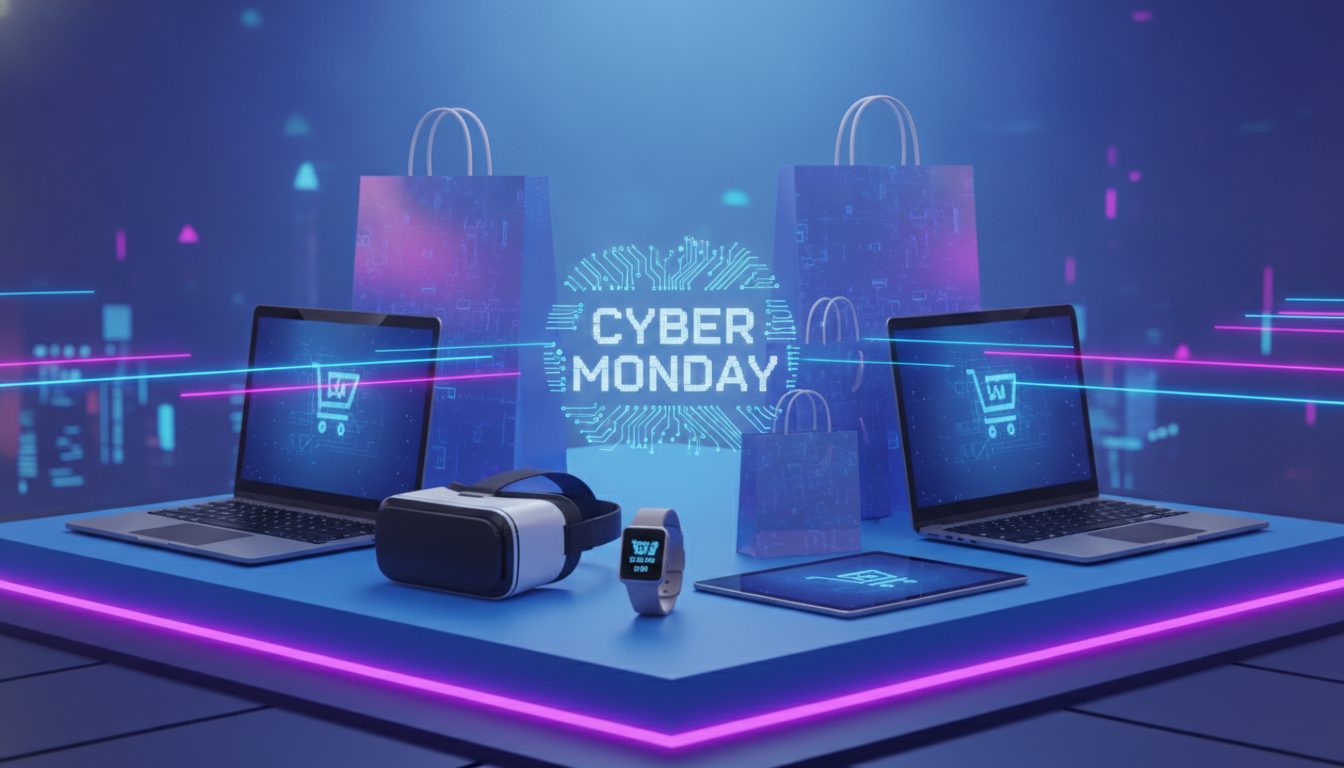
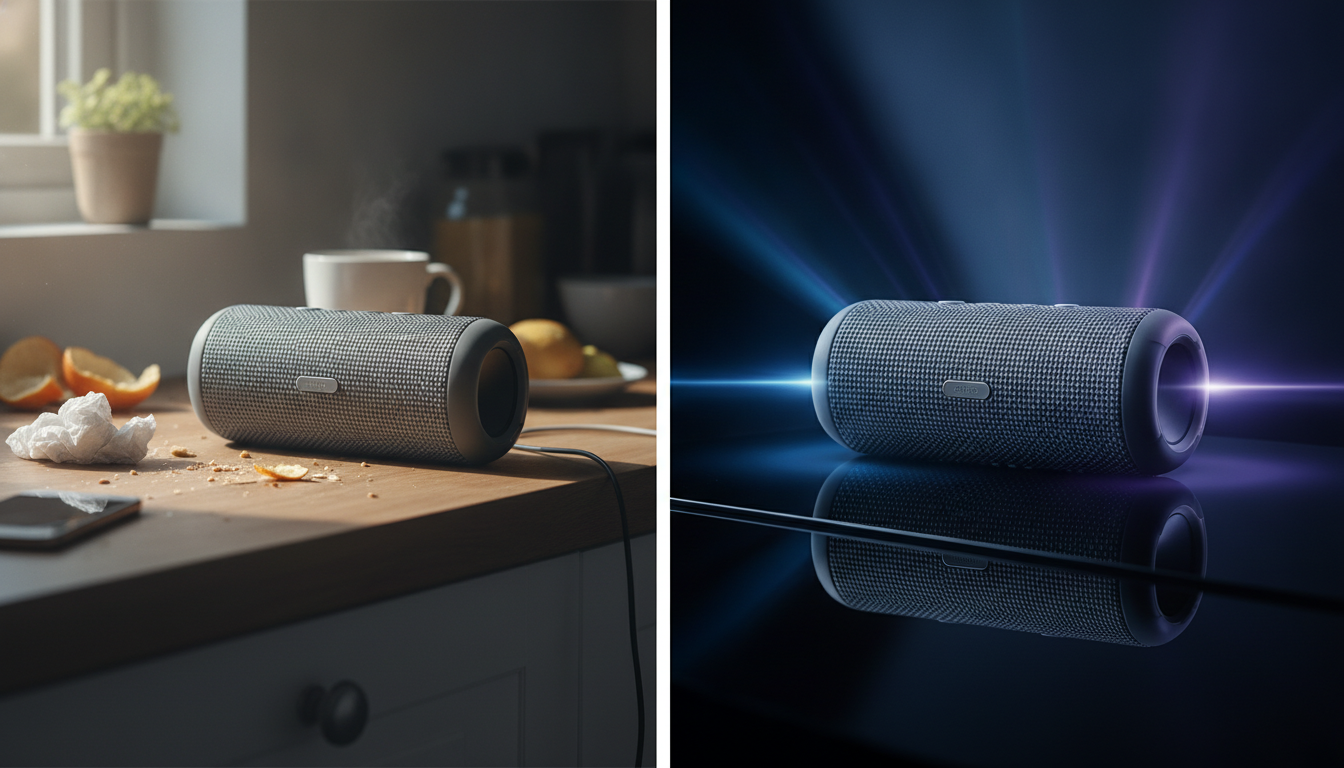
- Dark surfaces with reflections and soft neon lights, which match the tech feel of Cyber Monday.
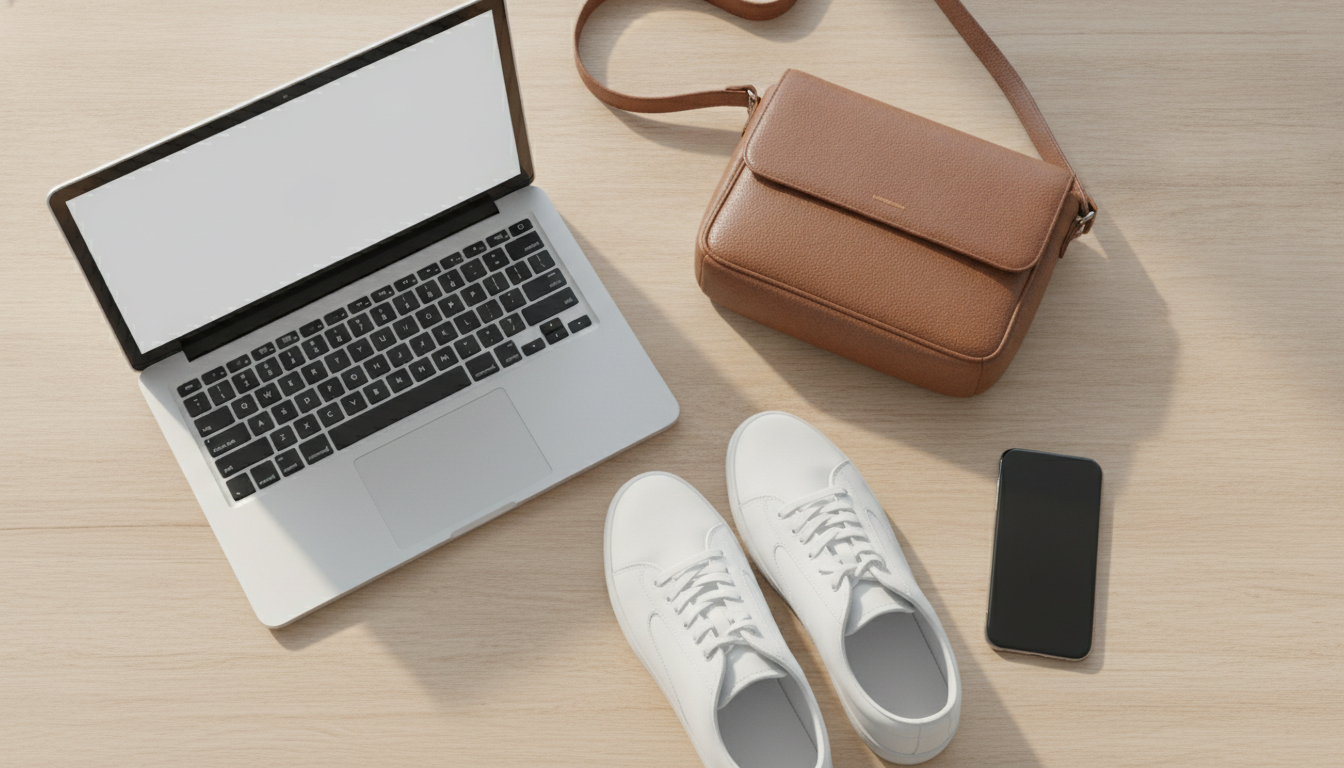
- Desk setups with a laptop or phone, a nod to online shopping.
- Solid-color backgrounds in your brand palette, simple and easy to pair with text.
Use the same scene or palette for every product. Visual consistency makes your campaign instantly recognizable in the feed and on your homepage.
4. Adapt each image to its channel
One composition has to work across several formats. Plan for these aspect ratios from the start:
| Channel | Recommended ratio | Common size |
|---|---|---|
| Stories and Reels | 9:16 | 1080 × 1920 px |
| Instagram feed | 4:5 or 1:1 | 1080 × 1350 px or 1080 × 1080 px |
| Store hero banner | Horizontal | Depends on your theme |
| Horizontal | Around 600 px wide, doubled for high-resolution screens |
Quick tip: keep the product centered with breathing room around it. That way, when you crop from horizontal to vertical, it won't fall out of frame. If you're generating scenes with AI, ask for the final aspect ratio up front instead of cropping later.
5. Compress and convert before publishing
On a high-traffic day, a slow homepage costs you sales. Before you upload anything:
- Run your images through the image compressor to cut file size without visible quality loss.
- Use the image converter to switch your website images to WebP. It's usually lighter than JPG or PNG at similar quality.
- For email, check that your email platform supports the format. If in doubt, JPG is the safest bet.
Both tools are free and run in your browser, just like the background remover.
Text on images: keep it short and compliant
With a last-minute campaign, it's tempting to cram the banner with messages. Less is more:
- One main message: the discount or offer, big and bold.
- One urgency cue: "Today only" or the end time.
- One call to action on the website or email button. It doesn't have to sit inside the image.
Add text in your design tool or your store's template rather than asking the image generator to do it. AI-generated text can come out with typos and is hard to fix.
Be careful with strikethrough prices. If you sell to customers in the EU, consumer protection rules require the "before" price in a promotion to be the lowest price you charged in the previous 30 days. Other markets have their own pricing rules too. If you put prices on a banner, check them as carefully as you check the product page.
Common mistakes when you're in a rush
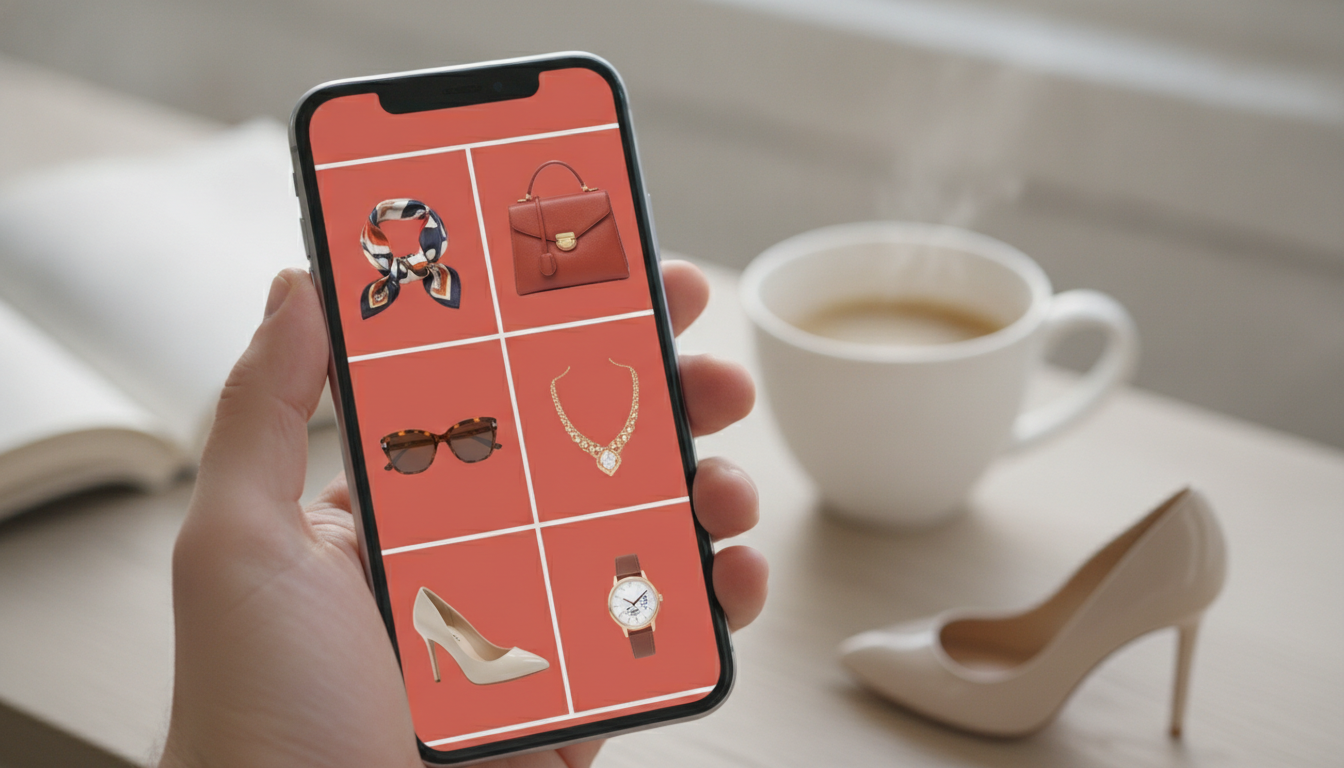
- Mixing styles. Some products on white, others in a scene, others still in the original photo. Pick one look and apply it everywhere.
- Scenes that misrepresent the product. AI should change the setting, not the product. Check colors, apparent size and details before publishing to avoid returns and complaints.
- Heavy images on the homepage. A multi-megabyte banner is noticeable on mobile. Always compress.
- Forgetting the vertical format. A big share of traffic comes from phones and Stories.
- Key elements near the edges. Social platforms crop images and overlay buttons. Leave safe margins.
Reuse your Black Friday assets
If you already ran a Black Friday campaign, you're halfway there. Your transparent product cutouts work as they are. What changes is the scene.
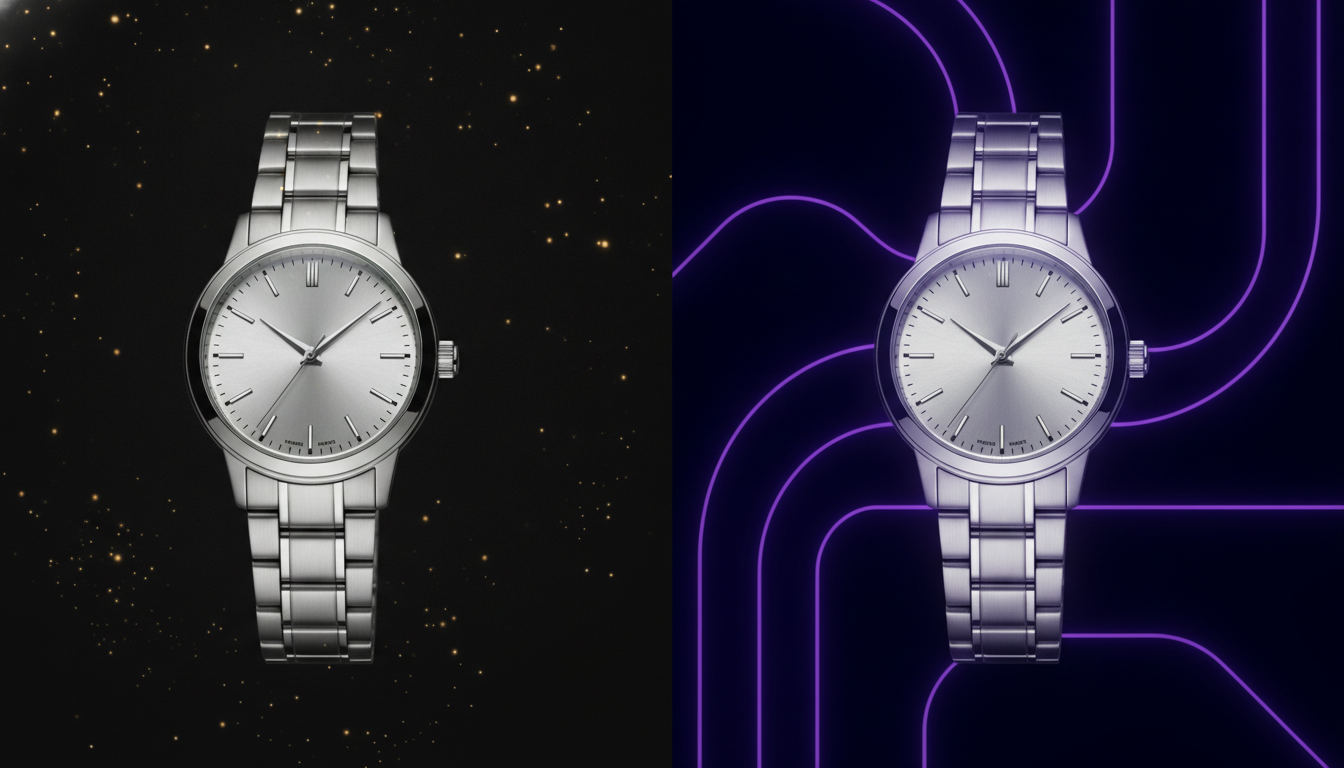
Move from the black-and-gold look typical of Friday to a more tech-inspired style with blues, purples or neon, and update the message. Monday's campaign will feel fresh without starting from scratch.
You can also run one continuous campaign from Black Friday through Cyber Monday. Keep the same base scene and just swap the text and accent color. It's faster and builds brand recognition.
What it costs to prepare your campaign with Pictulab
The web tools for removing backgrounds, compressing and converting are free. Generating scenes or editing images with AI uses tokens. When you sign up, you get 100 welcome tokens, once, with no card required, and 100 tokens equal €1. Every generation shows its cost before you run it, so you know what you'll spend before you start.
If you need more, the monthly plans (VAT included) are Starter at €12, Pro at €36 and Business at €120. Pay annually and you get two months free.
Start free — 100 tokens on us, no card required.
To keep your campaign moving, you might also like:
- [ENLACE: how to create Black Friday product photos with AI]
- [ENLACE: social media image sizes for online stores]
FAQ
Can I create Cyber Monday product images on the day?
Yes, if you start from product photos you already have. For a small catalog, you can fit the whole process into a few hours: remove backgrounds, generate a shared scene, adapt formats and compress. Prioritize your best sellers and biggest discounts.
What image format should I use on my store?
WebP usually gives you smaller files than JPG or PNG at similar quality, and current browsers support it. Use PNG only when you need transparency. Use JPG for email if you're unsure about compatibility.
Can I use AI-generated scenes on marketplaces?
It depends on the marketplace and the image slot. Many, like Amazon, require a white background on the main image. AI scenes fit better in secondary images, social media, email and your own store. Always check each platform's rules.
Are my photos uploaded to a server when I remove the background?
Not with Pictulab's free web tools. The background remover, compressor and converter run in your browser, and your images are never uploaded to a server.
Do I need a credit card to try Pictulab?
No. The free plan includes 100 welcome tokens, once, with no card required. Every generation shows its cost before you confirm it.
Create visual content with AI for your business
Generate, edit and organize your images in one platform. Start free, no card required.
Get started free