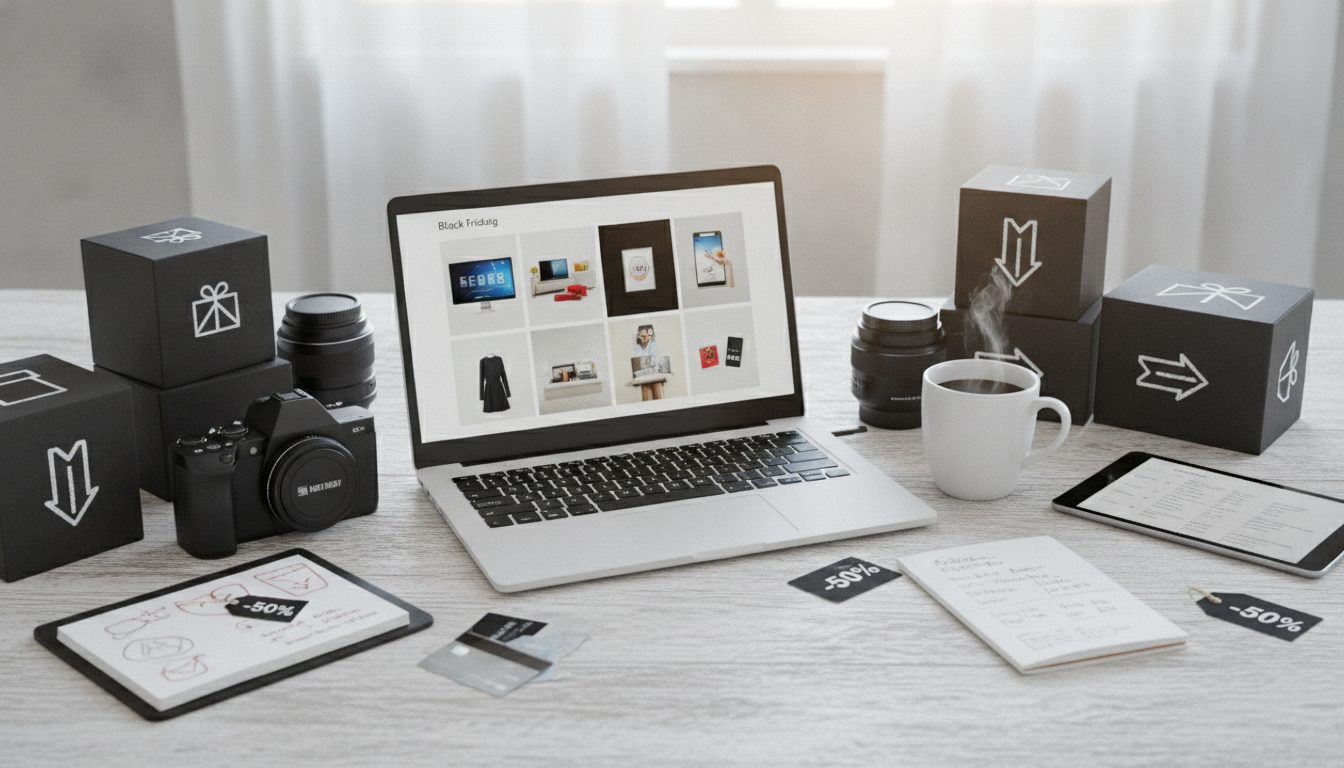
Getting your Black Friday product photos ready doesn't take a studio shoot or a week of work. If you already have a decent photo of each product, you can have your catalog done in one afternoon. Here's the process: pick the products in your sale, remove their backgrounds, create seasonal scenes with AI, adapt each image to the channel it's going to and compress everything so your store loads fast.
This guide walks you through each step, the order to do them in and the mistakes to avoid when traffic spikes in late November.
Before you start: decide which products are in the sale
The most common mistake is trying to redo the whole catalog. You don't need to. For Black Friday, what matters is that your discounted listings and the products you'll push in ads, emails and social posts have consistent, eye-catching images.
Make a short list before you open any tool:
- Discounted products: these will get the most visits.
- Hero products: the ones you'll use as the hook in ads and banners.
- Bundles: if you're putting together special sets, you'll need a new image that shows everything together.
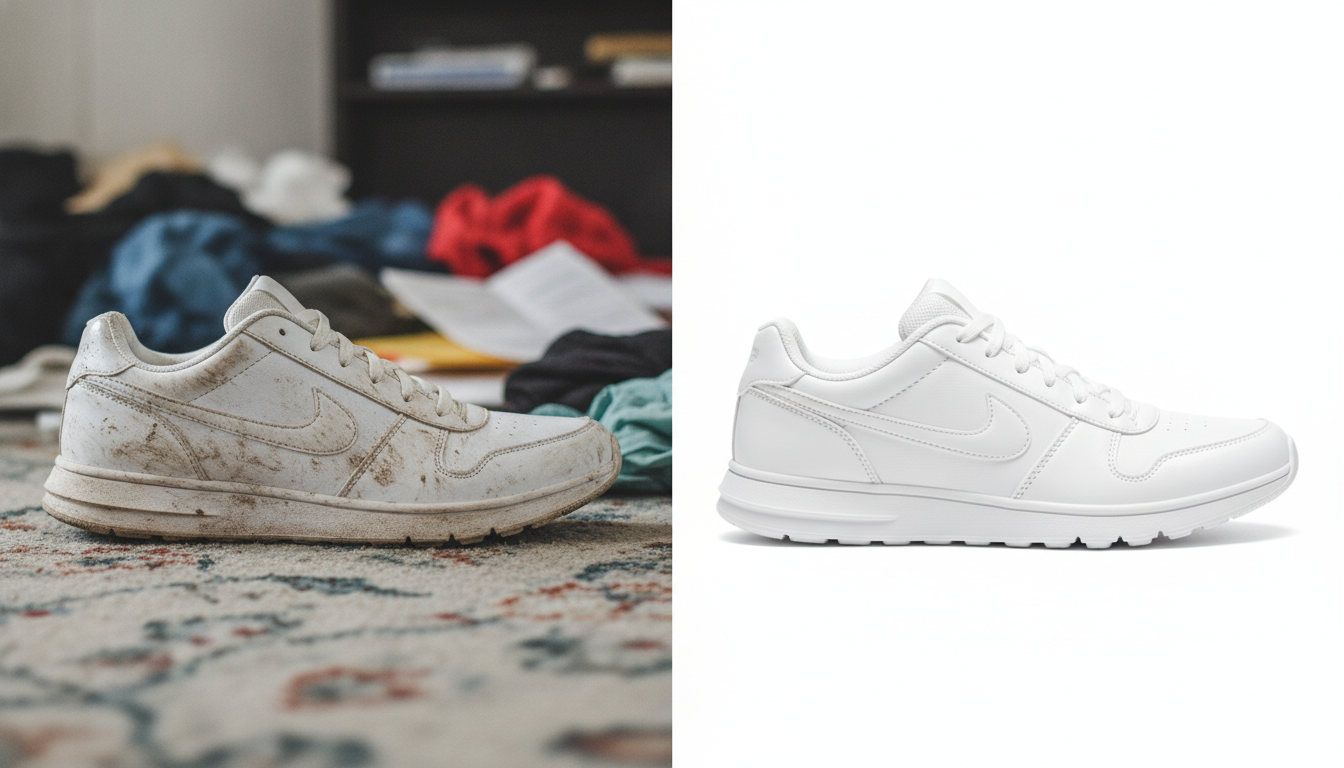
- Products with weak photos: messy home backgrounds, odd shadows or framing that doesn't match the rest.
With that list, you know exactly how many images you need to prepare and can plan your afternoon.
The afternoon plan, step by step
Follow this order. Timing depends on how many products you have, but the sequence saves you from doing the same work twice.
Step 1: gather your base photos
Put the original photos of every product on your list into one folder. If any are blurry, too dark or cropped, reshoot them on your phone: window light, product centered, nothing else in the frame. It doesn't have to be perfect, but it does have to be sharp, because everything that follows starts from that image.
Practical tip: name your files with the product SKU (for example, sku-1043-front.jpg). Once you have four versions of every photo, you'll be glad you did.
Step 2: remove the background
A clean background is the foundation for everything else. It lets you place the product on white for the listing, on a campaign color for a banner or inside a holiday scene for social media.
With Pictulab's background remover you can do it free, right in your browser: your images aren't uploaded to any server, which is handy if you're working with products you haven't launched yet. Check the edges on products with fur, fringe, glass or transparent parts, since those are the cases where any automatic cutout may need a touch-up.
Save the result as a PNG to keep the transparency.
Step 3: create seasonal scenes with AI
This is what separates a catalog that looks like the usual one with a sale tag slapped on from one that actually feels like a campaign. With your product already cut out, you can generate scenes that fit Black Friday and the run-up to the holidays:
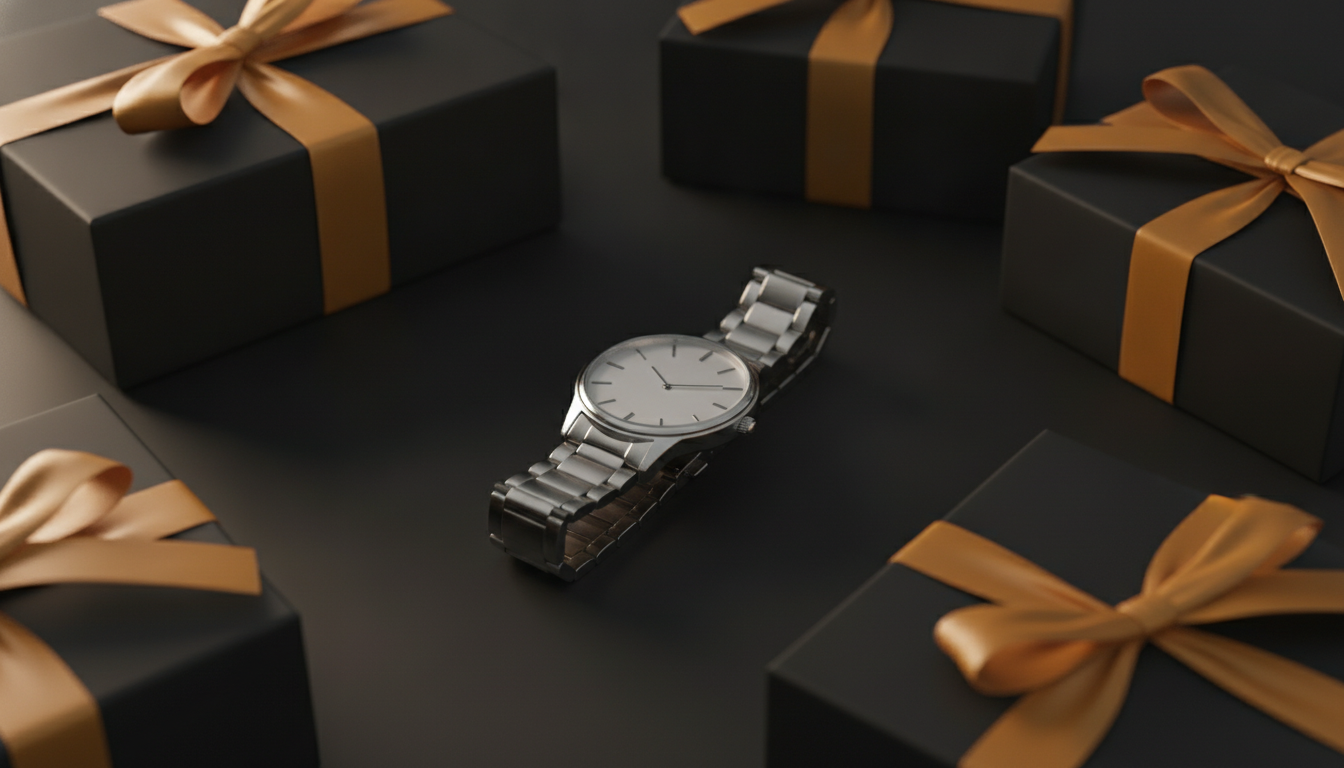
- Dark, sleek backgrounds, closely tied to the Black Friday look.
- Still lifes with wrapping paper, ribbons or gift boxes.
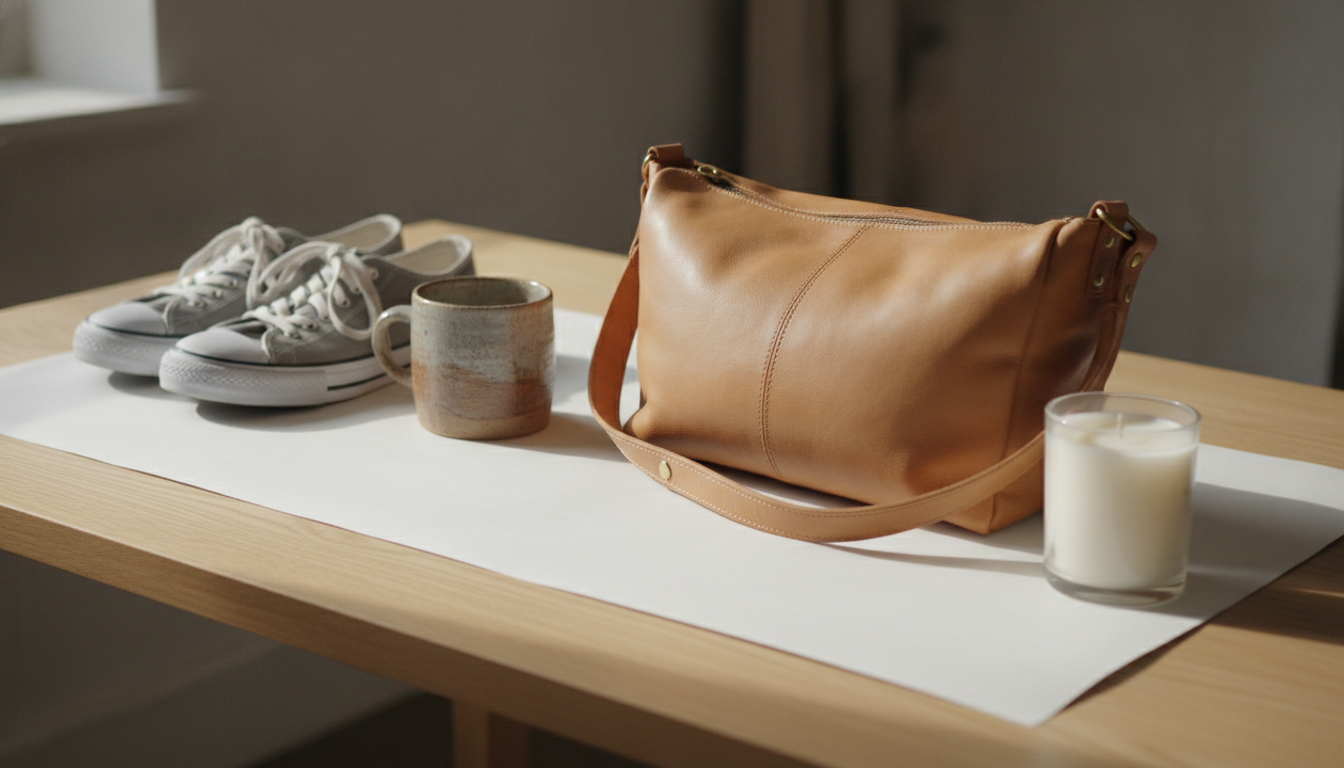
- Cozy at-home scenes with a winter feel.
- Flat-color backgrounds in your brand colors for banners.
The golden rule: the scene changes, the product doesn't. Color, shape, size and details have to match the real item. If the image misleads shoppers, you'll pay for it in returns and reviews.
Step 4: adapt each image to its channel
One photo rarely works the same everywhere. During the sale your products will show up in several places, and each one needs something different:
- Product page: clean background, product clearly visible and the same framing across the catalog so your store looks tidy.
- Marketplaces: many require a white background on the main image. Check each one's rules before uploading.
- Social media: vertical or square formats with more eye-catching scenes.
- Emails and banners: horizontal formats with empty space so your team can add the offer text in your design tool or email platform.
One detail: leave room for text in the composition instead of baking it into the photo. That way you can reuse the image once the sale is over.
Step 5: compress and convert before uploading
On your busiest days, every second of load time counts. Heavy images mean slow product pages, especially on mobile.
Before uploading anything, run your photos through Pictulab's free tools to compress and convert images. Like the background remover, they work in your browser and your files never leave your computer. Converting to modern formats like WebP usually cuts file size a lot with no visible loss in quality, as long as your store platform supports it.
Mistakes to avoid
When you're rushing, it's easy to fall into these. None is serious on its own, but together they make your catalog look thrown together.
- Mixing styles: some photos on dark backgrounds, some on white, some in scenes. Pick one look for each type of image and stick to it.
- Overdoing the AI: scenes so busy the product gets lost. It should be the first thing people see.
- Changing the product by accident: check every generated image and compare colors and details against the real item.
- Forgetting mobile: look at each photo on a small screen before signing off on it.
- Uploading huge files: compressing takes a moment and saves you from slow pages on the worst possible day.
- Leaving it to the last week: if you prep your images with some lead time, you can fix whatever isn't working.
After Black Friday: reuse the work
The images you prepare now don't expire on Cyber Monday. Your cut-out products are useful all year, and plenty of winter or gift scenes work as-is for your Christmas and holiday campaigns. If you kept your files organized by SKU, your next campaign starts half done.

What it costs with Pictulab
The web tools for removing backgrounds, compressing and converting are free. AI generations, like seasonal scenes, run on tokens: every generation shows you its cost before you run it, so you always know what you're spending.
- Free plan: 100 welcome tokens, one time only, no card required. 100 tokens = €1.
- Starter: €12 per month, VAT included.
- Pro: €36 per month, VAT included.
- Business: €120 per month, VAT included.
Pay yearly and you get two months free.
To try the workflow with your own sale products before committing to anything: Start free — 100 bonus tokens, no card required.
Related articles
- [ENLACE: how to take product photos with your phone for your online store]
- [ENLACE: holiday product images: AI scene ideas for Christmas]
FAQ
Do I need to take new photos for Black Friday?
Not necessarily. If your current photos are sharp and the product looks good, you can remove the background and build seasonal scenes from them. It's only worth reshooting the ones that are blurry, dark or cropped.
What background works best for Black Friday product photos?
It depends on the channel. For product pages and marketplaces, a white or clean background. For social media, banners and emails, dark backgrounds and gift scenes fit the campaign look. What matters most is keeping the same style across your catalog.
Is it safe to remove the background from products I haven't launched yet?
With Pictulab's web tools, yes: background removal, compression and conversion run in your browser and your images aren't uploaded to any server.
Can I use AI-generated images on my product pages?
Yes, as long as the product shown matches the real one in color, shape, size and details. AI should change the setting, not the item. Review every image before publishing it.
How much does it cost to try?
Nothing to get started. The web tools are free and the free plan includes 100 welcome tokens with no card required. Every AI generation shows its cost before you run it.
Create visual content with AI for your business
Generate, edit and organize your images in one platform. Start free, no card required.
Get started free