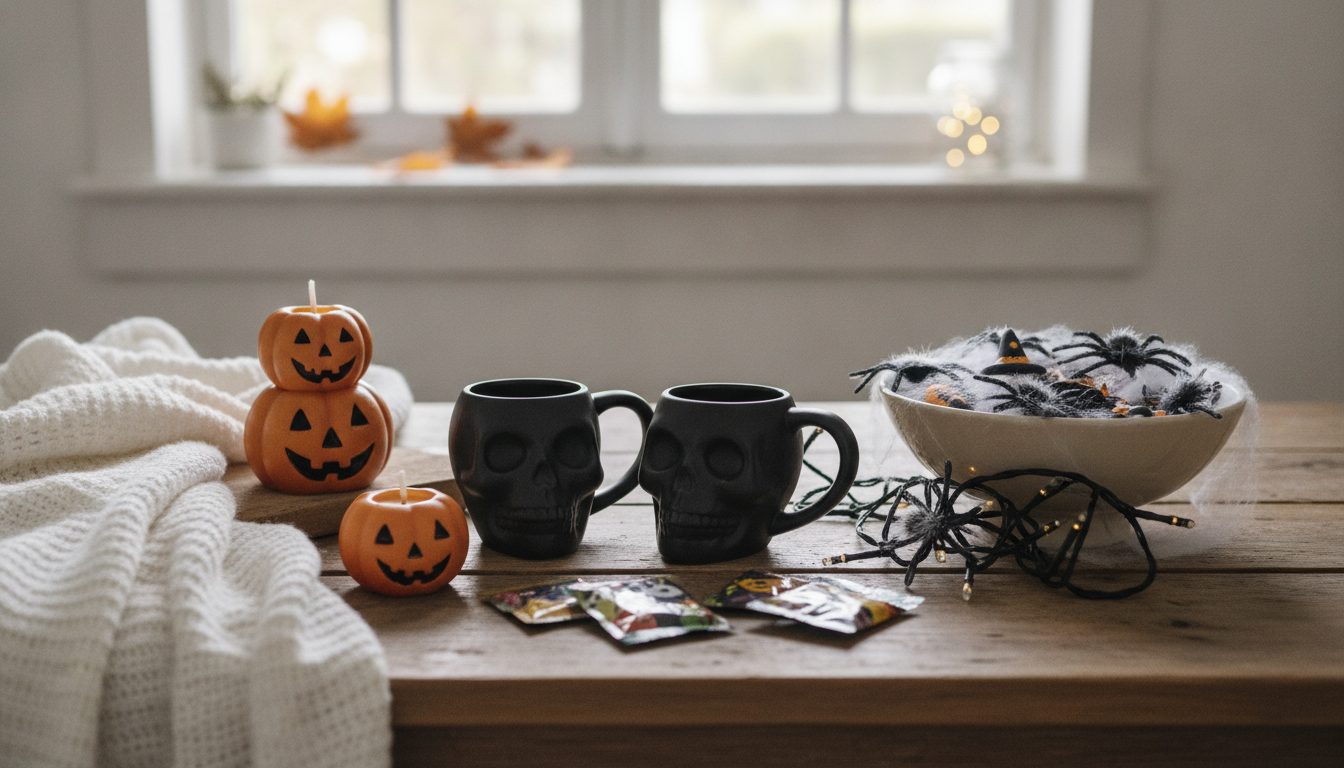
You can make Halloween product photos without building a studio in three steps. Take a clean shot of your product with your phone. Remove the background. Then use AI to generate a themed scene (pumpkins, candles, cobwebs, orange and purple tones) that matches the lighting in your original photo. You don't buy props, you don't decorate a room, and you can try several looks from the same base shot.
This guide covers the process step by step, which scenes suit which products, the mistakes that give away a poorly made image, and when hiring a photographer makes more sense.
The process in four steps
- Base photo: the product on a plain background, in natural light and in sharp focus.
- Remove the background: cut out the product so it stands on its own.
- Halloween scene with AI: describe the setting and generate the background around the product.
- Adapt for each channel: product page, social media, website banner and email.
Step 3 is where the creative work happens. Final quality depends mostly on step 1, though. No scene can rescue a bad base photo.
Step 1: a decent base photo with your phone
You don't need a DSLR. You do need to get a few details right:
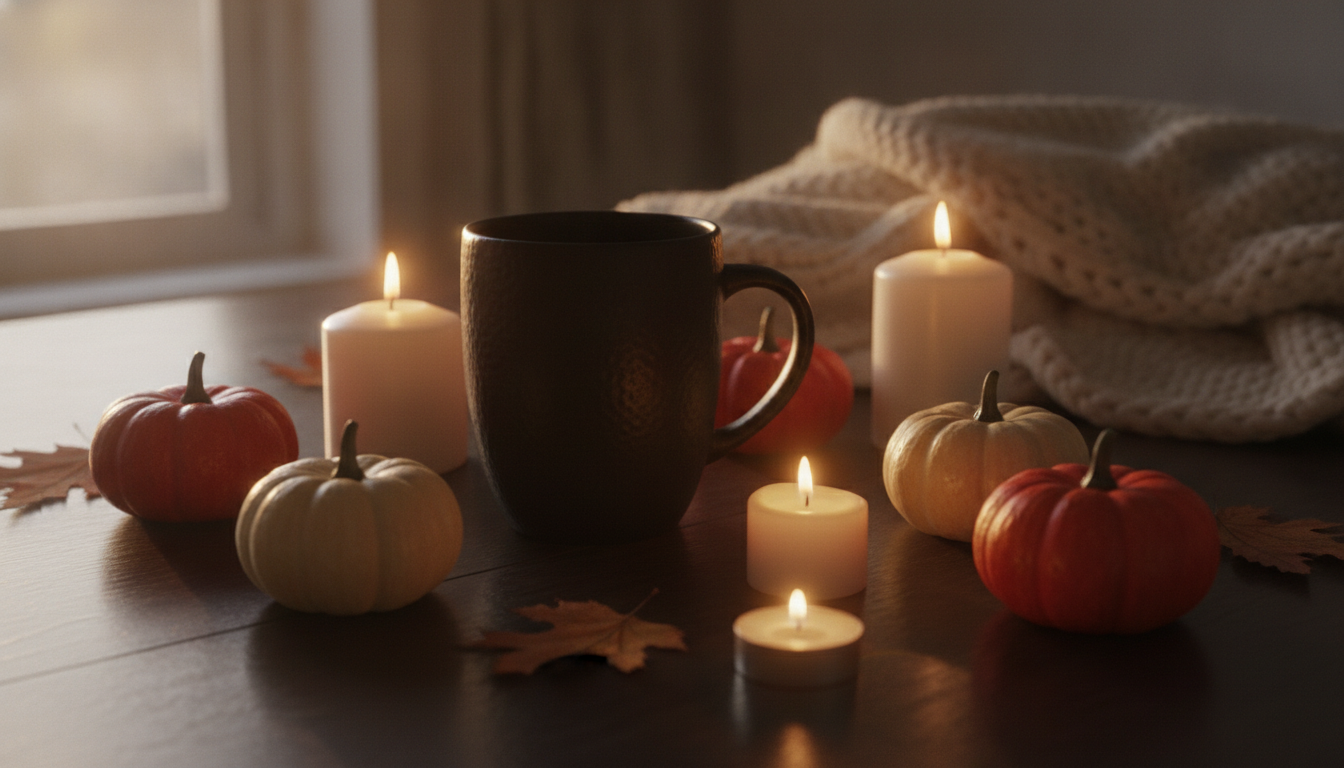
- Window light, not flash. Place the product near a window, out of direct sun. Soft side light shapes the product and makes the final scene look more believable.
- Plain, light background. A sheet of white or gray card curved behind and under the product avoids hard corners and odd shadows.
- Clean product. Dust, fingerprints and crooked labels stand out much more once the image is enlarged.
- Several angles. Shoot at least a front view and a three-quarter view. Add a top-down shot if the product is flat, like jewelry, stationery or cookies.
- No digital zoom. Move your phone closer to the product. Digital zoom throws away detail.
One useful trick is to note which side the light comes from. When you generate the Halloween scene, ask for light from that same side. Say your photo is lit from the left and the candles in the scene glow from the right. People will sense something is off, even if they can't say what.
Step 2: remove the background
Once you have the photo, isolate the product. You can do this with Pictulab's background remover. It's free and runs right in your browser, so your image is never uploaded to a server. That matters if you're working with products you haven't launched yet.
Before moving on, zoom in and check the cutout:
- Fine edges: plush fur, fringe, lace and feathers are the trickiest areas.
- Inner gaps: mug handles, hoop earrings and cutouts in boxes should be transparent.
- Transparent items: glasses and bottles are usually harder, so check them carefully.
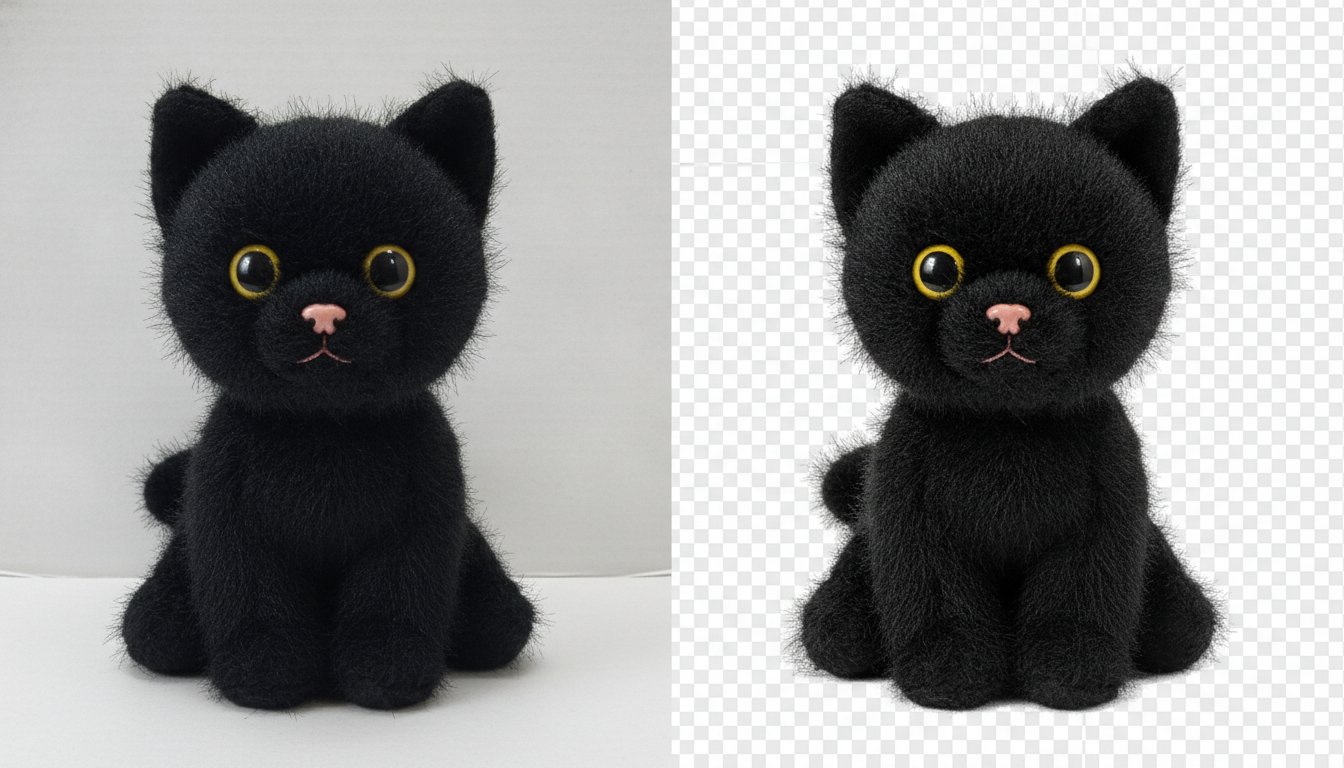
Step 3: generate the Halloween scene with AI
With the product isolated, you describe the scene you want and the AI builds it around the product. In Pictulab, every generation shows its token cost before you run it. You can try different ideas and know exactly what you're spending.
Scene ideas by product type
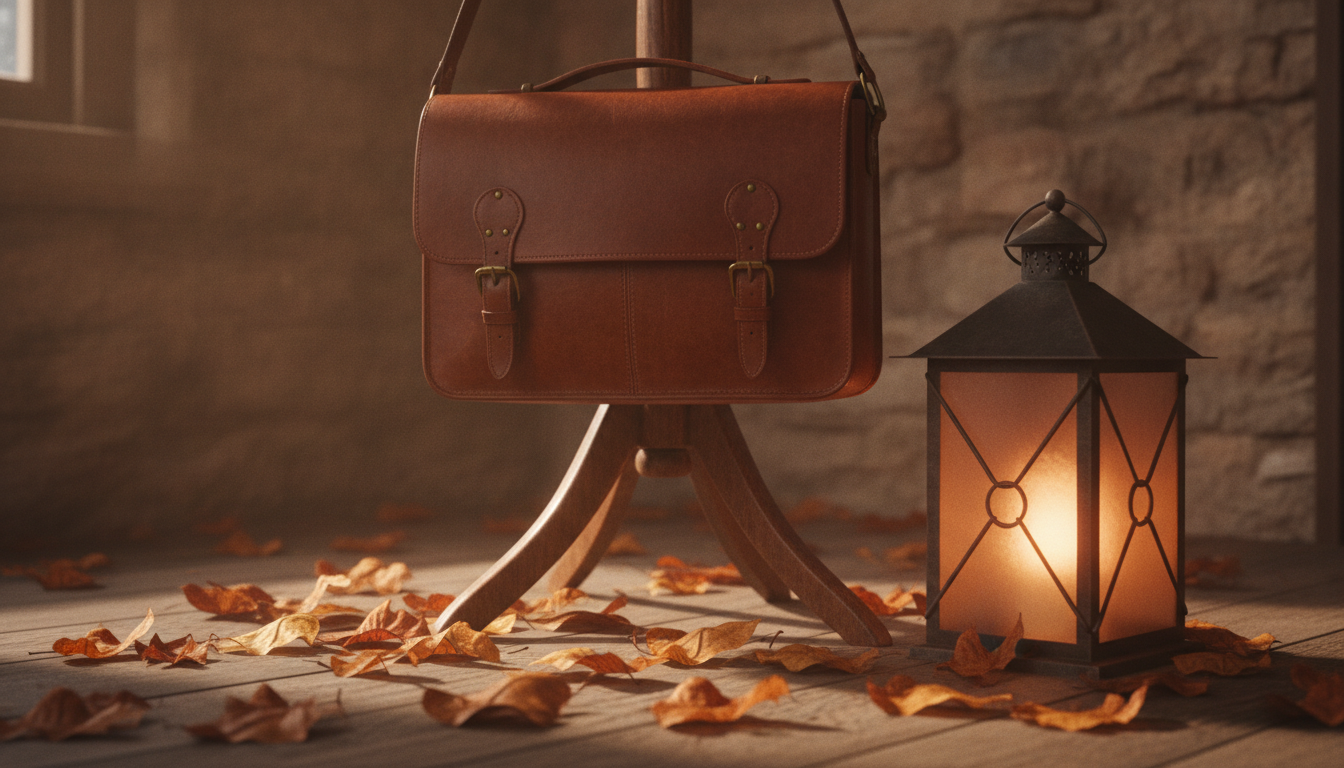
- Fashion and accessories: a vintage coat rack with a velvet cape, dry leaves on the floor and dim lantern light. Works well for bags, hats and jewelry.
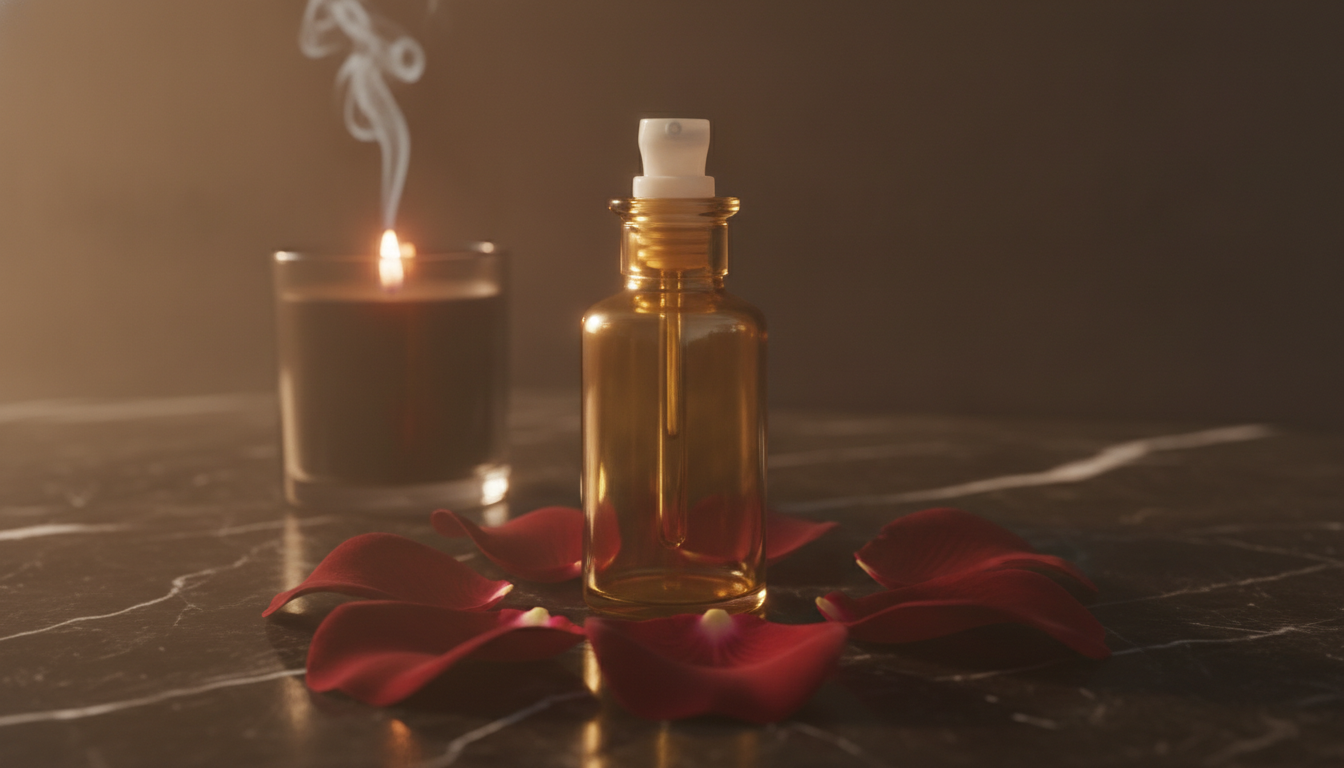
- Beauty and skincare: a dark marble countertop, burgundy rose petals, a black candle and soft mist. Elegant without feeling childish.
- Food and baking: a rustic table with pumpkins, cinnamon sticks, apples and a checkered cloth. Closer to cozy fall than horror.
- Home decor: a living room corner with orange string lights, knit throws and carved pumpkins blurred in the background.
- Toys and kids' products: a colorful scene with friendly fabric ghosts, candy and purple and green confetti. Nothing actually scary.
- Tech and accessories: a dark desk with purple and orange neon light and a subtle cobweb in one corner.
Think about your customer before you think about Halloween. A natural skincare brand will probably do better with a warm autumn look and a small nod to the holiday (a pumpkin, a candle) than with skulls and fake blood.
How to write your prompt
A good prompt for the AI includes:
- Surface: what the product sits on (dark wood, marble, velvet).
- Props: two or three at most, plus where they go (behind, to the left, out of focus).
- Lighting: type and direction, matching your base photo.
- Color palette: orange, black, purple, moss green, gold.
- Mood: cozy, mysterious, playful, elegant.
Example: “Weathered wooden table, two small pumpkins out of focus in the back right, a lit candle on the left, warm side light from the left, orange and black tones, cozy autumn mood.”
Mistakes that give away a bad image
- Floating product: without a contact shadow underneath, the product looks pasted on. Ask for soft shadows in your prompt.
- Overcrowded scene: ten pumpkins, cobwebs, bats and candles all fight with what you're selling. The product is the star.
- Props covering the product: make sure nothing hides the label, the logo or an important detail.
- Impossible scale: a tiny pumpkin next to a giant ring breaks the illusion. Specify sizes if needed.
- Altered product: always check that colors, text and shapes still match the real item. Selling something that doesn't match the photo leads to returns.
Step 4: adapt your images for each channel
One scene won't work equally well everywhere. Before generating, think about where each image will go:
- Product page: square format with the product large and centered. Halloween scenes work best as secondary images.
- Social media: vertical for Stories and Reels, square or 4:5 for the feed. Leave space at the top and bottom if you plan to add text in the app.
- Website banner: landscape, with the product on one side and empty space on the other for your campaign message.
- Email: lightweight images so they load quickly on phones.
Keep marketplace rules in mind. Some, like Amazon, require a white background for the main product image. Keep that clean shot as your main photo and use the themed scenes as additional images and in your own store.
Before uploading anything, compress your images and convert them to the format your platform asks for. Pictulab's compression and conversion tools are also free and run in your browser.
When to have them ready
Halloween falls on October 31, but campaigns start well before that. Have your images ready several weeks ahead. That gives you time to schedule posts, update your store homepage and prepare emails without rushing.
The base photo plus AI approach has another advantage: you can reuse the same cutout for other campaigns, like general autumn, Black Friday or Christmas. You only change the scene.
How much it costs with Pictulab
- Free plan: 100 welcome tokens, one time only, no card required. Enough to test the process with your own products.
- Starter: €12 per month, VAT included.
- Pro: €36 per month, VAT included.
- Business: €120 per month, VAT included.
Pay for the full year and you get two months free. For reference, 100 tokens equal €1, and every generation shows its cost before you run it. Background removal, compression and conversion don't use tokens because they're free tools.
When a photographer or studio is the better choice
AI isn't the answer to everything. In some cases a real photo shoot comes out ahead:
- Products with complex reflections and transparency: gemstone jewelry, cut glass or mirrored surfaces. A photographer with good lighting can control highlights in a way that's hard to match starting from a phone photo.
- Photos with people: if you want real models wearing your costumes or clothing, with specific poses and expressions, a physical shoot gives you that control directly.
- A very defined brand look: if your store has a precise, consistent photographic style, a professional who knows it can keep it more accurate from one campaign to the next.
The AI process is a practical option for large catalogs, for testing ideas quickly, and for small stores that can't spend a whole day decorating and shooting. You also don't have to choose one or the other. Many stores combine a professional shoot for their key pieces with generated scenes for the rest of the catalog.
Related articles
- [ENLACE: how to take product photos with your phone for your online store]
- [ENLACE: Black Friday product images with AI]
Start free — 100 tokens on us, no card required.
FAQ
Do I need Halloween decorations to take the photos?
No. A photo of your product on a plain background is all you need. The AI adds the pumpkins, candles, cobwebs and other props when it generates the scene.
Can I use these photos as the main image on a marketplace?
It depends on the marketplace. Some, like Amazon, require a white background for the main image. The usual approach is to keep the clean photo as your main image. The Halloween scenes then go in as secondary images, in your own store or on social media.
Will the AI change how my product looks?
The goal is to keep the product exactly as it is and generate only the surroundings. Still, always check the result. Colors, text and shapes should match the real product to avoid complaints.
Are my photos uploaded to a server when I remove the background?
No. Pictulab's background remover runs in your browser and your images are never uploaded to a server. The same goes for compressing and converting.
Can I reuse the same photo for other campaigns?
Yes. Once your product is cut out, you can generate different scenes for autumn, Black Friday, Christmas or any other date without reshooting.
Create visual content with AI for your business
Generate, edit and organize your images in one platform. Start free, no card required.
Get started free