For Christmas product photography that actually sells, your online store needs three things: clean product shots on a plain background for your product pages, festive lifestyle scenes for banners and social media, and everything live before your last guaranteed shipping date. The fastest route is to start from one good product photo, remove the background and use AI to generate several holiday scenes from it, instead of booking a new photoshoot.
This guide covers which photos to prepare, when to do it, how to create scenes without a studio and the most common mistakes.
Which photos you need for your Christmas campaign
You don't have to reshoot your whole catalog. Focus on the places where shoppers make their decision:
- Main product image on a neutral background. This is the one that shows up in category pages and search results. Keep it clean, even if the rest of the page is decorated.
- Lifestyle scene. Your product in a holiday setting: by a frosty window, under the tree on Christmas morning, on a festive breakfast table.
- Gift shot. The product with wrapping paper, a ribbon or a gift box. It helps people buying for someone else picture the moment they hand it over.
- Homepage and category banners. Wide format, with empty space so your designer or store editor can add the copy.
- Vertical versions for social. For Stories, Reels and mobile ads.

Timeline: when to get your photos ready
The holiday season overlaps with Black Friday and runs straight into post-Christmas sales, so the window is tight. A rough timeline:
- Early to mid November: pick the products you want to push and check you have a solid base photo for each one.
- Late November: generate your scenes and banners. Some of that material can do double duty for Black Friday and Cyber Monday.
- Before your last guaranteed shipping date: have the full campaign live and make that cutoff date easy to spot.
- From the shipping cutoff to Christmas Eve: shift the focus to gift cards, local pickup or express shipping if you offer them.
- From December 26: take down the Christmas visuals. Many stores switch to after-Christmas or January sales, and a Christmas morning scene suddenly looks dated.
Your logistics set the real deadline, not the calendar. If your carrier needs several days, your visuals need to be ready well before December 25.
If you sell to customers in Spain or Latin America, keep in mind that Three Kings Day on January 6 extends gift season by almost two weeks, so it may be worth keeping a gift-focused version of your campaign running a little longer.
Step 1: a clean base photo
Everything starts with a sharp, well-lit product photo with accurate colors. If you already have one in your catalog, there's no need to reshoot it.
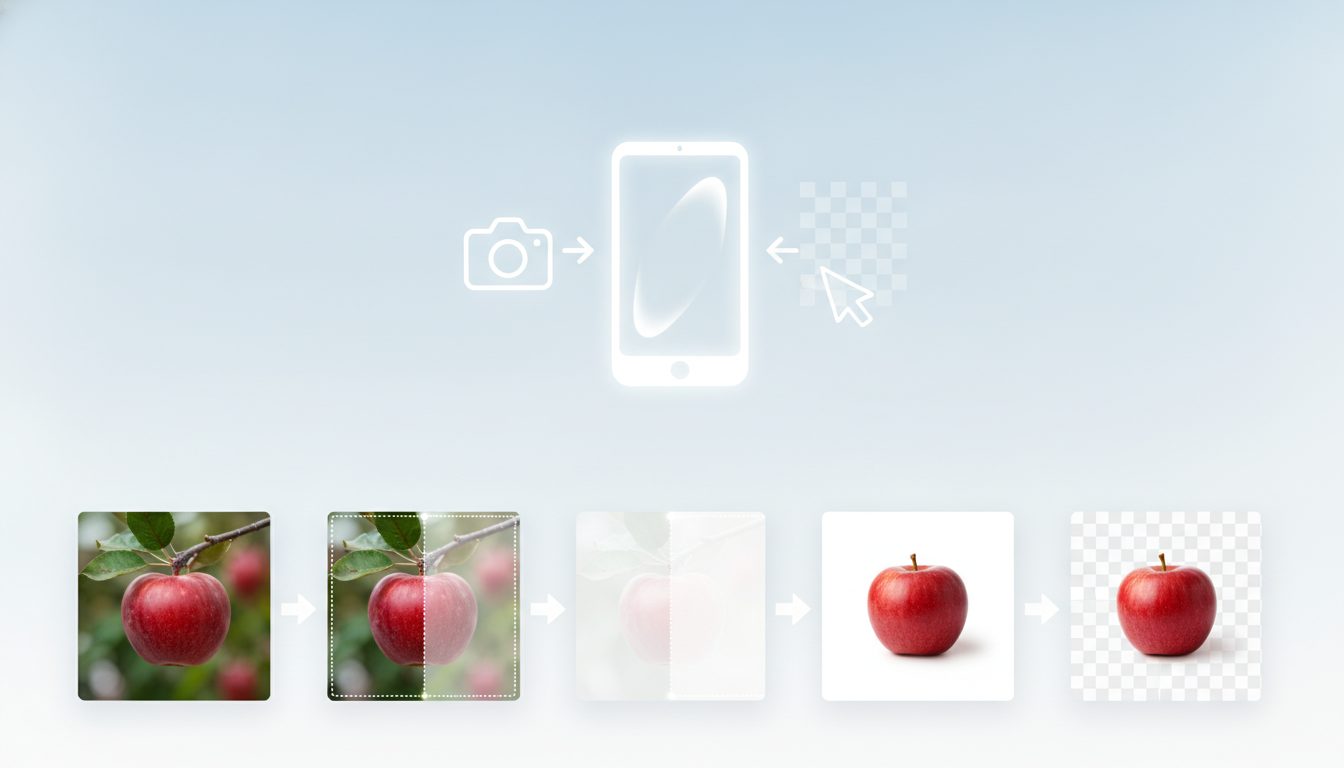
Next, separate the product from its background. With the free background remover you get a cutout you can use twice: as your main image on a white or neutral background, and as the base for placing the product in new scenes. It runs in your browser and your images are never uploaded to a server, which is handy if you're working with products that haven't launched yet.
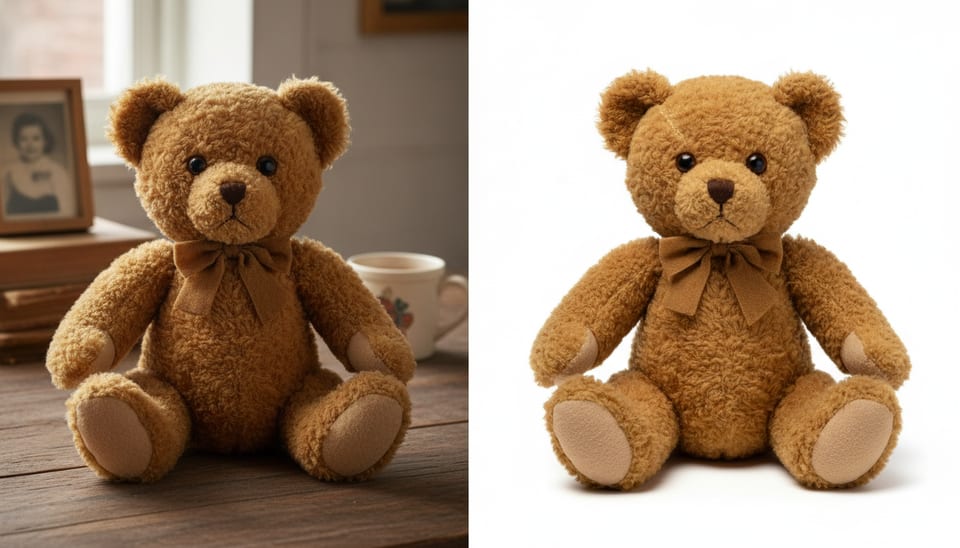
Check the cutout around tricky edges: plush toy fur, ribbons, glass or anything transparent. A rough edge stands out much more once you drop the product onto a dark scene or one full of twinkling lights.
Step 2: holiday scenes with AI
Once your product is cut out, you can generate scenes without renting a studio or buying props. In Pictulab you describe the setting you want and the platform builds the background around your product. Each generation shows its token cost before you run it, so you always know what you're spending.
Scene ideas that work for the holidays
- Christmas morning: a living room with opened presents, crumpled wrapping paper and natural morning light.
- The frosty window: a cozy windowsill with winter light and your product front and center.
- Festive breakfast table: great for homeware, kitchen products or small gifts.
- Gold, deep red and midnight blue: a palette that says "holidays" without needing Santa in every shot.
- Open gift box: the product peeking out of tissue paper.
How to keep the product true to life
The scene can be imagined; the product can't. Before you publish, check that:
- The color matches the real thing. Warm lighting tends to turn whites yellow and shift fabric tones.
- The size makes sense next to everything around it. A mug shouldn't look as big as a throw pillow.
- No parts or accessories appear that aren't actually included in the box.
If customers receive something different from what they saw, your campaign will cost you in returns come January.

Step 3: formats, size and file weight
One scene has to work in several places. Before generating, think about the formats you'll need:
- Square: product pages and feed posts.
- Vertical: Stories, Reels and mobile ads.
- Wide panoramic: homepage banner. Leave empty space on one side for your offer text.
In December, a lot of traffic comes from people on their phones and in a hurry. Heavy images slow your pages down. Run your photos through the image compressor and, if your platform supports it, switch to a lightweight format like WebP with the image converter. Both are free and also work right in your browser.
Common mistakes in holiday product photos
- Mixing too many holiday styles. Rustic cabin, glam party and Santa's workshop on the same site feels messy. Pick a direction and stick to it.
- Over-decorating the main image. In category pages and search results, a busy background makes the product look worse. Save the decorations for secondary images and banners.
- Scenes that don't match each other. If every product has different lighting and colors, the store looks disorganized. Define two or three settings and reuse them.
- Forgetting the takedown date. On December 26 your Christmas campaign is out of date. Keep your neutral photos ready to swap back in.
- Not flagging the shipping cutoff. A gorgeous scene won't help if the order arrives on the 27th.

How much it costs to prepare your campaign with Pictulab
The web tools for removing backgrounds, compressing and converting are free. Generating AI scenes uses tokens:
- Free plan: 100 welcome tokens, one time only, no card required. 100 tokens equal €1.
- Starter: €12 per month, VAT included.
- Pro: €36 per month, VAT included.
- Business: €120 per month, VAT included.
Pay annually and you get two months free. Since every generation shows its cost before you run it, you can use the free tokens to try a few scenes with your best sellers and then decide whether a plan makes sense for the whole campaign.
Start free — 100 tokens on us, no card required.
You might also like:
- [ENLACE: how to prepare product photos for Black Friday and Cyber Monday]
- [ENLACE: white background product photos for your online store]
FAQ
Do I need to change my main product images for Christmas?
No. It's best to keep your main image clean and add holiday scenes as secondary images, banners and social posts. That way you don't lose clarity in category pages and search results.
Can I reuse my Black Friday photos for Christmas?
Partly, yes. Gift-wrapped shots and wintry backgrounds work for both. Scenes built around big discount messaging are better swapped for warmer, gift-focused ones as Christmas gets closer.
When should I take down my Christmas product photos?
Most stores switch them out from December 26, when after-Christmas sales start. If you sell to markets that celebrate Three Kings Day, you can keep gift visuals up until January 6. Either way, have your neutral photos ready to swap in that same day.
Are the photos I upload to remove the background stored on a server?
No. Pictulab's web tools for removing backgrounds, compressing and converting run in your browser, and your images are never uploaded to a server.
How much does it cost to try AI scenes?
You can start with the 100 welcome tokens on the free plan, no card required. Before each generation you'll see how many tokens it uses, so you're in control of spending from your very first test.
Create visual content with AI for your business
Generate, edit and organize your images in one platform. Start free, no card required.
Get started free