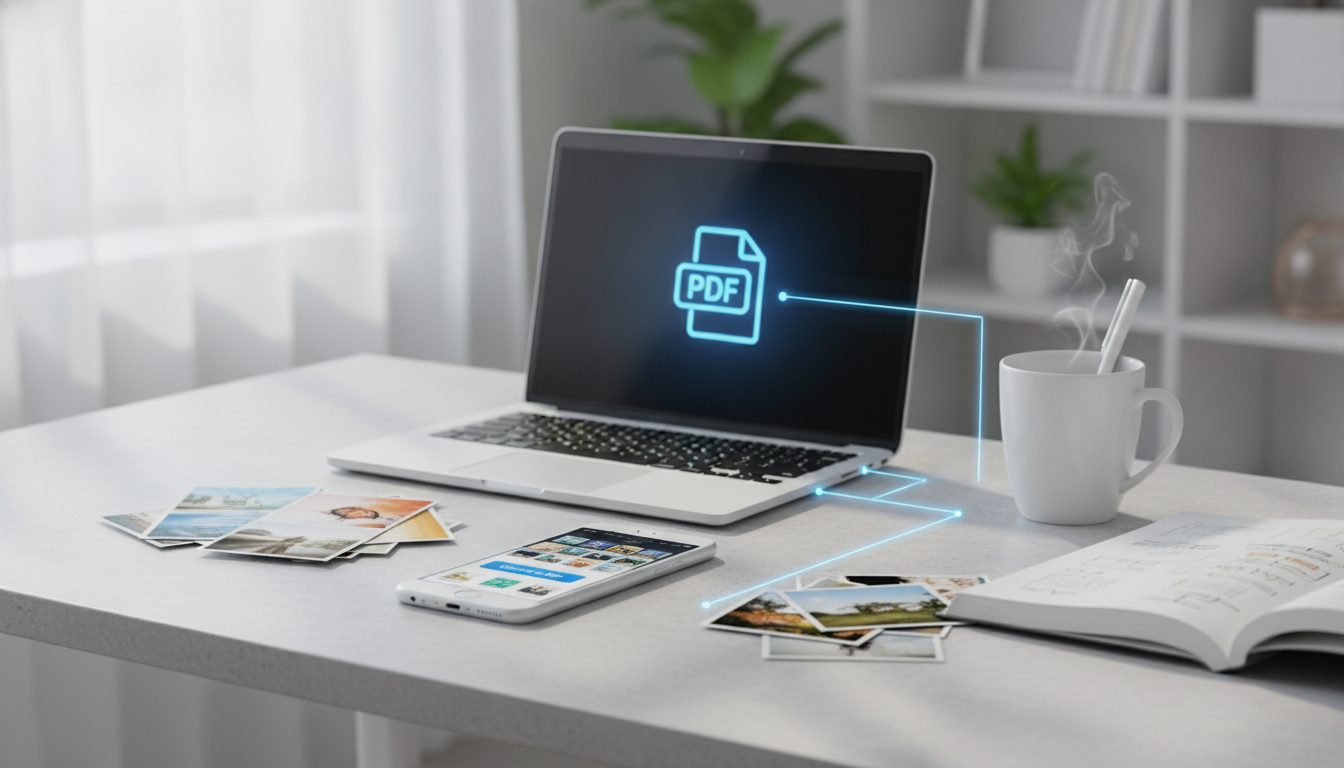
To convert JPG to PDF, you don't need to install anything. Windows, macOS, iPhone and Android all have a built-in way to do it. Open the image, choose Print, and pick Save as PDF as your printer (on Windows it's called Microsoft Print to PDF). You'll have your file in under a minute. The same steps work for PNG, HEIC and most other image formats.
This guide walks you through each system step by step and shows how to combine several photos into a single PDF. You'll also learn how to prepare your images so the document stays small and sharp. That matters if you run an online store and send out catalogs, product sheets or quotes.
Why turn a JPG into a PDF?
A PDF looks the same on every device and prints predictably. It also lets you put many pages into one file. For a business, the most common uses are:
- Catalogs and lookbooks to send to customers or wholesalers.
- Product sheets with photos and specs.
- Receipts, invoices and proof of purchase snapped on your phone.
- Documents a platform asks for, such as when you set up a seller account.
How to convert JPG to PDF on Windows
Windows 10 and 11 include a virtual printer called Microsoft Print to PDF.
A single image
- Open the image in the Photos app.
- Press Ctrl + P.
- Under "Printer", choose Microsoft Print to PDF.
- Set the paper size (Letter or A4, depending on where you are) and the orientation.
- Click Print, name the file and save it.
Several images in one PDF
- In File Explorer, select all the images.
- Right-click and choose Print. In Windows 11 it may be under "Show more options".
- Pick Microsoft Print to PDF and a layout: one photo per page or several.
- Untick "Fit picture to frame" if you don't want the edges cropped.
- Click Print and save the file.
The page order follows your selection. Renaming the files with numbers first (01, 02, 03…) keeps things in the right order.
How to convert JPG to PDF on a Mac
On macOS, you can do it with Preview:
- Select the images in Finder and open them in Preview.
- Show the thumbnail sidebar and drag the images into the order you want.
- Go to File > Print.
- In the bottom-left corner, open the PDF menu and choose Save as PDF.
If you only have one image, File > Export as PDF works too.
How to convert JPG to PDF on your phone
iPhone and iPad
The quickest route is the Files app:
- Save the photos to Files. In Photos, tap Share > Save to Files.
- In Files, tap Select and choose the images.
- Tap the three-dot menu, or long-press, and choose Create PDF.
There's another option in Photos. Tap Share > Print, then use Share again on the preview to save it as a PDF.
Android
Using Google Photos:
- Open the image.
- Tap the three-dot menu and choose Print.
- Set the printer to Save as PDF.
- Tap the PDF icon and choose where to save it.
Menu names can vary by phone maker and Android version, but the path is usually the same.
What about online JPG to PDF converters?
There are plenty of websites that convert JPG to PDF when you drag and drop a file. They have some real advantages over the built-in methods:
- More layout options. You get margins, several images per page or custom page sizes in a couple of clicks.
- They work the same on any computer, so there's no hunting through menus.
- Some include text recognition (OCR), which your system's print-to-PDF option doesn't offer.
The downside is privacy. Most of them upload your files to an external server. For invoices, passports, ID cards or contracts, read the service's privacy policy carefully. You can also stick with your operating system's method, which works offline.
Prep your images before creating the PDF
A PDF made from phone photos can get very large, because every page carries the full weight of the image. That causes problems when you email it or upload it to a form with a size limit. Three tweaks make a big difference.
1. Compress your photos
Shrinking each image before converting it is the easiest way to get a lightweight PDF. Pictulab's image compressor does it for free, right in your browser. Your images are never uploaded to a server, so it's safe to use with private documents too.
2. Stick to one format
If your images are in different formats, convert them all to JPG before you start. This helps with any files your computer struggles to open, like HEIC photos from an iPhone. Pictulab's image converter is also free and runs locally in your browser.
3. Fix orientation and cropping
Rotate any crooked shots and crop out table edges or stray fingers. A PDF where every page has the same orientation is much easier to read.
Product catalogs as PDFs: tips for online stores
If the PDF is going to customers, photo quality matters as much as it does on your website. A few guidelines:
- Use the same background in every photo. A catalog where every product sits on a different background looks thrown together. You can put them all on white with the free background remover.
- Keep framing and aspect ratio consistent. A mix of portrait and square shots makes the layout look uneven.
- Add a cover page with your logo and contact details.
- Name your files in order so the pages come out in the right sequence.
- Check the result on a phone. Many customers will open the PDF there.
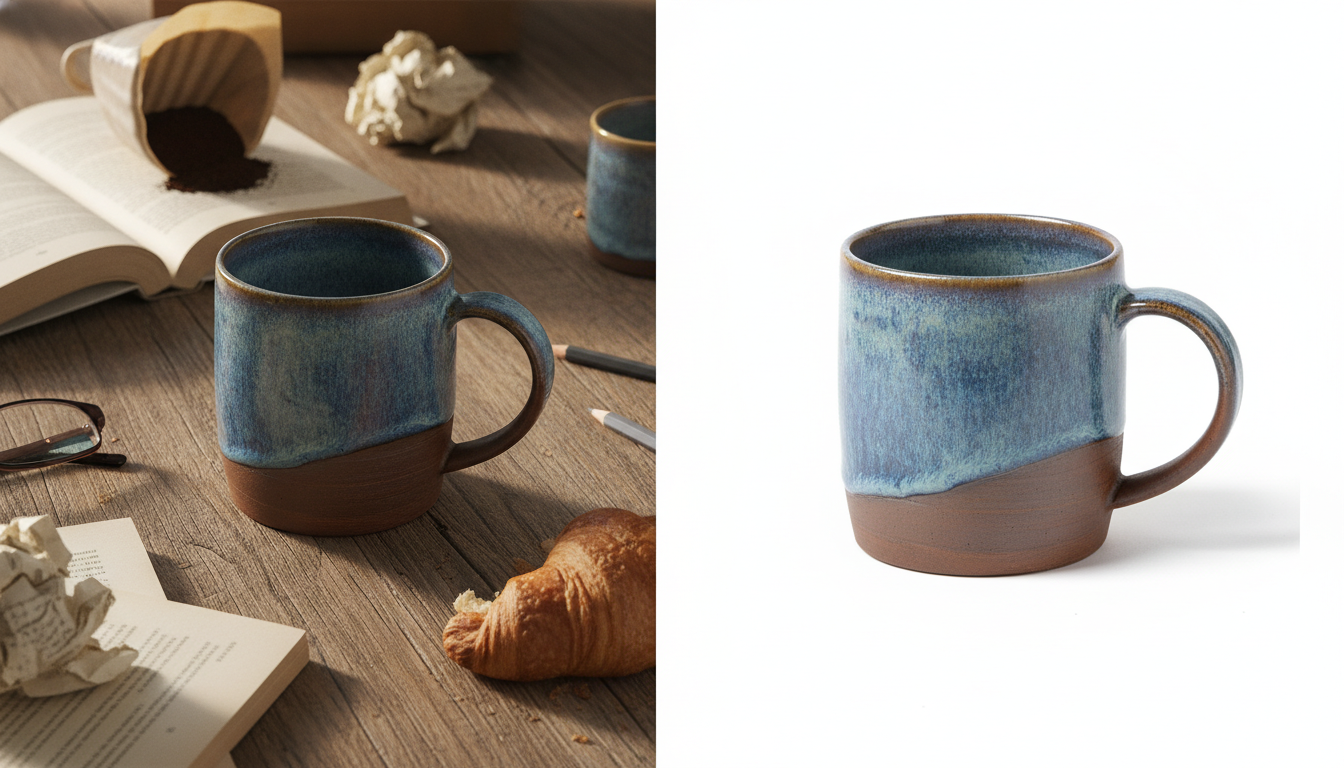
You may be missing photos for some products or want lifestyle shots for the catalog. Pictulab can generate those with AI. Every generation shows its token cost before you run it, so there are no surprises.

Common JPG to PDF mistakes
- Cropped edges: turn off "Fit picture to frame" or choose "Fit to page".
- Blank or jumbled pages: check your selection and file names.
- Huge PDF: compress the images before converting.
- Text you can't search: a PDF made from photos is just an image. To select or search the text, you need a tool with OCR.
- Pixelated images: a PDF won't fix a small original. Always start from the highest resolution you have.
Keep reading
- [ENLACE: how to compress images without losing quality]
- [ENLACE: which image format to use for your online store]
Start free — 100 bonus tokens, no card required.
FAQ
Can I convert JPG to PDF without installing anything?
Yes. Windows, macOS, iOS and Android all let you save as PDF from the print menu or from the Files app. You don't need to download any software.
How do I combine several photos into one PDF?
Select all the images at once. Then use print to PDF on Windows, Mac or Android, or "Create PDF" in the Files app on iPhone. Number your file names to control the page order.
Does the image lose quality when converted to PDF?
Generally the image stays close to the original. Depending on the method and print settings, though, it may be rescaled to fit the page. For maximum sharpness, start from your highest-resolution photo and check the page size.
Are online converters safe?
It depends on the service, since many upload your files to their servers. For sensitive documents, use your operating system's built-in method. Browser-based tools that don't upload anything are another safe option.
How do I make the PDF smaller?
Compress the images before converting them. Pictulab's free compressor does this in your browser, without uploading your photos to any server.
Create visual content with AI for your business
Generate, edit and organize your images in one platform. Start free, no card required.
Get started free