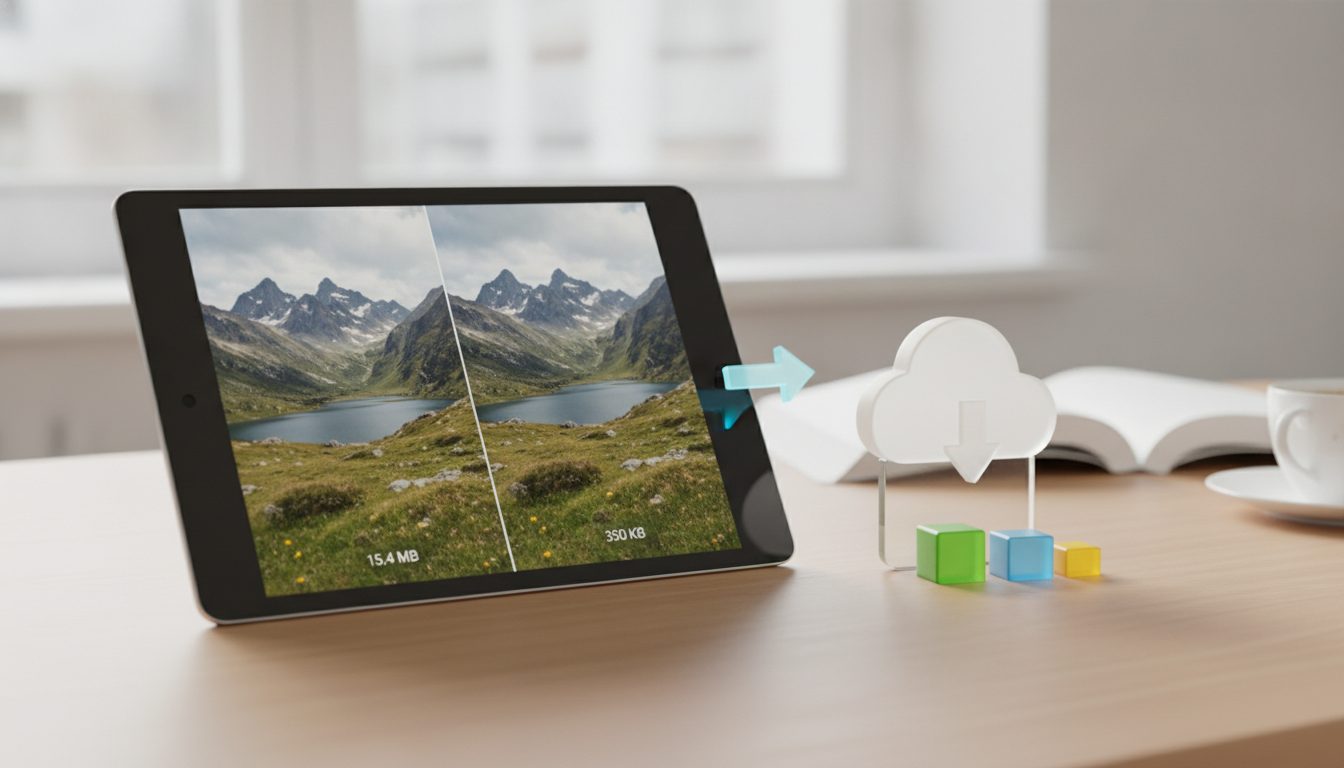
An image resize means changing a picture's width and height in pixels so it fits where you'll use it: a product page, a homepage banner or a social post. Here's the short answer: always scale down from the largest original you have, keep the aspect ratio locked, and compress the file afterwards. Blowing up a small photo rarely looks good, and a huge, uncompressed image slows your store down.
This guide covers typical sizes for common uses, the difference between resizing, cropping and compressing, and a few tricks to avoid losing quality along the way.
How to resize an image in 4 steps
- Start from the original. Always work from the highest-resolution version you have, not a copy you've already shrunk.
- Pick the longest side. Think about the maximum width the image will be displayed at (for example, 2000 px for a product photo with zoom).
- Lock the aspect ratio. Change only the width or the height and let the other value update automatically. That way the image won't get stretched or squashed.
- Compress and export. Save in a lightweight format (WebP or JPG for photos, PNG if you need transparency) and compress the result.
Resizing, cropping and compressing aren't the same thing
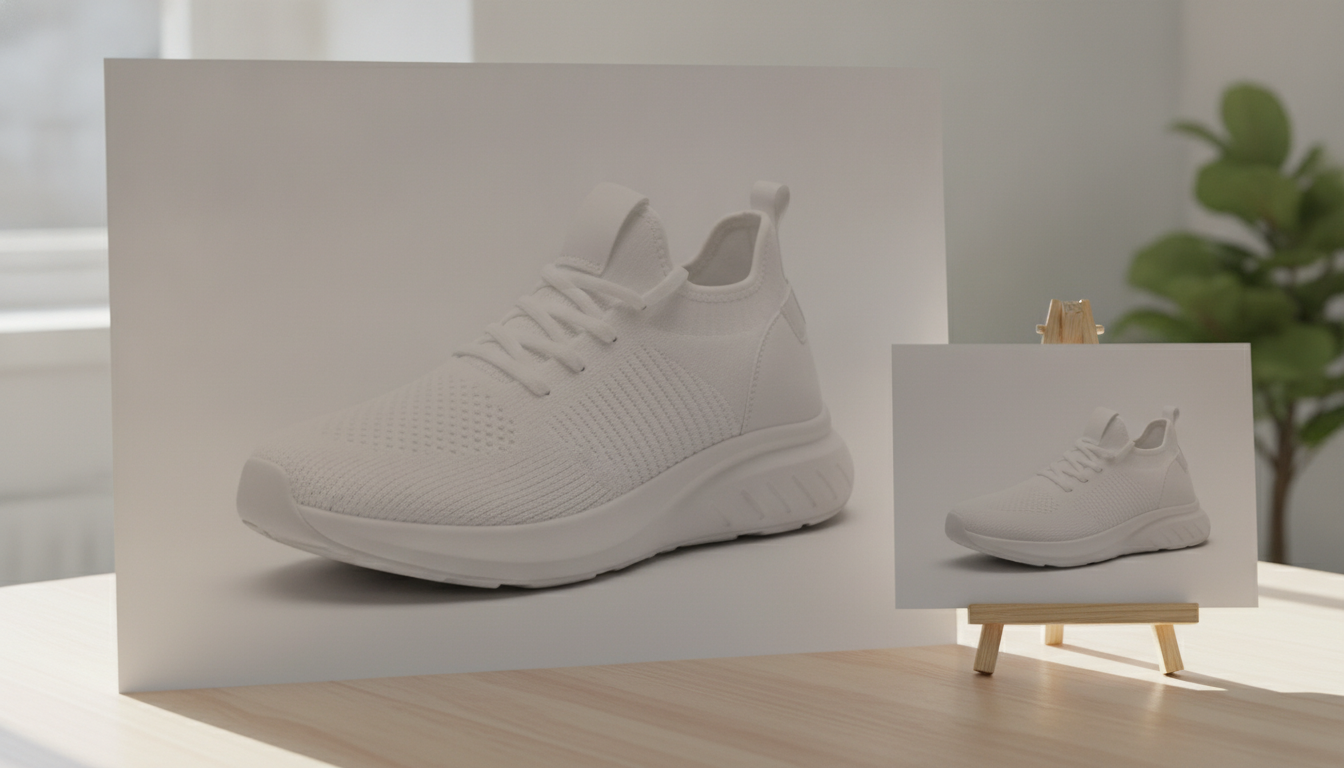
People mix them up all the time, but each one solves a different problem:
- Resizing: changes the pixel dimensions of the whole image. Everything stays in the frame, just bigger or smaller.
- Cropping: cuts away part of the image to change the framing or the aspect ratio (from landscape to square, for example).
- Compressing: reduces the file size in KB or MB without changing the dimensions.
- Changing the canvas: adds space around the photo (a white border, for example) without distorting the product.
For a product page you'll usually combine them: crop to the ratio your store expects, resize to the final size, then compress.
Why you shouldn't force the aspect ratio
If you squeeze a landscape photo into a square slot without cropping, the product gets distorted. A bottle looks wider, a T-shirt looks shorter. It's one of the most noticeable mistakes in a catalog. If you need a square format, crop it or extend the canvas with a solid background.
What size to use for each case
Platforms update their recommendations from time to time, so treat this table as a starting point and check each site's official guidelines before preparing a whole catalog.
| Use | Suggested size | Notes |
|---|---|---|
| Main product photo | Around 2000 px on the longest side | Leaves room for zoom on large screens |
| Amazon product image | At least 1000 px on the longest side | Amazon lists this as the minimum for zoom to work |
| Category thumbnails | 400–800 px | They're shown small; you don't need more |
| Homepage banner | Around 1920 px wide | A common desktop screen width |
| Blog post image | 1200–1600 px wide | Plenty for a typical text column |
| Instagram post | 1080 px wide | The width Instagram displays photos at |
A practical tip: choose one aspect ratio for all your product photos (square 1:1 or portrait 4:5, for example). Your store grid looks tidy, and you don't have to think about each photo individually.
Pixels, DPI and high-density screens
For the web, only pixels matter. The DPI or PPI value (72, 300…) shown in an image's properties doesn't change how it looks on screen; it only affects the size when you print it. A 2000 × 2000 px photo looks exactly the same online whether it says 72 or 300 DPI.
What does matter is high-density displays (recent phones, laptops with Retina screens). They pack twice as many pixels into the same space. If an image takes up 600 px of width on your site, upload it at around 1200 px so it stays sharp on those screens.
Tips for resizing without losing quality
- Scale down in one go. Every time you shrink and re-save a JPG, you lose a bit of detail. Go straight from the original to the final size.
- Don't upscale too much. Stretching a 500 px image to 2000 px leaves it blurry. If the photo is too small, reshoot it or generate a new one.
- Keep the original safe. Always work on a copy. You might need a different size tomorrow.
- Leave some breathing room around the product. If your store crops thumbnails later, a small margin stops the edges of the product from being cut off.
- Give the file a useful name. "brown-leather-bag-front.jpg" does more for search engines than "IMG_4532.jpg".
- Check the result at 100%. Open the image at actual size and look closely at edges, textures and any text on labels.
How to resize with tools you already have
You don't always need to install anything. These options come built in:
On Windows
- Paint: Home tab > Resize. Choose "Pixels", tick "Maintain aspect ratio" and type in the width.
- Photos: open the image, go to the options menu and look for "Resize image".
On Mac
- Preview: Tools menu > Adjust Size. You can select several images at once and resize them all together.
On your phone
Most phone photo editors let you crop, but they don't always let you set an exact size in pixels. For photos headed to your store, it's usually easier to do it on a computer or with an online tool.
Batch resizing for your catalog
If you've got dozens or hundreds of photos, doing them one by one is a waste of time. A few ideas:
- Group photos by type (main, detail, lifestyle) and set one size for each group.
- Use your editor's multi-image option (Preview on Mac supports this, for example).
- Stick to the same aspect ratio and the same margin around the product so the catalog looks consistent.
- Compress the whole batch at the end, not photo by photo.
After resizing: compress and convert
An image at the right size can still be too heavy. Pictulab has free web tools for the next step:
- Compress images to cut the file size without changing the dimensions.
- Convert images between formats, for example from PNG to WebP or JPG.
- Remove the background if you want the product on white or transparent before adjusting the canvas.
These tools are free and run in your browser: your images are never uploaded to a server, which is worth knowing if you're working with photos of products you haven't launched yet.
And if the original photo is too small or doesn't have the framing you need, Pictulab's AI features let you create and edit product images. Each generation shows its token cost before you run it, so you always know what you're spending.
Start free — 100 tokens on us, no card required.
You might also like:
- [ENLACE: how to compress images for your online store without losing quality]
- [ENLACE: white background product photos for marketplaces]
FAQ
Do you lose quality when you resize an image?
When scaling down, the loss is barely noticeable if you start from the original and do it in one step. When scaling up, yes: the more you stretch the image, the blurrier it gets, because there's no new detail to add.
What's the difference between resizing and compressing?
Resizing changes the width and height in pixels. Compressing reduces the file size while keeping those dimensions. For the web you'll usually do both: resize first, then compress.
Do images need to be 72 DPI for the web?
No. On screen, only pixels count. The DPI value only matters when printing.
What size should product photos be?
As a rule of thumb, around 2000 px on the longest side for the main photo, so zoom looks good. Every store and marketplace has its own requirements, so check their official guidelines before preparing your catalog.
How do I make a landscape photo square without distorting it?
Don't stretch it. Crop it to a square if the product fits, or extend the canvas with a solid background (white, for example) until you reach a 1:1 ratio.
Create visual content with AI for your business
Generate, edit and organize your images in one platform. Start free, no card required.
Get started free