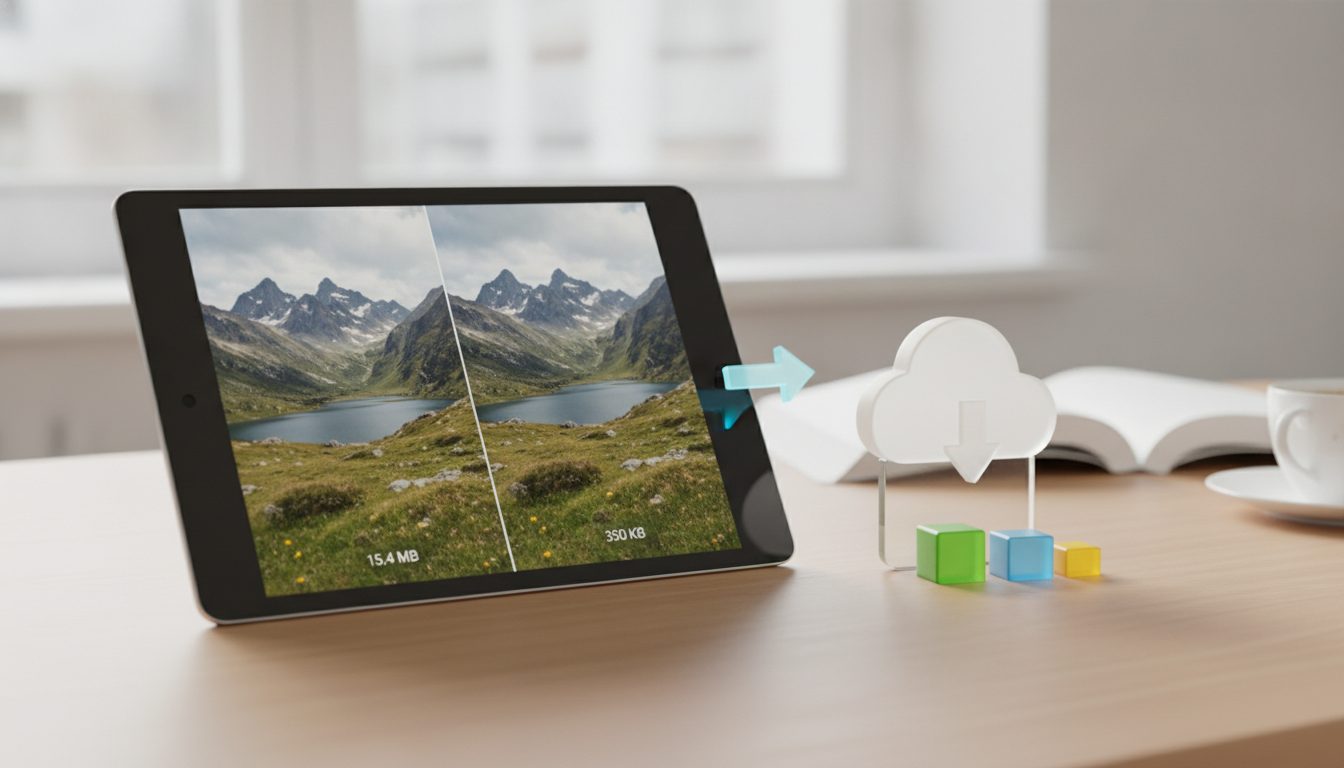
To use an image compressor without losing visible quality, work in this order. First, resize the image to the size it will actually be displayed at. Next, pick the right format: WebP or JPG for photos, and PNG or lossless WebP for graphics with transparency. Finally, set the quality to medium-high and compare the result with the original at full size.
Follow those steps and your file will usually be much smaller, with almost no difference to the naked eye. You can do it for free with the Pictulab image compressor. It runs in your browser, so your photos are never uploaded to a server.
Below we walk through each step, which format suits which job, and the mistakes to avoid if you run an online store.
How to compress an image in 4 steps
- Resize. If your site displays the photo at 1200 pixels wide, there's no point uploading it at 4000.
- Pick a format. Use WebP or JPG for photos. Use PNG or lossless WebP for logos, screenshots and images with a transparent background.
- Set the quality. With lossy compression, start at medium-high and lower it gradually until you'd start to see artifacts.
- Compare. Check the original and the compressed version at 100% zoom, paying attention to edges, gradients and text.
Lossy vs. lossless compression: what's the difference?
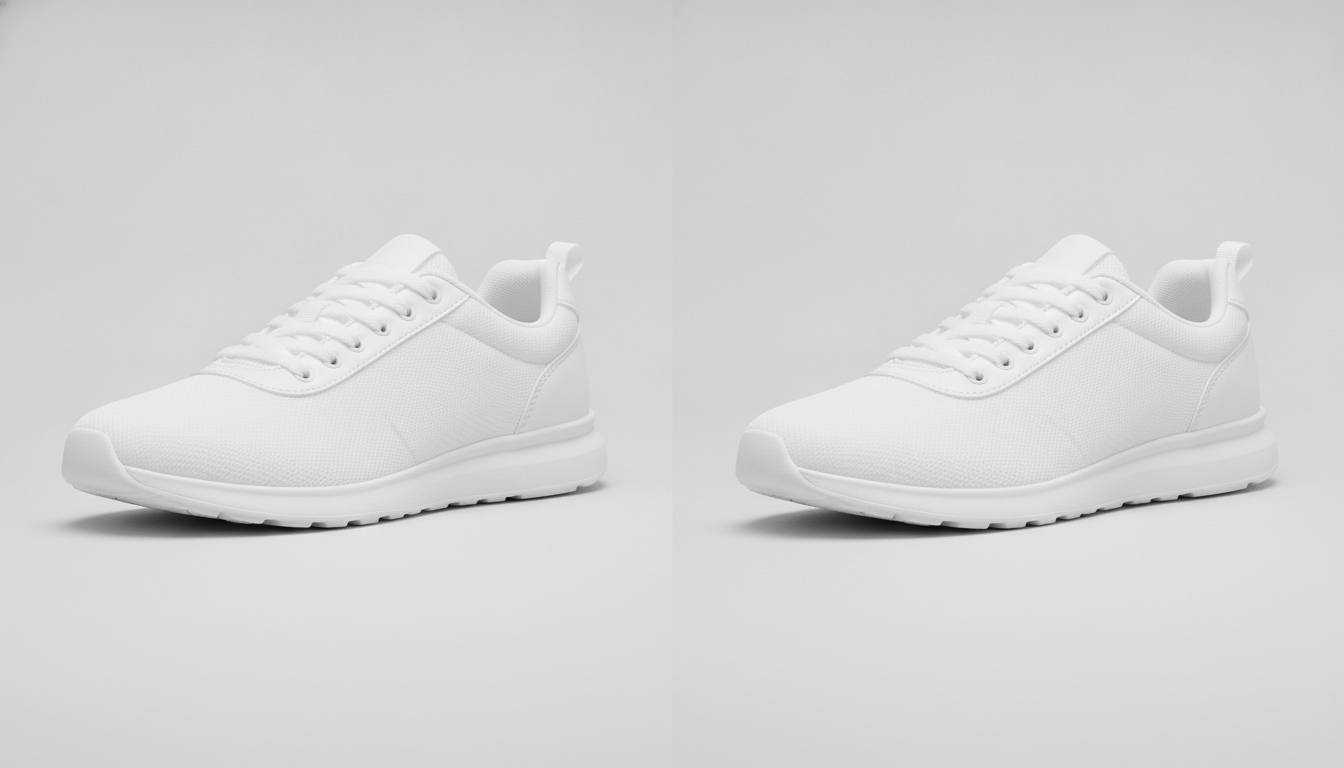
Before you touch any settings, it helps to understand the two types of compression.
Lossless compression
It reorganizes the file's data so it takes up less space, without throwing any information away. Decompress the image and you get exactly the same pixels back. This is how PNG works, and WebP in lossless mode.
- Pro: quality identical to the original.
- Con: smaller savings, especially on photos.
Lossy compression
It discards information the human eye barely notices, such as tiny color variations in highly detailed areas. This is how JPG, lossy WebP and AVIF work.
- Pro: much smaller files than lossless compression.
- Con: push it too far and you get blocky patches, halos around edges or banding in gradients.
When people talk about compressing "without losing quality", they almost always mean visible quality. Some information is lost, but you won't notice it when viewing the image at its normal size.
Which format should you choose?
The format matters as much as the compression level. Here's a quick guide:
| Format | Compression | Transparency | Best for |
|---|---|---|---|
| JPG | Lossy | No | Photos, maximum compatibility |
| PNG | Lossless | Yes | Logos, graphics, screenshots, cutouts |
| WebP | Lossy and lossless | Yes | Photos and graphics on modern websites |
| AVIF | Lossy and lossless | Yes | Web photos, if your platform supports it |
A few practical rules:
- Product photos without transparency: WebP or JPG.
- Cut-out products on a transparent background: PNG or WebP. JPG doesn't support transparency and will fill the background with white or black.
- Logos and icons: if you have the vector original (SVG), use it. If not, PNG.
- Compatibility: some marketplaces, email clients and older platforms don't accept WebP or AVIF. When in doubt, JPG and PNG work everywhere.
Need to switch formats? Use the Pictulab image converter, which also runs in your browser.
Resize before you compress
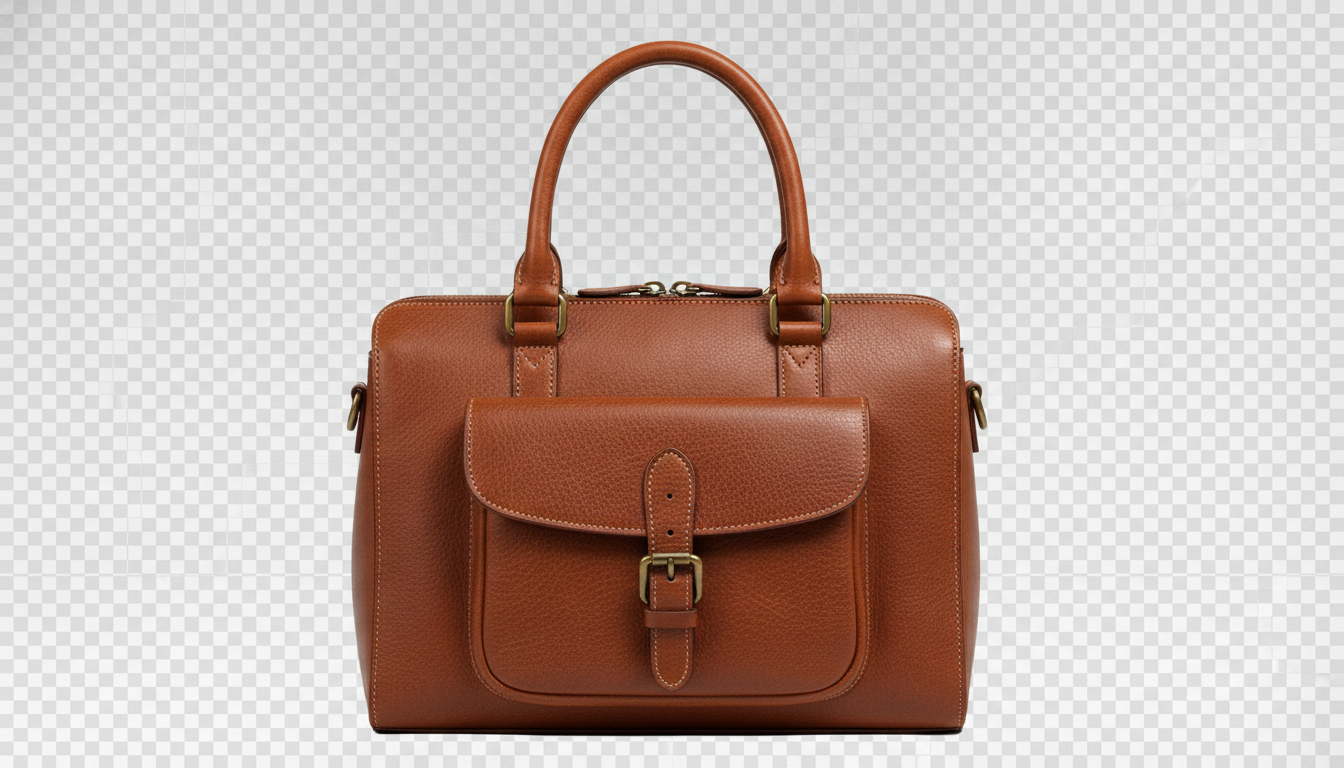
This is the step people skip most often, and the one that saves the most weight. A photo taken on a phone or DSLR has far more pixels than any website needs.
Shrinking the dimensions drastically cuts the amount of data the file has to store. And you lose no visible quality, because those extra pixels were never going to show on screen anyway.
How to decide on a size:
- Check the dimensions your ecommerce platform or theme recommends for product photos, banners and thumbnails.
- If your store has a product zoom, leave enough resolution for the zoom to show detail.
- For high-density ("retina") screens, twice the width of the display area is usually enough.
Finding the sweet spot for quality
Most lossy compressors have a quality slider, usually from 0 to 100. There's no magic number that works for every image, but there is a method:
- Start at medium-high.
- Lower it in small steps, comparing with the original each time.
- Stop as soon as you notice artifacts and go back one step.
Where artifacts show up first:
- Smooth gradients, like a sky or a studio backdrop: you'll see color banding.
- Sharp edges, like a product outline or text: you'll see halos or smudges.
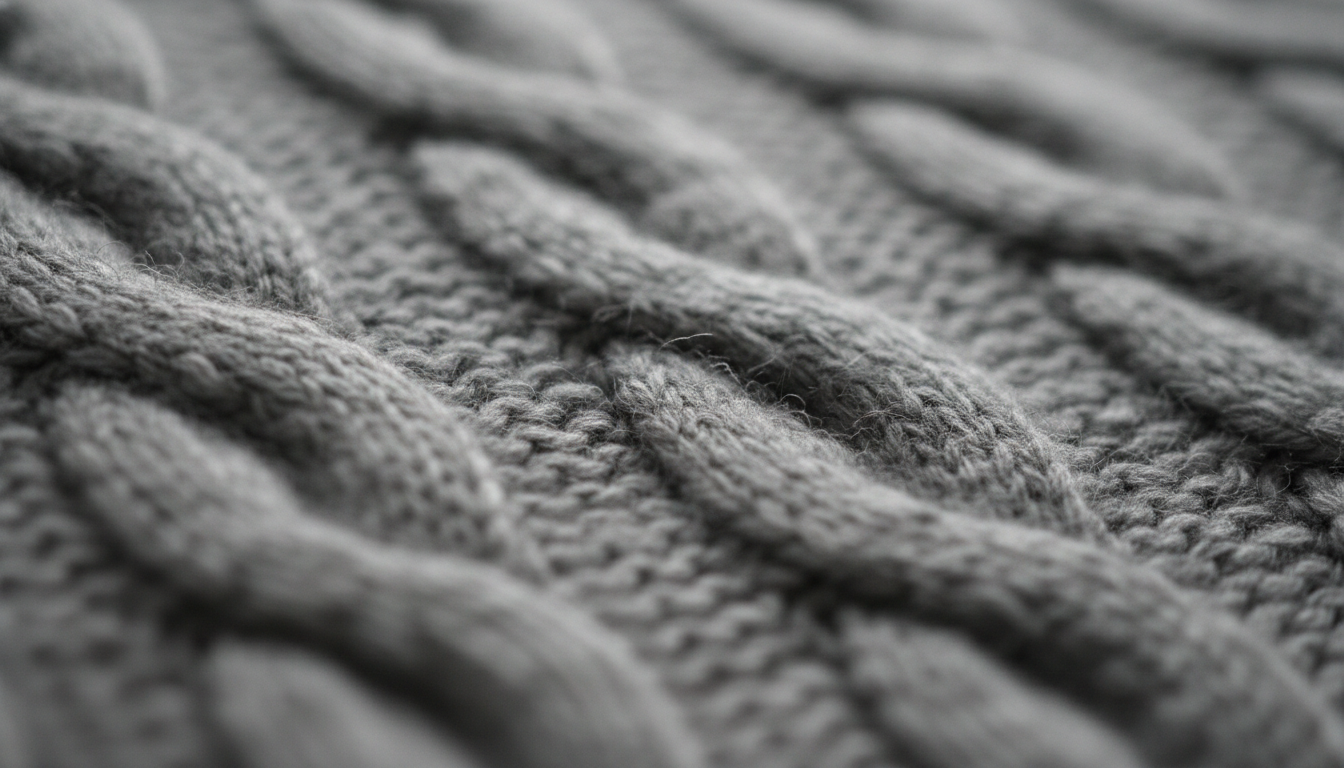
- Fine textures, like fabric or wood: they turn blurry or blocky.
A highly detailed photo handles compression worse than one with plain backgrounds. That's why it pays to check each type of image rather than applying the same value blindly.
Compressing images for your online store
On an ecommerce site, images are usually the heaviest part of every page. Optimize them and your store loads faster, especially on mobile. That helps the shopping experience and the speed metrics Google pays attention to, such as Core Web Vitals.
Product photos
- Keep size and format consistent across your whole catalog.
- Check compression with product zoom turned on: that's where shoppers look at the details.
- Plain white backgrounds usually compress very well, because there's little color variation.
Images with transparent backgrounds
If you've cut out a product with a tool like background remover, save the result as PNG or WebP. Compress it afterwards, without converting to JPG along the way.
Banners and hero images
These usually span the full width of the screen and are heavy. They're good candidates for lossy WebP and a slightly lower quality setting than your product shots, as long as they don't have text baked into the image.
Thumbnails
Don't just shrink the large image with CSS. Create a genuinely small version and compress it separately.
Common image compression mistakes
- Compressing the same JPG over and over. Every time you save a lossy JPG it degrades a little more. Always work from the original.
- Deleting the original. Keep an uncompressed copy in case you need a different size or format later.
- Using PNG for photos. It takes up far more space than JPG or WebP with no visible benefit.
- Using JPG for transparent cutouts. You lose the transparent background.
- Leaving unnecessary metadata. EXIF data (camera model, GPS location) adds weight, and in some cases reveals information you'd rather not publish.
- Judging quality from a thumbnail. Always compare at 100% zoom.
How to compress an image with Pictulab
The Pictulab image compressor is free and processes images right in your browser. Your files are never uploaded to a server, which is handy if you're working with photos of products you haven't launched yet.
- Open the tool and drag in your image.
- Choose the output format and quality level.
- Compare the preview with the original.
- Download the result.
If you also want to create or improve product photos with AI (new backgrounds, lifestyle scenes or video), try the rest of Pictulab. Every generation shows its token cost before you run it.
Start free — 100 bonus tokens, no card required.
Related articles
- [ENLACE: Which image format to use for your online store: JPG, PNG or WebP]
- [ENLACE: How to remove the background from a product photo]
FAQ
Can you compress an image without losing any quality at all?
Yes, with lossless compression (PNG or lossless WebP). The pixels stay identical, although the file size savings are smaller. Lossy compression removes some information, but when it's set up properly you can't see the difference with the naked eye.
Which is smaller, JPG or WebP?
In general, WebP produces lighter files than JPG at similar visual quality. JPG, on the other hand, is more widely supported: almost every program, platform and email service accepts it.
How many times can I compress the same image?
With lossless formats, as many times as you like. With lossy JPG or WebP, every new save degrades the image slightly. It's best to always compress from the original file.
Is it safe to compress images online?
It depends on the tool. Some upload your files to their servers for processing. The Pictulab image compressor runs in your browser, so your images never leave your computer.
Does compressing images improve my store's SEO?
Indirectly, yes: lighter images make pages load faster. Loading speed is part of the page experience metrics Google takes into account.
Create visual content with AI for your business
Generate, edit and organize your images in one platform. Start free, no card required.
Get started free