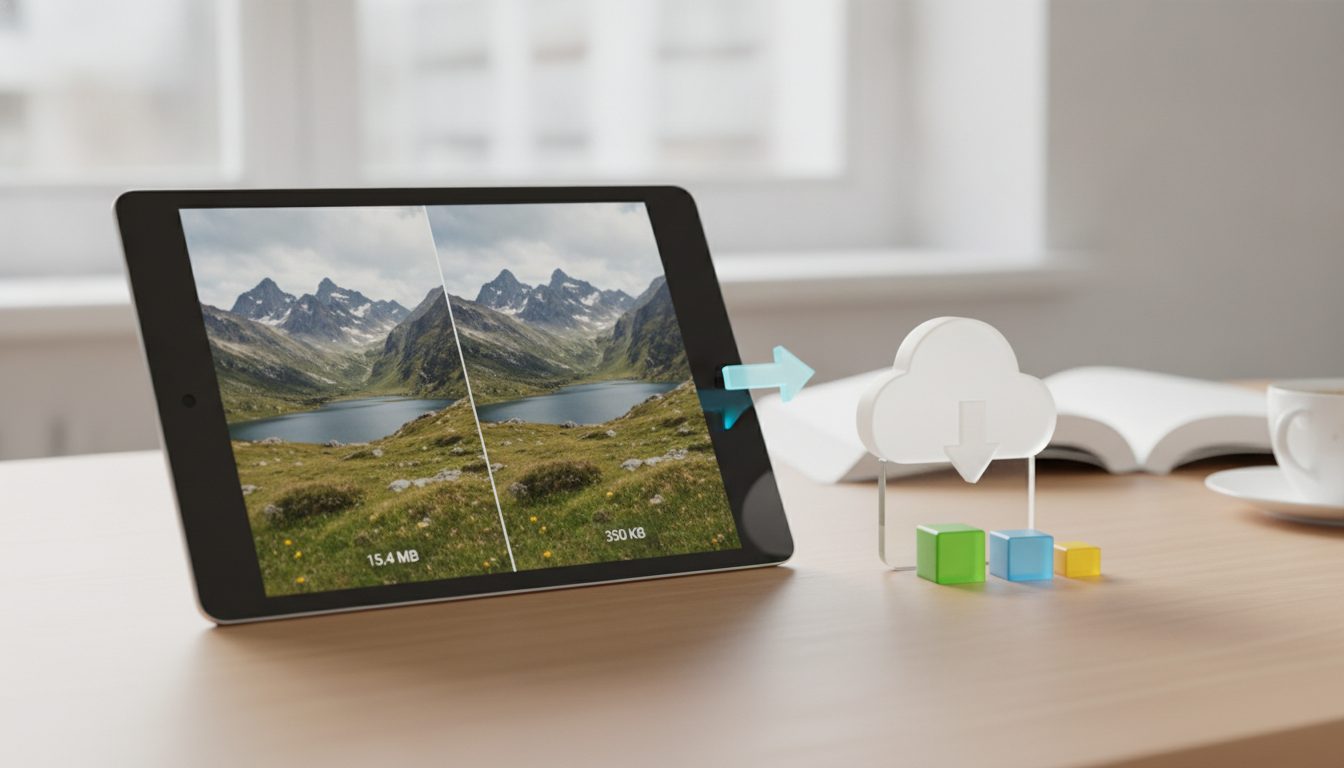
WebP is an image format developed by Google that compresses photos more than JPG and PNG while keeping very similar visual quality. It supports transparency and animation, and all major browsers handle it today: Chrome, Firefox, Edge and Safari. If you're wondering what is WebP and whether it makes sense for your online store, the short answer is yes, in most cases. Your product pages get lighter and load faster, and your customers see the same image.
Below you'll find how it works, where it beats other formats and where it falls short, and how to start using it.
What is WebP, in a nutshell
WebP is an image file format, just like JPG or PNG. Google introduced it in 2010 and has kept expanding it since. Files use the .webp extension.
The goal is simple: store the same image in a smaller file. According to Google's official developer documentation:
- Lossless WebP images are 26% smaller than equivalent PNGs.
- Lossy WebP images are 25–34% smaller than JPGs of comparable quality.
Actual savings vary from photo to photo, but across a catalog with hundreds of images the difference adds up.
How it works: lossy vs. lossless
WebP has two compression modes, and it helps to know when to use each.
Lossy WebP
It discards information the eye barely notices, much like JPG. This is the right mode for product photos, lifestyle shots and banners. You can set the quality level: values between 75 and 85 usually strike a good balance between file size and sharpness.
Lossless WebP
It keeps every pixel intact, like PNG. It's a good fit for logos, icons, graphics with text or images with very crisp edges.
Transparency and animation
WebP supports an alpha channel (transparent background) in both lossy and lossless mode. That's an edge over PNG: you can have a cut-out product on a transparent background in a much lighter file. It also supports animation, as an alternative to GIFs.
WebP vs. JPG, PNG and AVIF
| WebP | JPG | PNG | AVIF | |
|---|---|---|---|---|
| Lossy compression | Yes | Yes | No | Yes |
| Lossless compression | Yes | No | Yes | Yes |
| Transparency | Yes | No | Yes | Yes |
| Animation | Yes | No | No (APNG is separate) | Yes |
| Support in older software | Medium | Very high | Very high | Low to medium |
WebP doesn't win everywhere. Here's where other formats tie or come out ahead:
- Compatibility: JPG wins. Practically every app, phone, email client and printer opens it. Some older editing software, certain platforms and some marketplaces still don't accept WebP uploads.
- Compression: AVIF usually wins. This newer format often produces even smaller files than WebP at similar quality. The trade-off is slower encoding and narrower tool support.
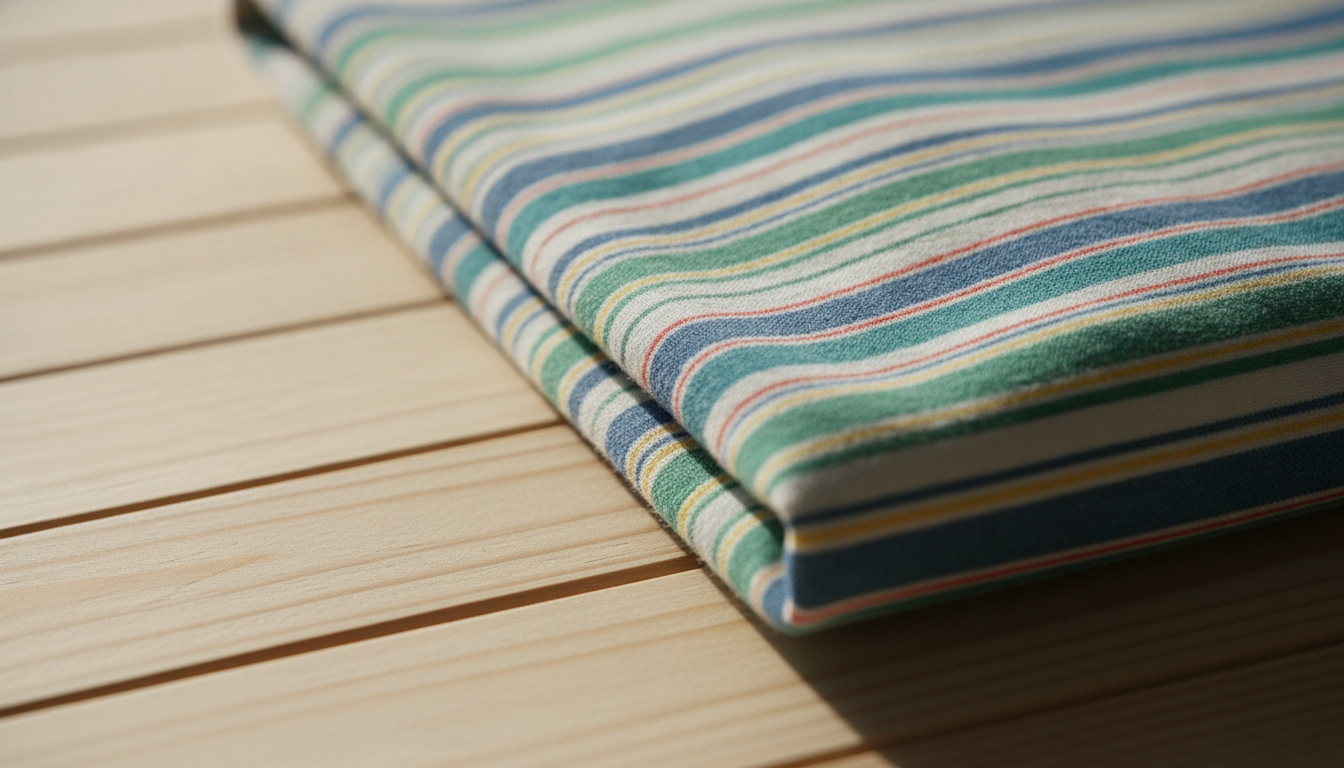
- Color fidelity in fine detail: JPG or PNG can win. Lossy WebP reduces color information (4:2:0 chroma subsampling). On fabrics with very fine patterns or small colored text, you may notice some softening.
- Maximum size: the others tie or win. WebP tops out at 16,383 × 16,383 pixels. That's plenty for the web, but not for huge print files.
Bottom line: WebP is a strong choice for displaying images on the web. For storing originals or sending files to print, stick with JPG, PNG or TIFF.
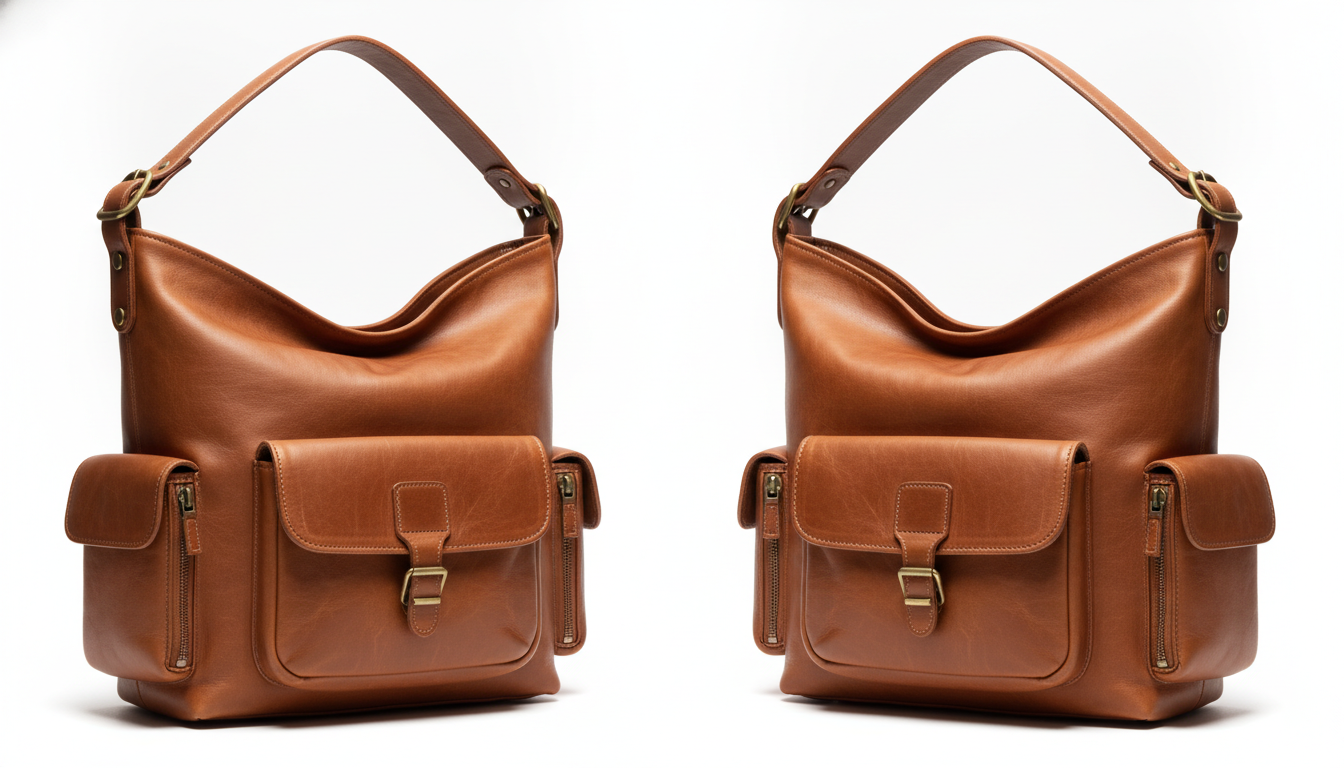
Why use WebP in your ecommerce store
Faster-loading pages
In an online store, images are usually the heaviest part of each page. On product pages, the main photo is often the largest element that loads. Google measures this with LCP (Largest Contentful Paint), one of the Core Web Vitals.
With lighter files, that image shows up sooner, especially on phones with slow connections. A fast store delivers a better experience, and Google takes page experience into account in its results.
Lighter cut-out product images
If you use background-free product photos to place on brand colors or in compositions, PNG has been the usual option, and it's heavy. With WebP you keep the transparency and the file shrinks considerably.
Less storage and less bandwidth
Every visit downloads your images. Smaller files mean less data served from your server or CDN. If your hosting charges for or caps storage or traffic, you'll notice it there too.
One format for several jobs
Photos, graphics, transparent images and short animations: WebP covers them all in a single format. That makes your catalog easier to organize.
When WebP isn't the right choice
- Original and working files. Always keep the high-quality original (JPG, PNG, TIFF or RAW). Convert only the published version to WebP.
- Uploads to marketplaces or social media. Check which formats each platform accepts before uploading. When in doubt, JPG is still the safe bet.
- Email. Not every email client displays WebP. For newsletters, JPG and PNG are more reliable.
- Print. Printers and paper catalogs work with other formats.
How to convert your images to WebP, step by step
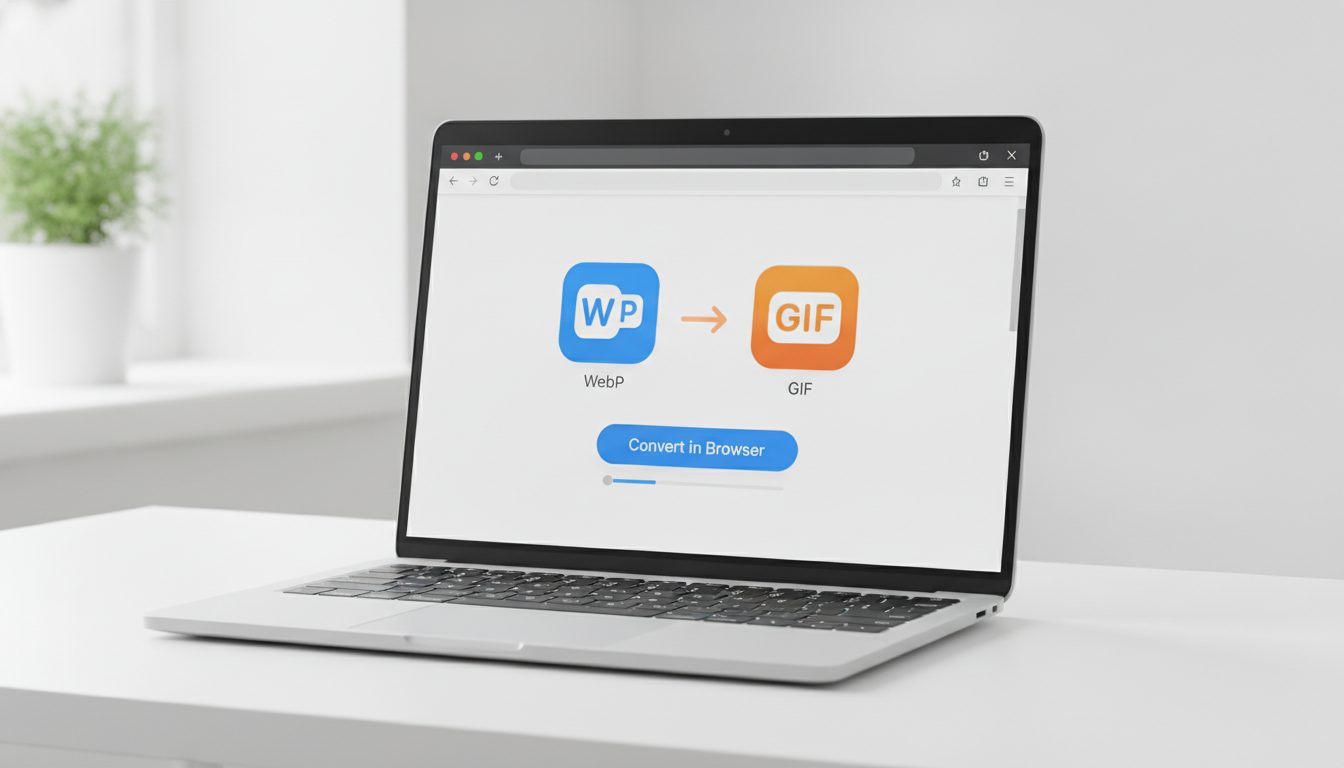
No installation needed. With Pictulab's image converter you can turn your JPGs and PNGs into WebP right in your browser. It's free and your images are never uploaded to any server: everything happens on your own device.
- Resize your photos first. Don't publish a 4,000-pixel image that will be displayed at 1,200. Resizing often saves more than switching formats.
- Convert to WebP. Pick lossy for photos and lossless for logos or graphics.
- Tweak the quality. Start around 80 and compare. If you can't see a difference, try going a bit lower.
- Check the details. Zoom in on tricky areas: seams, textures, text on labels.
- Compress further if needed. Use the image compressor to fine-tune the final file size.
If you need a cut-out product, remove the background first and then export to WebP to keep the transparency at a small file size.
How to serve WebP in your online store
WordPress and WooCommerce
WordPress has supported uploading WebP images to the media library since version 5.8. You can upload your .webp files directly or use an optimization plugin that generates WebP versions automatically.
Hosted platforms
Some ecommerce platforms optimize images and serve modern formats to compatible browsers on their own. Check your platform's documentation before converting everything by hand: it may already be doing it for you.
Custom sites: the picture element
If you control the code, the <picture> element lets you serve WebP with a JPG fallback for older browsers:
<picture>
  <source srcset="brown-handbag.webp" type="image/webp">
  <img src="brown-handbag.jpg" alt="Brown leather handbag with short handle" width="1200" height="1200">
</picture>
The browser picks the first format it understands, so nobody misses the photo.
WebP best practices for a product catalog
- Use descriptive file names:
brown-leather-handbag-front.webpsays far more thanIMG_4532.webp. - Write descriptive alt text for accessibility and image SEO.
- Set width and height in your HTML to prevent layout shifts while the page loads.
- Use lazy loading (
loading="lazy") for images below the fold, but not for the main product photo. - Keep quality consistent across your catalog so product pages look uniform.
To dig deeper, check out [ENLACE: how to compress images for your online store without losing quality] and [ENLACE: recommended image sizes for product pages].

And if you also want to create or improve your product photos with AI, you can try it on Pictulab. Start free — 100 free tokens, no card required.
Frequently asked questions
Does WebP lose quality compared to JPG?
In lossy mode, it discards some information, just like JPG. With well-tuned quality settings the difference usually isn't visible to the naked eye, and the file is smaller. In lossless mode, nothing is lost.
Do all browsers support WebP?
Current versions of the major browsers, including Chrome, Firefox, Edge and Safari, display it without issues. Only very old versions don't; for those, you can use the <picture> element with a JPG fallback.
Does WebP improve my store's SEO?
It isn't a ranking factor on its own. What it does is cut page weight, which improves load speed and metrics like LCP, part of the page experience signals Google considers.
Which is better, WebP or AVIF?
AVIF usually compresses more, but it takes longer to encode and fewer tools support it. WebP offers a good balance between savings and compatibility. Many sites serve AVIF with WebP or JPG as a fallback.
How can I convert to WebP without uploading my photos online?
With Pictulab's converter, conversion runs in your browser: your images aren't uploaded to any server, and the tool is free.
Create visual content with AI for your business
Generate, edit and organize your images in one platform. Start free, no card required.
Get started free