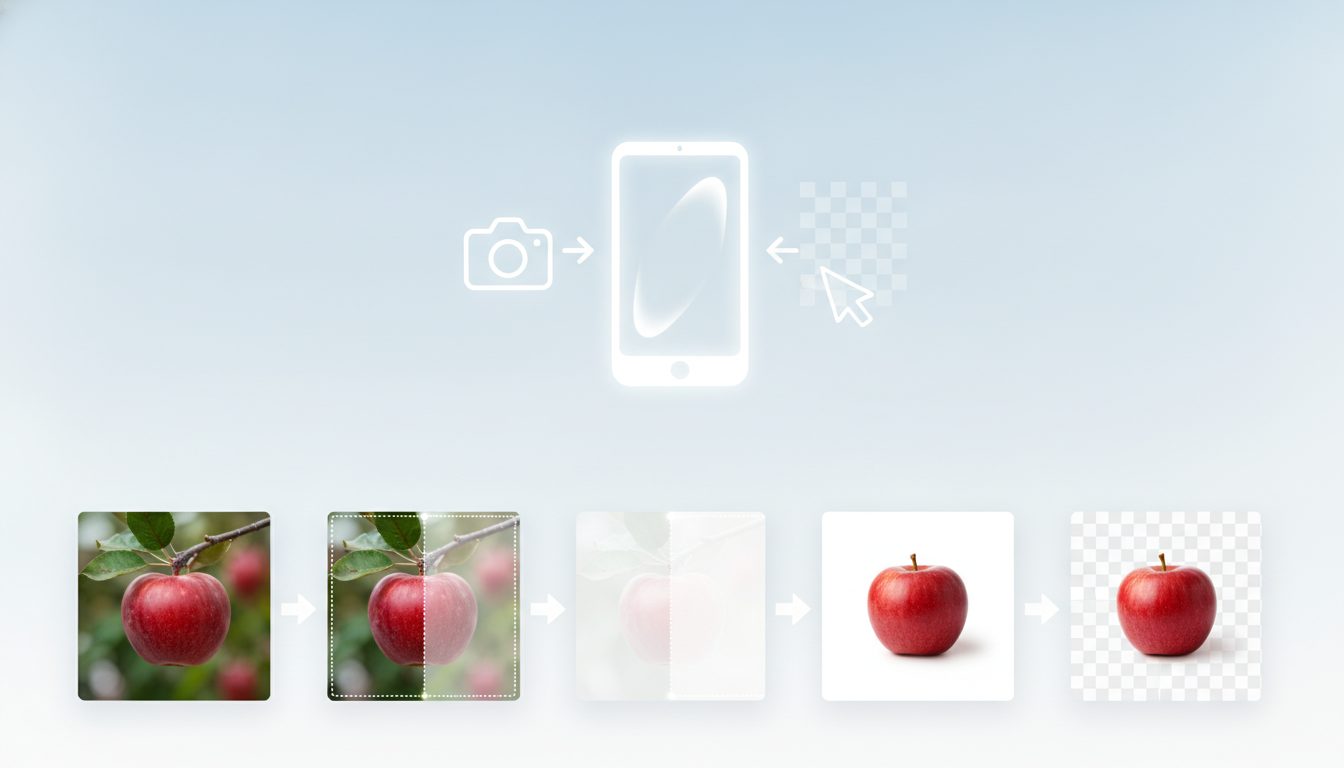
Looking for a background remover free of charge, with nothing to install? The quickest way is a tool that runs in your browser, like Pictulab's background remover. Drag your photo in, check the edges and download the result as a PNG to keep the transparency. The image never leaves your computer.
This guide walks you through each step. It also covers how to get clean cutouts and the mistakes online store owners make most often with product photos.
Quick answer: remove a background in 4 steps
- Open the background remover in your browser.
- Drag and drop or select a photo from your computer or phone.
- Check the cutout, especially thin edges, shadows and shiny areas.
- Download the image in a format that supports transparency, such as PNG or WebP.
That's it. You can then keep the transparent background, place the product on white for a marketplace or drop it into a new scene.
Why remove backgrounds in your browser
Many free sites upload your photo to their servers, process it there and send the result back. It works, but your image passes through another company's hands.
Pictulab's web tools (background remover, compressor and converter) run entirely in your browser. That means:
- Your images aren't uploaded to any server. Handy if you're working with unreleased products, client photos or licensed material.
- They're free. No tokens, no credit card.
- No waiting in someone else's server queue. The processing happens on your own device.
Because your device does the work, a very old computer or phone may take a little longer. On a typical setup you won't notice.
Step by step with Pictulab
1. Prep your photo
The better the original, the cleaner the cutout. You don't need a studio. The product just needs to be in focus, well lit and clearly separated from the background.
If the file is huge or in an unusual format, run it through the image converter first.
2. Open the tool and load the image
Go to /herramientas/quitar-fondo and drag your photo into the window. The tool detects the main subject and removes everything else.
3. Check the edges carefully
Zoom in and look at three areas:
- Fine edges: handles, laces, fringe, hair.
- Inner gaps: the space inside a handle or between fingers.
- Shadows and reflections: sometimes the product's shadow sticks to the cutout.
If something looks off, reshooting with better lighting is usually faster than fixing it by hand.
4. Download in the right format
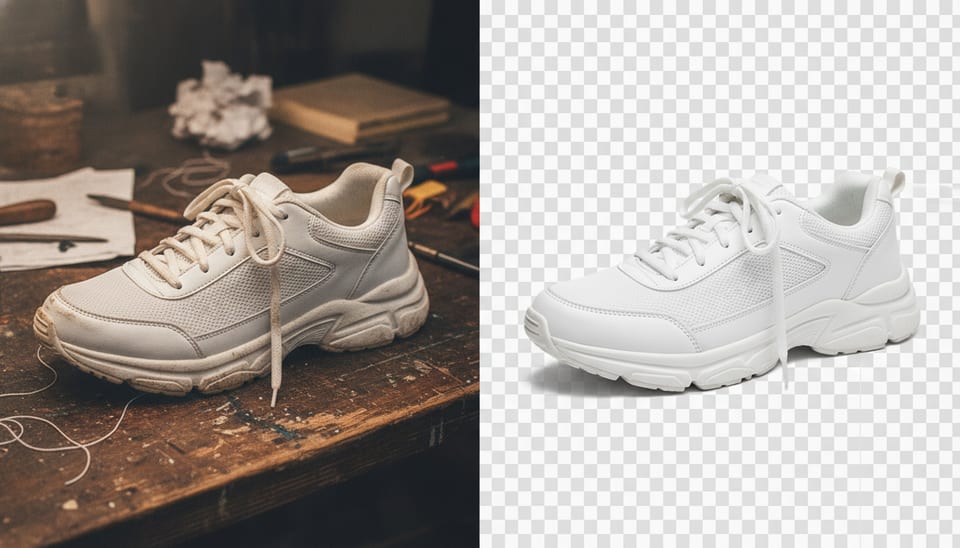
JPG doesn't support transparency. Save as JPG and the transparent background turns into a solid color. To keep it, use PNG or WebP.
5. Shrink the file before uploading it to your store
Transparent PNGs can be heavy. Before adding them to your site, run them through the image compressor. Lighter images mean faster pages, which matters for both shoppers and SEO.
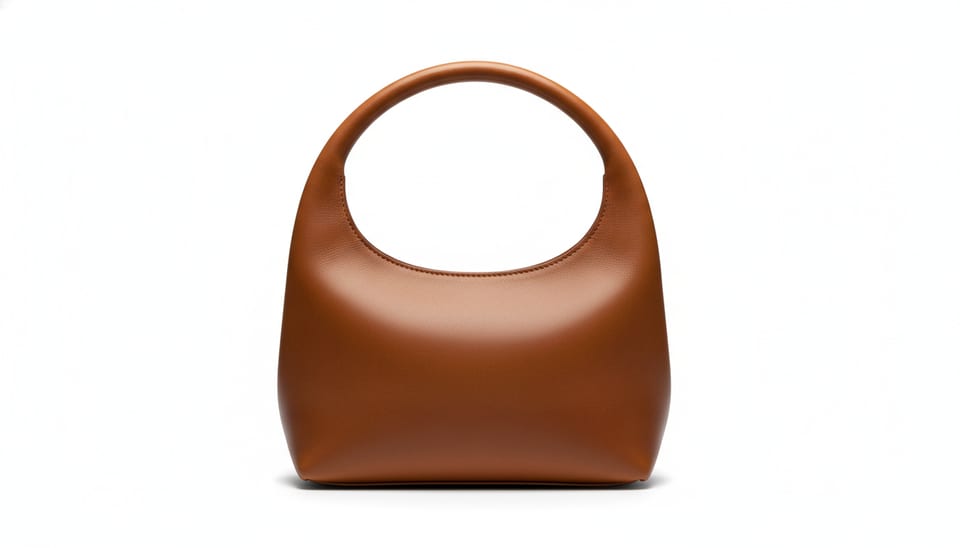
Photo tips for a clean cutout
The AI does most of the heavy lifting, but you can make its job easier:
- Contrast between product and background. A white mug against a white wall is harder to separate than against gray or a color.
- Soft, diffused light. Window light on an overcast day or a lamp with a diffuser. Harsh light creates hard shadows that blend into the product.
- Pull the product away from the wall. A few inches of distance cuts down on cast shadows.
- Leave some room around it. Don't crop the product at the edge of the frame: the tool needs to see the full outline.
- Enough resolution. The more pixels along the edge, the finer the cutout.
- A clean backdrop. The fewer objects behind the product, the less the AI has to guess.
What to do with your cutout
White backgrounds for marketplaces
Amazon requires a pure white background for the main product image, and many other marketplaces recommend it. With the cutout ready, just place it on a white canvas. Your listings stay consistent even if the photos were shot in different places.
New AI-generated scenes
Want more than a plain background? In Pictulab you can generate an AI scene for your product: a perfume on marble, a sneaker on a city street or a mug in a kitchen. These generations do use tokens, and each one shows its cost before you run it, so there are no surprises.
Social media and ads
A product with no background is easy to reuse in banners, Instagram stories or ad creatives. Drop it onto your brand color and you're done.

Common background removal mistakes
- Saving as JPG and losing transparency. The most common slip. Use PNG or WebP.
- Not checking the result zoomed in. Everything looks perfect at thumbnail size, but shoppers zoom in on product pages.
- Leaving half a shadow. Either remove it completely or add one on purpose, consistently across every photo.
- Mixing styles across your catalog. If some photos have shadows and others don't, or the whites don't match, your store looks sloppy.
- Uploading huge files. Cutting out without compressing afterwards slows your site down.
Other ways to remove a background, and when they make sense
An automatic browser tool handles most product photos well. It's not the only option, and sometimes others are a better fit:
- Editing software like Photoshop or GIMP. These win on fine manual control: you can use masks, brushes and channels to handle hair, glass or sheer fabrics pixel by pixel. They also offer layer-based editing and advanced retouching in the same file. The trade-off is installing software and learning to use it.
- Phone apps and built-in features. Some phones let you lift the subject out of a photo straight from the gallery. Very convenient for a quick cutout without leaving your phone, though export and adjustment options tend to be limited.
If you run an online store with lots of product photos, the practical approach is to combine both. Use automatic removal for everyday shots and a manual editor only for the tricky ones.

Try Pictulab
Removing backgrounds, compressing and converting are free and happen right in your browser. If you also want to create scenes or edit images and video with AI, you get 100 welcome tokens to try it, no card required. Need more? There are Starter (€12/month), Pro (€36/month) and Business (€120/month) plans, VAT included, with two months free when you pay yearly.
Start free — 100 bonus tokens, no card needed.
You might also like:
- [ENLACE: how to shoot product photos with your phone for your online store]
- [ENLACE: white background image requirements for Amazon and other marketplaces]
FAQ
Is Pictulab's background remover free?
Yes. The background remover, like the compressor and converter, is free and doesn't use tokens. Tokens are only spent on AI generation features, such as creating a new background or scene.
Are my photos uploaded to a server?
No. Pictulab's web tools run inside your browser and your images aren't uploaded to any server. All the processing happens on your own device.
What format should I save my cutout in?
PNG or WebP, since both support transparency. If you save as JPG, the transparent background gets filled with a solid color. If the image is going on your website, compress it afterwards so it loads faster.
Does it work with hair, pet fur or glass objects?
Fine edges and transparent materials are the hardest part for any automatic tool. Shooting with good contrast and soft light helps a lot. If you're still not happy with the result, a manual editor with masks gives you more control over those areas.
How much does an AI-generated background cost?
It depends on the generation, and Pictulab shows you the token cost before you run it. When you sign up you get 100 welcome tokens (worth €1) with no card required. If you need more, you can choose the Starter, Pro or Business plan.
Create visual content with AI for your business
Generate, edit and organize your images in one platform. Start free, no card required.
Get started free