To convert an image to JPG online for free, open the Pictulab image converter. Drag in your file, pick JPG as the output format and download the result.
Everything happens in your browser. Your image is never uploaded to a server, and there's nothing to install. This guide walks you through the process step by step. It also covers what happens to transparent backgrounds, which quality setting to choose and when JPG isn't the right call.
How to convert an image to JPG in 4 steps
- Go to /herramientas/convertir.
- Drag your image into the upload area or browse for it on your device.
- Choose JPG as the target format.
- Download the converted file.
Because the conversion runs in your own browser, it's quick, and your photos never leave your computer or phone. That matters if you're working with product shots you haven't published yet or with personal documents.
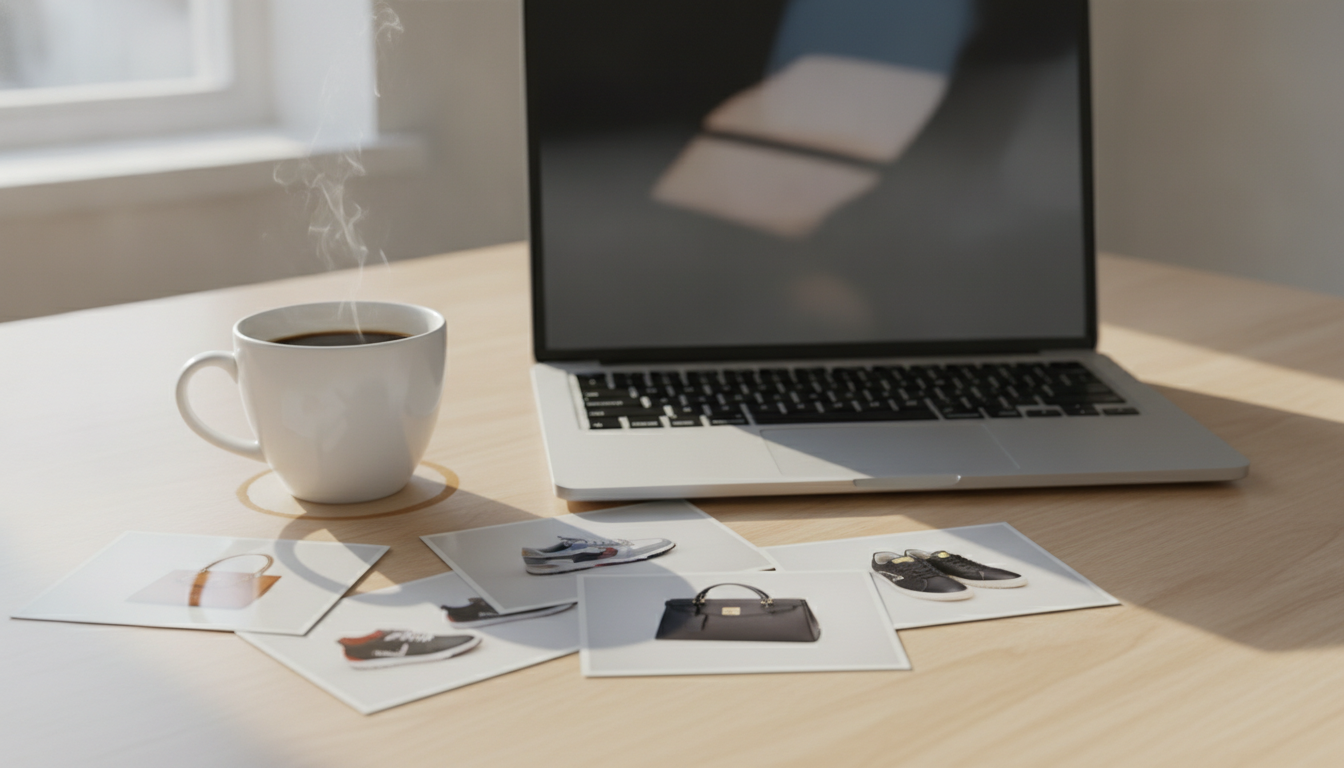
Why convert to JPG (and when not to)
JPG (or JPEG, they're the same thing) is one of the most widely used image formats. Almost every app, browser, phone and ecommerce platform can open it.
What JPG does well
- Compatibility: nearly every website, store builder, marketplace and email client accepts it without issues.
- Smaller photo files: it uses lossy compression, so a photo saved as JPG is usually much smaller than the same photo as a PNG.
- Great for photos: with gradients, shadows and lots of colors, the quality loss is barely noticeable at moderate compression.
When another format is a better fit
- You need transparency: JPG doesn't support transparent backgrounds. For a logo or a cut-out product you'll place on different backgrounds, stick with PNG or WebP.
- Images with text or fine lines: screenshots, charts and flat illustrations can show halos and smudges around edges in JPG. PNG keeps them crisp.
- You're still editing: every time you re-save a JPG it gets compressed again and loses a bit more quality. Work from the original and export to JPG at the end.
- You want the smallest possible file for the web: WebP usually produces lighter files at similar quality, and modern browsers support it.
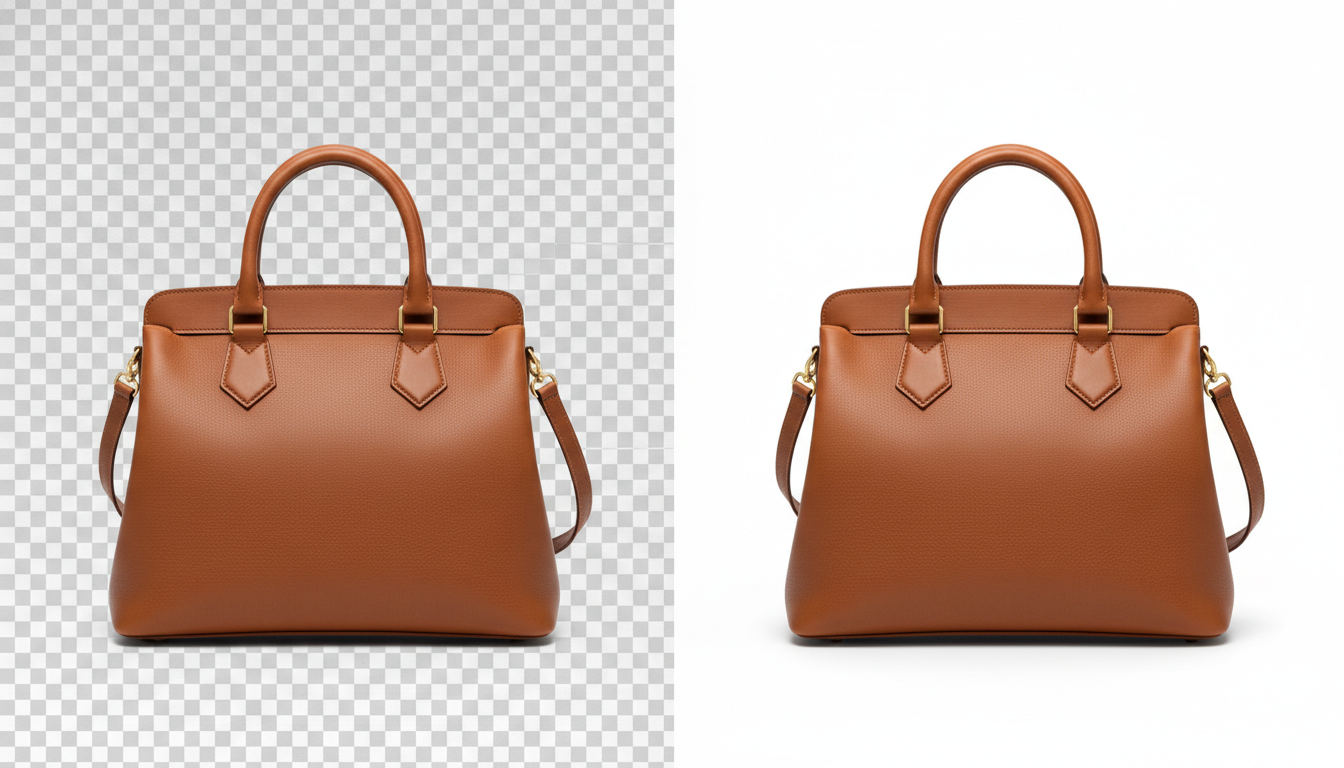
What happens to transparency when you convert PNG to JPG
This is the most common question. If you convert a PNG with a transparent background to JPG, that background has to be filled with a solid color, because the format can't store it as empty. Depending on the tool, the fill is usually white or black.
For an online store, this can actually work in your favor. Many marketplaces require a white background on the main image; Amazon, for example, requires a pure white background on the main product photo. A practical workflow looks like this:
- Cut out the product with the background remover, which is also free and runs in your browser.
- Check that the result sits on a white background.
- Convert to JPG to get a lightweight, widely compatible file.
If you need to keep the transparency, for example to use the product in mockups or banners, save a PNG copy as well.
Which quality setting to choose for JPG
When saving as JPG, quality is usually set on a 0–100 scale or as a percentage. The higher it is, the better the image looks and the bigger the file. There's no magic number, but these guidelines work well in most cases:
- 90–100: for archiving or printing. File size jumps a lot for a small visual gain.
- 80–90: a good balance for product photos in an online store.
- 60–75: for thumbnails, background images or social media, where images are shown small.
- Below 60: blocky artifacts and messy edges start to show, especially in areas of flat color.
If the file is still too heavy after converting, run it through the image compressor. It's free too and processes images in your browser. Reducing the dimensions (say, from 4000 to 2000 pixels wide) usually saves more space than lowering the quality.
Converting iPhone HEIC photos to JPG
iPhones save photos as HEIC by default. It's space-efficient, but not always supported by websites and Windows apps. You have two options:
- Convert the files you already have: try opening them in the converter. If your browser can't read them, use one of the desktop options covered below.
- Make your iPhone shoot in JPG: go to Settings > Camera > Formats and select Most Compatible. From then on, new photos are saved as JPG.
Sharing photos by email or transferring them to a computer can also help: in many cases the system converts them to JPG automatically.
Other ways to convert offline
An online converter isn't your only option. Your operating system already includes tools that do the same job, and sometimes they're more convenient:
- Windows (Paint): open the image, go to File > Save as and choose JPEG picture. It works offline and comes preinstalled.
- Mac (Preview): open the image, go to File > Export, choose JPEG and adjust quality with the slider. It also handles HEIC files without trouble, which not every browser does.
These tools work just as well for a single image and don't depend on your browser. The advantage of the web converter is that it works on any device, phones included, and it sits right next to the compression and background removal tools.
Tips for online stores
If you sell online, the file format is only part of the job. A few practical tips:
- Standardize format and dimensions across all your product photos. A product page with mismatched image sizes looks sloppy.
- Name files properly before uploading: blue-running-shoe-side.jpg is far more useful for SEO than IMG_4532.jpg.
- Always keep the original (PNG, HEIC or RAW) in case you need to re-export at a different quality or size.
- Check the final file size: heavy images slow your store down, especially on mobile.
And if you need more than conversion, like generating backgrounds, creating lifestyle shots or product videos with AI, Pictulab runs on tokens. Every generation shows its cost before you run it. Monthly plans cost €12 (Starter), €36 (Pro) or €120 (Business), VAT included, and paying annually gets you two months free.
Start free — 100 bonus tokens, no card required.
Keep reading:
- [ENLACE: how to compress images for your online store without losing quality]
- [ENLACE: PNG vs JPG vs WebP: differences and when to use each]
FAQ
Is it free to convert an image to JPG with Pictulab?
Yes. The converter, the compressor and the background remover are free. They run in your browser and don't use any tokens.
Are my images uploaded to a server?
No. Pictulab's web tools process images in your own browser, so your files are never sent to a server.
Do I lose quality when converting to JPG?
JPG uses lossy compression, so some information is always discarded. At a quality setting between 80 and 90, the difference in photos is hard to spot. Avoid re-saving the same JPG over and over.
What happens to a PNG's transparent background?
JPG doesn't support transparency, so the background gets filled with a solid color, usually white or black. If you need to keep the transparency, save a copy as PNG or WebP.
Are JPG and JPEG the same?
Yes. It's the same format with two different extensions (.jpg and .jpeg). You can rename one to the other without changing anything in the image.
Create visual content with AI for your business
Generate, edit and organize your images in one platform. Start free, no card required.
Get started free