There are two ways to get white background product photos:
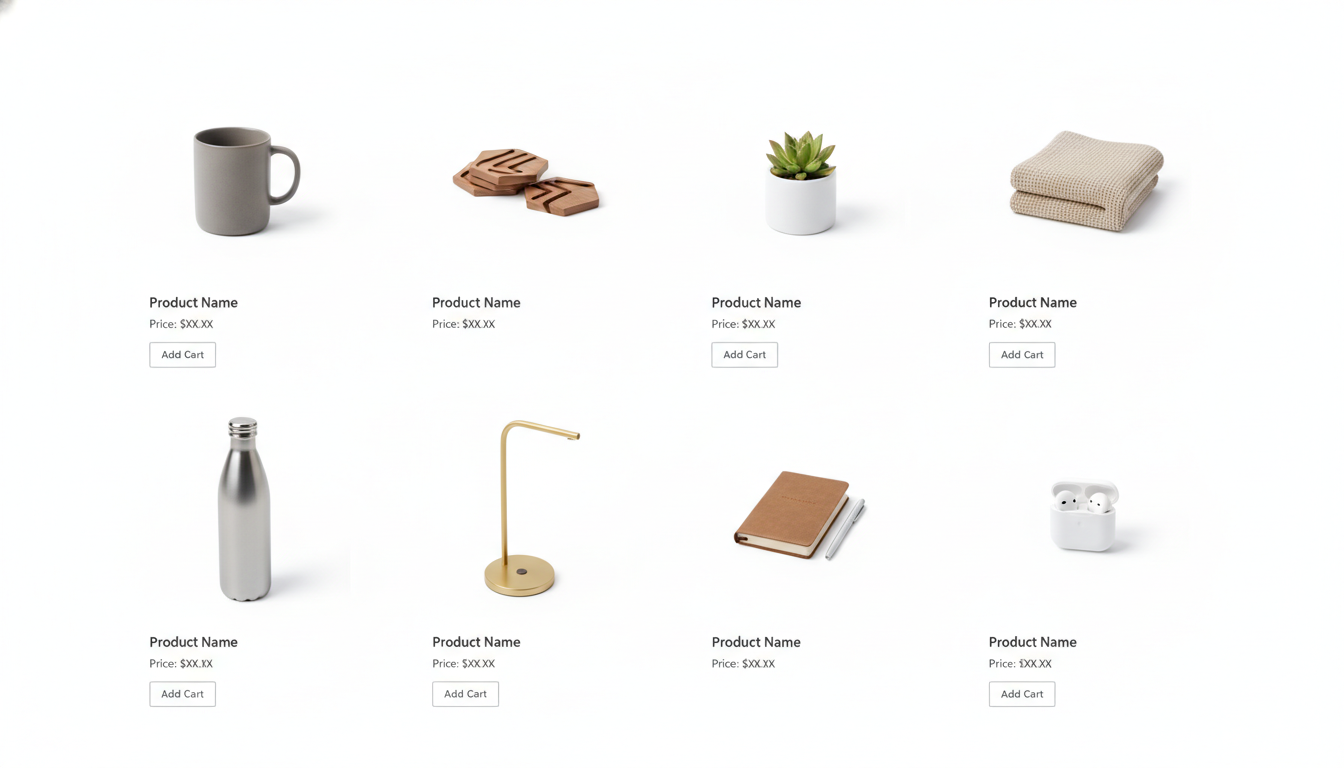
- Get it right in-camera, using a seamless white backdrop and lighting the background brighter than the product.
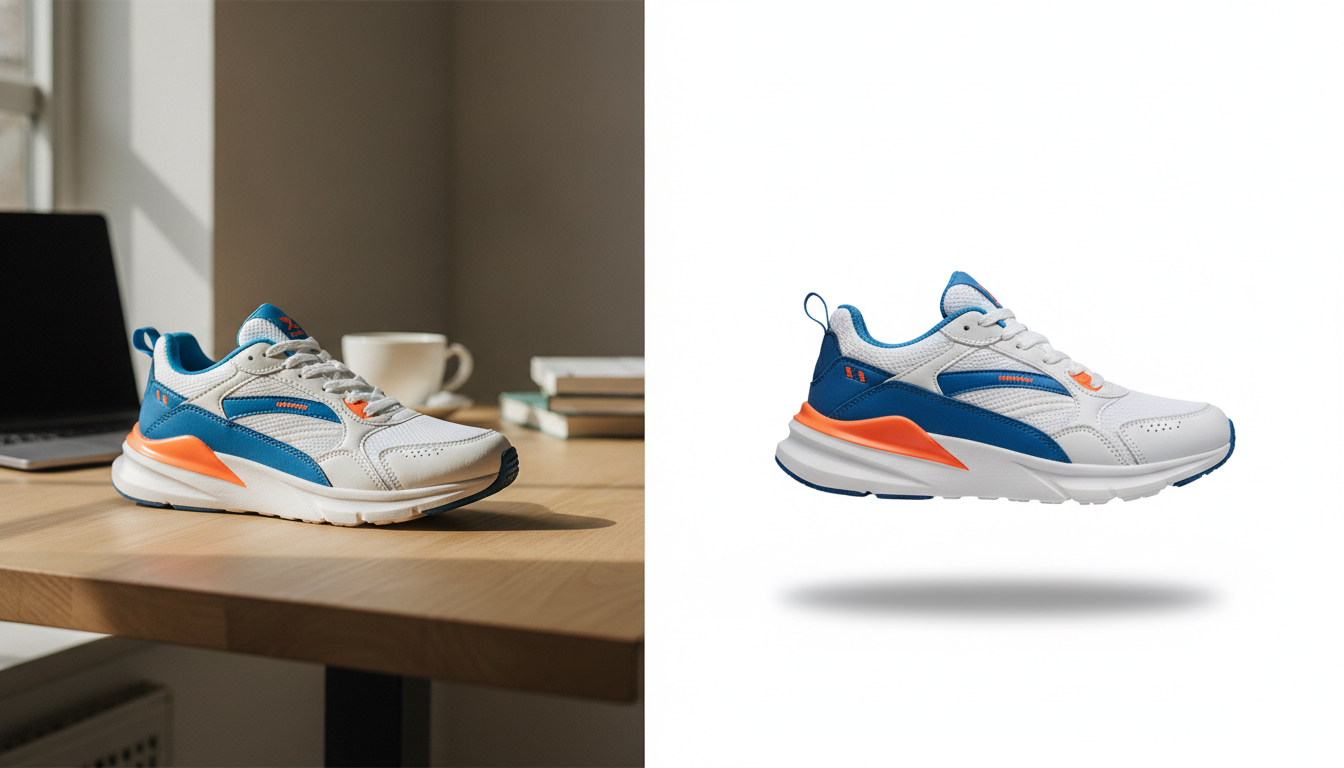
- Remove the background afterwards and place the product on a pure white canvas (RGB 255, 255, 255).
The first gives more natural results if you have the space and the lighting. The second is faster and works with almost any photo, even one shot on a phone. If you need a white background without studio gear, the second method is usually the place to start. Below you'll find both methods step by step, the marketplace requirements to check and the mistakes that come up most often.
Why a white background is still the standard
A white background does three jobs in an online store:
- It keeps the focus on the product. Nothing in the frame competes for attention.
- It makes your catalog consistent. Every listing looks the same in the search results grid.
- It meets marketplace rules. Amazon, for example, requires a pure white background on the main image, according to its product image requirements (check the current version before uploading).
That doesn't mean every photo has to look like this. The usual approach is a white background for the main image and lifestyle or in-use shots for the secondary images.
Method 1: get a white background during the shoot
If you can control the lighting, you can get a clean white with very little editing.
What you need
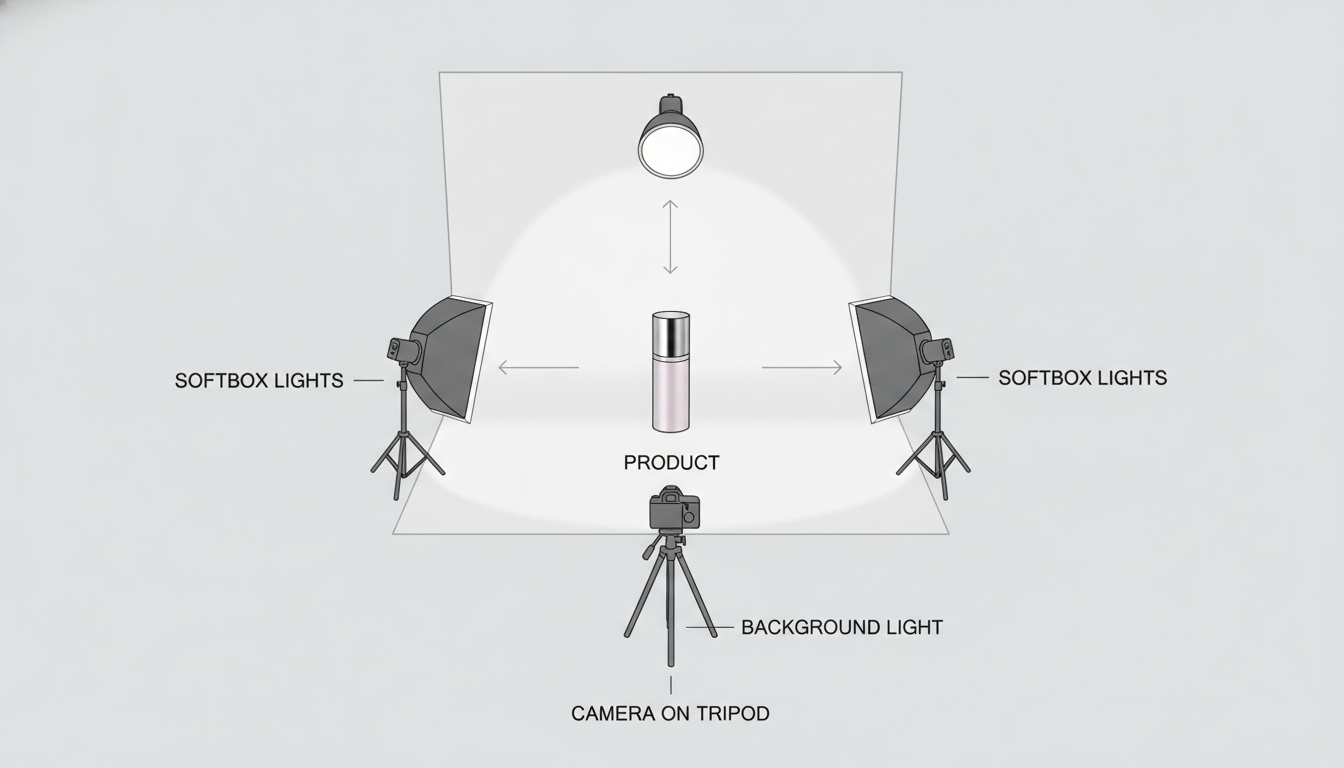
- A seamless white backdrop: a large sheet of paper or card curved into a sweep (no corner between floor and wall), or a light box.
- Soft light: two lights with diffusers, two large windows or a light box with built-in LEDs.
- A tripod, so every shot has the same framing.
- A camera or phone with manual control over exposure and white balance.
Step by step
- Curve the backdrop. Set it up so it runs from the wall down to the floor without a crease. That way there's no horizon line behind the product.
- Move the product away from the backdrop. Leave some distance between the product and the vertical part of the backdrop. This cuts down on hard shadows and color spill.
- Light the product. Two lights at roughly 45° on each side, slightly above.
- Light the background separately. This is the key: the background needs more light than the product. If both get the same amount, the background will come out light gray, not white.
- Set the white balance. Use a gray or white card. Otherwise your white will drift toward yellow or blue.
- Expose for the product, not the background. If you push the exposure until the background turns white, you risk blowing out the bright areas of the product.
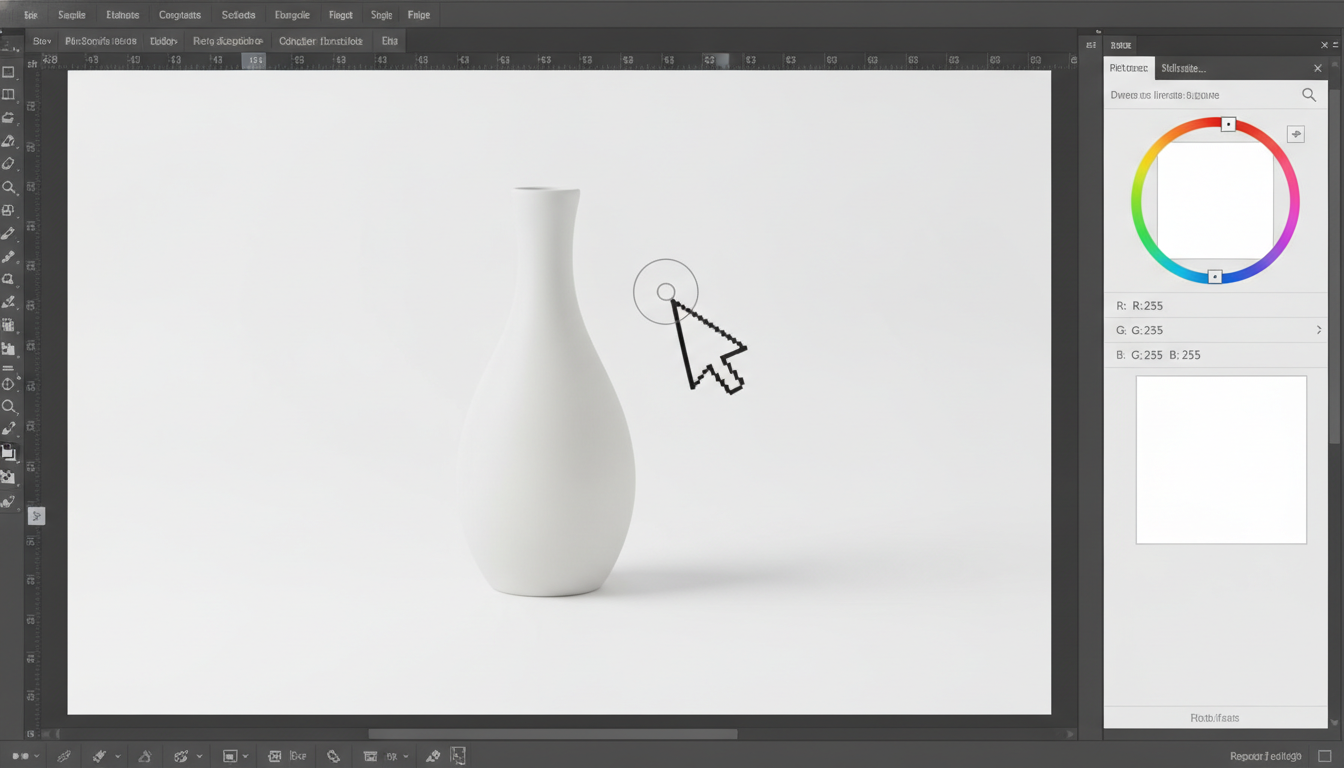
- Check on your computer. Use the eyedropper in your editor to confirm the background reads 255, 255, 255 or very close.
Final touch in editing
Even with a good shot, you'll almost always need a quick touch-up:
- Use Levels or Curves and set the background as the white point.
- If gray patches remain in the corners, paint them pure white using a mask that doesn't touch the product.
- Keep a soft shadow under the product so it doesn't look like it's floating.
Method 2: remove the background and add white afterwards
This is the practical option if you shoot on your phone, at home, against uneven backgrounds, or if you already have a catalog with mixed backgrounds.
Step by step with Pictulab
- Shoot with good contrast. The more the product stands out from the background, the cleaner the cutout. Avoid backgrounds the same color as the product.
- Open the Remove background tool. It's free and runs in your browser: your image is never uploaded to a server.
- Upload the photo and let it cut out the product. You'll get the product isolated on a transparent background.
- Place the product on white. Download the transparent PNG and drop it onto a pure white canvas in any image editor.
- Center and resize. Leave an even margin around the product.
- Export and compress. For the web, a JPG with a white background is usually enough. You can reduce the file size with the Compress tool, which is also free and runs in your browser.
If you want more than a white background
For secondary images, you can generate AI scenes or lifestyle backgrounds in Pictulab. These generations use tokens, and each one shows you its cost before you run it. The free account includes 100 welcome tokens, one time only and with no card required (100 tokens = €1).
Which method should you choose?
| Criteria | White background in-camera | Remove background afterwards (Pictulab) | Manual cutout (Photoshop or another editor) |
|---|---|---|---|
| Equipment needed | Backdrop, lights, tripod | Phone and browser | Professional editor |
| Time per photo | High setup time, low editing time | Low | High |
| Tricky edges (hair, glass, mesh) | Very good with the right lighting | Depends on the photo; may need checking | Very good with manual work |
| Natural shadows and reflections | Yes, real ones | Need to be added or preserved | Full control |
| Cost | Upfront investment in gear | Free tool | Software license |
In short:
- Shooting on white wins on realism: shadows and reflections are real, so you don't have to rebuild them.
- Manual cutouts in a professional editor win on fine control over complex edges (transparent products, hair, fringed fabrics), and match or beat any automatic cutout when the edge is really difficult.
- An automatic background remover wins on speed and needs no equipment, especially when you have a lot of photos.
Many stores mix approaches: automatic cutouts for most products and manual retouching only for the tricky ones.
Common marketplace requirements
Before you export, check the rules for every channel you sell on. A few points that come up often:
- Amazon: pure white background (RGB 255, 255, 255) on the main image, with the product filling at least 85% of the frame, according to its product image requirements (check the current version before uploading).
- Other marketplaces and Google Shopping: background and size requirements vary from platform to platform and change over time, so read each one's current image guidelines before uploading.
- Your own store (Shopify, WooCommerce, PrestaShop…): there's no requirement, but it pays to use the same size, margin and background across your whole catalog.
As a rule of thumb: if a platform asks for a white background, upload a JPG with the white already applied. Not every platform handles PNG transparency the same way.
Common mistakes (and how to avoid them)
- Gray instead of white. The background isn't getting enough light. Light it separately or fix it with Levels.
- Color cast. The white looks yellow or blue because of incorrect white balance. Fix it in-camera or in editing.
- Halo around the product. Leftover bits of the original background after the cutout. Check the edges at 100% zoom.
- Floating product. Remove every shadow and the product looks pasted on. Add a soft shadow underneath.
- Blown-out product. Overexposing to whiten the background wipes out detail in the product's bright areas.
- Inconsistent margins. Use a template with the same canvas size and margin for the whole catalog.
- Heavy image files. They slow down your store. Compress before uploading.
Try it with your own photos
Run a couple of your catalog photos through the Remove background tool and compare the results with your current images. If you then want to generate AI scenes or variations, the monthly plans (VAT included) are Starter €12, Pro €36 and Business €120, with two months free when you pay annually.
Start free — 100 bonus tokens, no card required.
You might also like:
- [ENLACE: how to take product photos with your phone]
- [ENLACE: recommended image size and format for online stores]
FAQ
What color code is pure white for product photos?
RGB 255, 255, 255, which is #FFFFFF in hex. Check it with your editor's eyedropper in several spots on the background, especially the corners.
Can I get a white background with photos taken on my phone?
Yes. The simplest way is to remove the background afterwards and place the product on white. Shooting in good light against a background that contrasts with the product makes a big difference.
Should I export as PNG or JPG?
If the platform asks for a white background, a JPG with the white already applied is usually the safest choice, and the file is smaller. Use a transparent PNG only if you plan to place the product on other backgrounds.
Do I need to remove the product's shadow?
Not necessarily. A soft shadow under the product makes it look more realistic. What you want to avoid are hard shadows or gray smudges that muddy the background.
Does Pictulab's background remover upload my photos to the internet?
No. Pictulab's web tools (remove background, compress and convert) are free and run in your browser; your images are never uploaded to a server.
Create visual content with AI for your business
Generate, edit and organize your images in one platform. Start free, no card required.
Get started free