An AI image generator creates new pictures from a text description or from a photo you already have. For an online shop, that means something very practical. You upload a photo of your product and describe the scene you want, such as a rustic wooden table, a bright bathroom shelf or a clean white background. You get an image ready for your product page, ads or social posts, with no photoshoot.
This guide walks you through it step by step. It covers how to write prompts that work and the limits to respect so the photo still shows your product exactly as it is.
What an AI image generator is and why it matters for online shops
An AI image generator is a model trained to produce images from instructions, usually called prompts. There are two basic ways to use one:
- Text to image: you describe what you want to see and the AI creates it from scratch.
- Image to image: you start from a real photo and the AI transforms it, for example by swapping the background or placing the item in a new setting.
For product photography, the second option is the one that counts. Your customer needs to see the item they'll actually receive, not an imagined version of it. So the usual approach is to photograph the product once, even on your phone, and let the AI handle everything around it: background, lighting, props and composition.
The most common uses in e-commerce are:
- Catalogue shots on a white or neutral background.
- Lifestyle images that help shoppers picture the product in use.
- Seasonal variations for Christmas, Black Friday, summer or back to school.
- Ad and social media creatives in different aspect ratios.
How to create product photos with AI, step by step
1. Take a decent base photo
You don't need a studio, but you do need a sharp photo. Use soft, indirect daylight, avoid harsh shadows and make sure the shape, colour and labels are clearly visible. The better your starting photo, the more faithful the result.
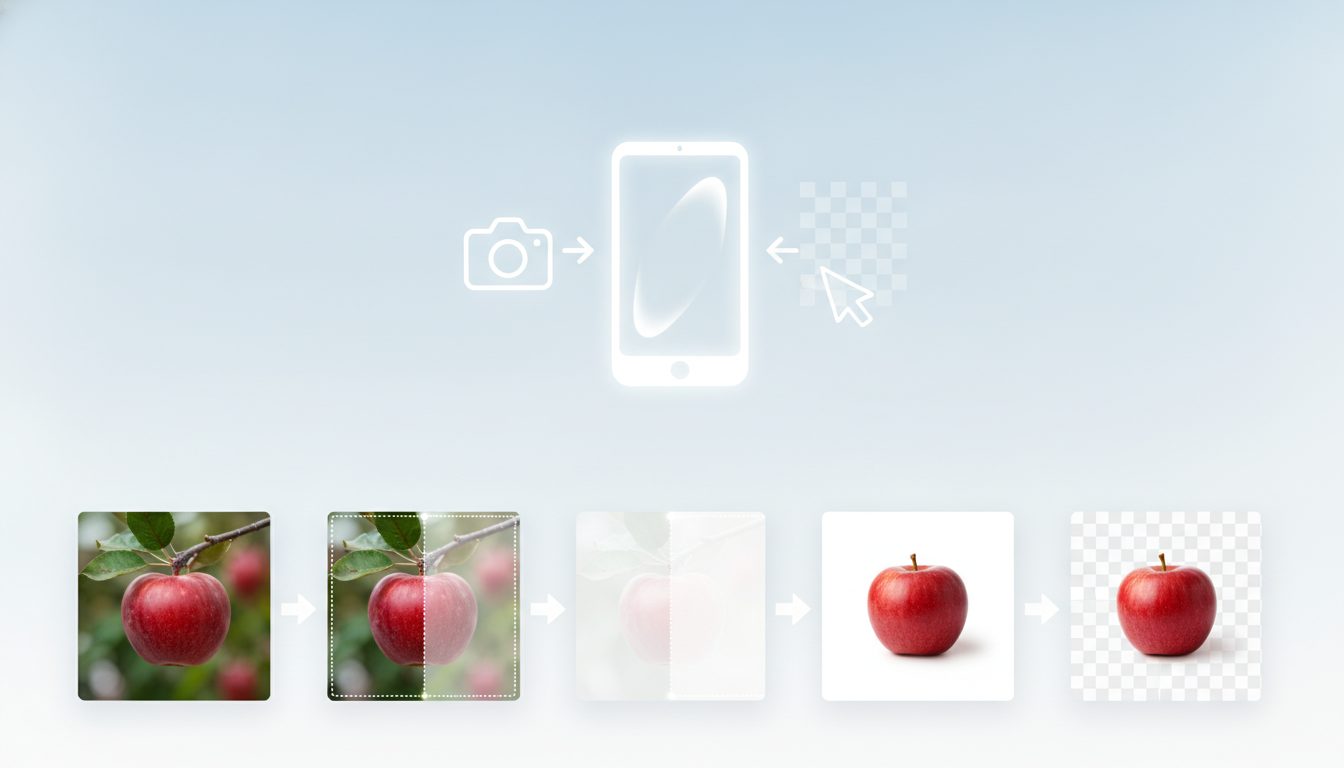
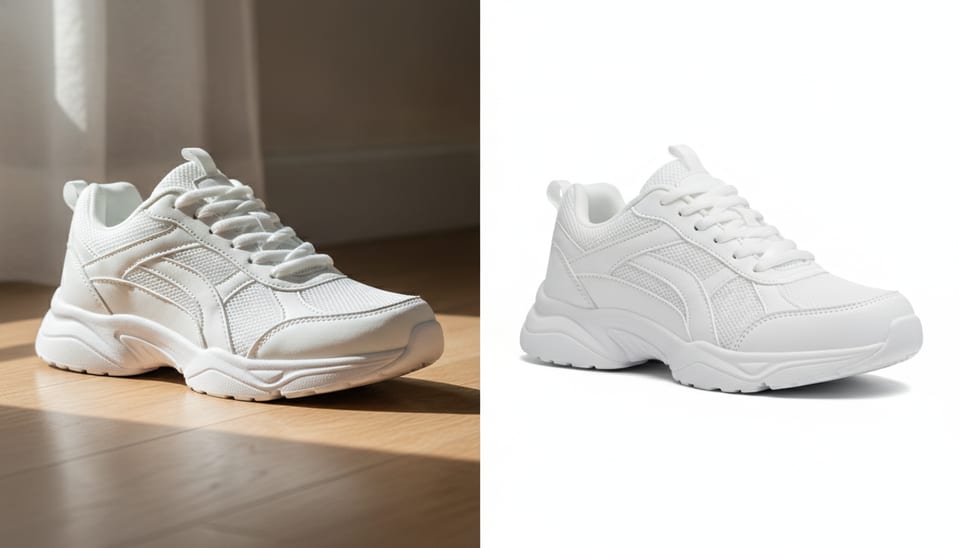
2. Cut the product out of its background
Before generating a new scene, it helps to isolate the product. You can do this for free with Pictulab's background remover. It runs in your browser, so your image is never uploaded to a server.
3. Describe the scene you want
With the product cut out, open the Pictulab image generator and describe where you want it placed. Before you generate, you'll see exactly how many tokens it costs, so there are no surprises.
4. Check the product hasn't changed
Don't skip this one. Compare the generated image with the original: colours, logo, proportions, number of pieces and texture. If anything looks off, generate again or tweak your prompt.
5. Export in the right format
Every channel has its own preferred sizes and formats. To keep your site fast, run your final images through the image compressor, and change the format if needed with the image converter. Both are free and work in your browser.
How to write prompts that get good results
The quality of the output depends heavily on how you describe the scene. A useful prompt usually includes:
- Surface or setting: 'on a white marble worktop', 'on a bathroom shelf'.
- Lighting: 'soft morning daylight', 'diffused studio lighting'.
- Mood or style: 'minimalist', 'warm and rustic', 'Scandinavian'.
- Supporting props: 'with eucalyptus leaves beside it', 'with a blurred coffee cup in the background'.
- Framing: 'front view', 'flat lay', 'product centred with empty space on the right'.
A few practical examples:
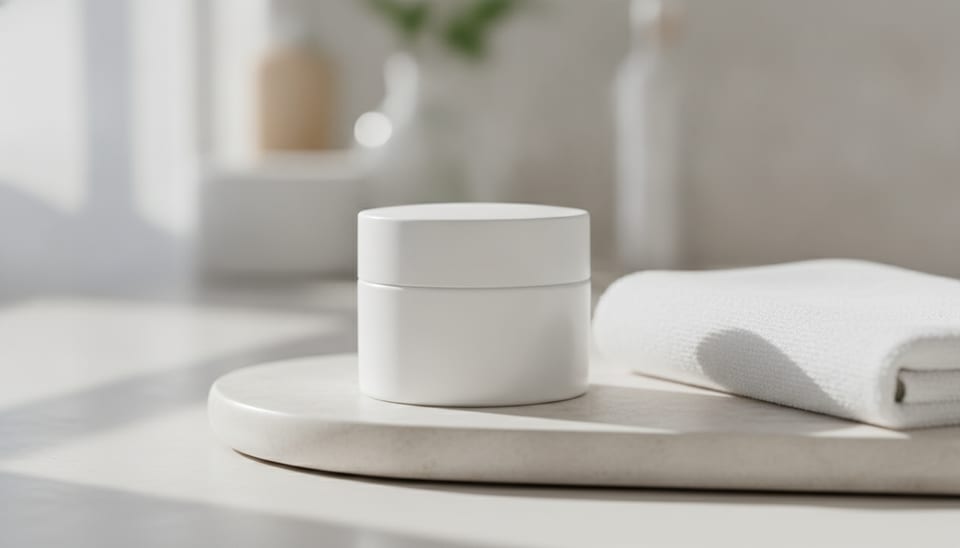
- Skincare: 'on a light stone tray next to a folded white towel, soft natural light, clean style'.
- Jewellery: 'on beige linen fabric, warm side lighting, close-up shot'.
- Kitchenware: 'on a light wooden dining table, with bread and fruit blurred in the background, midday light'.
Don't ask for too much at once. If the scene gets cluttered, the product stops being the hero, which is the opposite of what you want.
What kinds of images you can create for your shop
From a single base photo you can produce several different assets:
- Main catalogue image: white or neutral background. Some marketplaces, such as Amazon, require a white background for the main image, so always check each platform's rules.
- Secondary lifestyle images: they show the product in context and help shoppers understand size and use.
- Seasonal campaigns: change the setting without reshooting anything.
- Social formats: square, portrait or landscape depending on where you're posting.
Pictulab also lets you work with AI video, which is handy if you want to add movement to your products in social posts or ads.
What the AI shouldn't change
Using an image generator for your product pages comes with a responsibility: the photo has to represent what you sell accurately. If a customer receives something different from what they saw, they'll most likely return it or leave a bad review.
As a rule of thumb:
- Fine to change: background, ambient light, props, composition.
- Don't change: the product's real colour, its apparent size relative to everyday objects, materials, finishes, logos or what's included in the box.
If a lifestyle shot could mislead (for example, accessories that aren't included), pair it with a clean image of the product on its own and spell out in the description what's in the package.
General-purpose generator or a tool built for online shops?
There are general-purpose image generators, such as Midjourney or the one built into ChatGPT, and tools designed for e-commerce, such as Pictulab. Which one suits you depends on what you need.
Where general-purpose generators may suit you better:
- Free-form creativity: if you're after illustrations, artistic concepts or images that don't start from a real product, that's what they're built for.
- Community and resources: because they're so widely used, you'll find more tutorials, prompt examples and forums to help you out.
Where an e-commerce tool like Pictulab may suit you better:
- Product workflow: cut out, generate a scene, compress and convert, all in one place.
- Cost shown upfront: every generation tells you how many tokens it uses before you run it.
- Free, private basic tools: background removal, compression and conversion run in your browser without uploading your images.
Plenty of sellers use both: a general-purpose tool for ideas and concepts, and a product-focused tool for the photos that go on the shop.
How much does Pictulab's AI image generator cost?
Pictulab runs on tokens. When you sign up you get 100 welcome tokens, once, with no card required. For reference, 100 tokens are worth €1.
If you need more, there are three monthly plans (VAT included):
- Starter: €12 a month.
- Pro: €36 a month.
- Business: €120 a month.
Pay annually and you get two months free. And remember, the background remover, compressor and converter web tools are free.
Start free — 100 tokens on us, no card needed.
You might also like:
- [ENLACE: how to remove the background from product photos]
- [ENLACE: white background product photos for marketplaces]
FAQs
Can I use an AI image generator for my shop's product photos?
Yes, as long as the image represents the product accurately. The best approach is to start from a real photo and use AI for the background and scene, not to invent the item itself.
Do I need photography or design skills?
No. All you need is a sharp photo of the product, even one taken on your phone, and a clear description of the scene you want.
How much does each image cost on Pictulab?
It depends on the type of generation. You'll see the token cost before you run each one, and you can start with the 100 welcome tokens without entering a card.
Are my photos uploaded to a server when I remove the background?
No. The background remover, compressor and converter web tools work in your browser, so your images are never uploaded to a server.
What should I do if the AI changes my product's colour or shape?
Discard that image and generate again with an adjusted prompt. If the product keeps changing, start from a better-lit base photo and cut it out before creating the scene.
Create visual content with AI for your business
Generate, edit and organize your images in one platform. Start free, no card required.
Get started free